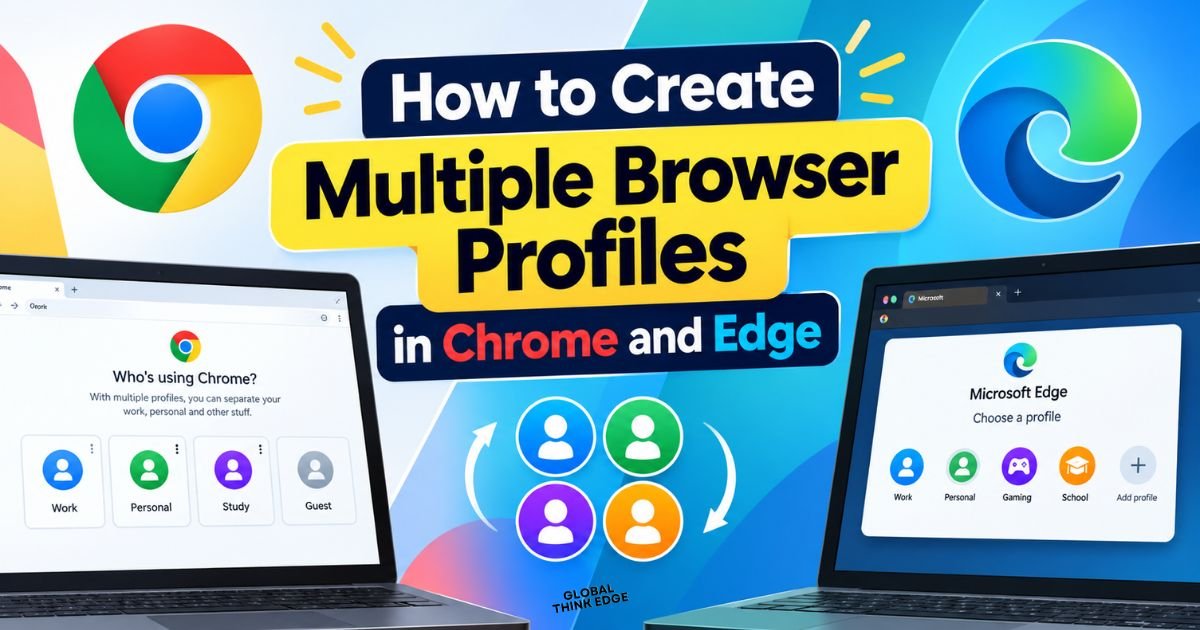
How to Create Multiple Browser Profiles in Chrome and Edge
Creating multiple browser profiles lets you separate your work, school, and personal browsing without installing different browsers. You can create profiles in Google Chrome, Mozilla Firefox, and Microsoft Edge, then customize each one with its own bookmarks, browsing history, saved passwords, extensions, and settings.
For example, you can use one profile for your business website, another for personal browsing, and a third for research. This makes your daily browsing more organized and reduces the chances of mixing accounts.
What Are Multiple Browser Profiles?
Multiple browser profiles are separate browsing environments inside the same browser. Each profile stores its own browsing information and preferences, allowing you to switch between different activities without repeatedly signing in and out of websites.
When you create separate profiles, you can:
- Keep work and personal bookmarks separate.
- Use different accounts on the same website.
- Manage separate browsing histories and saved passwords.
- Install different extensions for different tasks.
- Customize each profile with its own name, picture, and theme.
Remember that browser profiles are not the same as private browsing or Incognito mode. A profile keeps its data between sessions, while private browsing generally removes temporary session data after you close its windows.
How to Create Multiple Profiles in Chrome
You can create multiple profiles in Google Chrome directly from the profile menu on your computer. You do not need to install Chrome again or create a separate Windows user account for every profile.
Step 1: Open Google Chrome
Launch Chrome on your Windows, Mac, or Linux computer. Make sure you are using the desktop version because the full profile-management options are not available in the same way on mobile devices.
Step 2: Open the Profile Menu
Look at the upper-right corner of your browser window and click the profile icon. Depending on your settings, it may display your picture, initials, or a generic person icon.
Step 3: Add a New Profile
Select Add Chrome profile or the equivalent option shown in your version of Chrome. Follow the on-screen instructions to create a new profile.
You can sign in with a Google Account if you want to synchronize bookmarks, passwords, and other supported information. Alternatively, you can use the profile without signing in to a Google Account.
Step 4: Customize Your Profile
Choose a recognizable profile name, picture, and color scheme. For example, you might use these names:
- Work and Business
- Personal Browsing
- SEO Research
- Client Projects
Once you finish, Chrome opens a separate window for the new profile. You can now install extensions, save bookmarks, and sign in to websites independently of your other profiles.
Step 5: Create More Profiles
Repeat the same process whenever you need another browsing environment. You can create separate profiles for different projects, clients, or online accounts.
Google does not publish a simple universal maximum number that applies to every Chrome installation. The practical number depends on your device resources and how many profiles you need to manage.
For additional details, see the official Google Chrome profile instructions.
Can You Have Multiple Profiles in Chrome With One Account?
Yes. You can create multiple Chrome profiles on the same computer while using the same Google Account, or you can use different accounts for different profiles.
However, signing into the same Google Account in multiple profiles does not automatically make all their local browser data identical. Each profile maintains its own browsing environment, and synchronization depends on your sign-in and sync settings.
For example, you can create one profile for business research and another for personal browsing. Both can use the same Google Account, but you should check your synchronization settings if you want bookmarks or passwords to remain separate.
If you want stronger separation between your work and personal Google services, using different Google Accounts may be more suitable.
How Do You Create a Second Profile in Chrome?
Creating a second Chrome profile follows the same process as creating your first one.
- Open Chrome on your computer.
- Click the profile icon in the upper-right corner.
- Select the option to add a profile.
- Choose whether to sign in or continue without an account.
- Set a name and customize its appearance.
- Start browsing in the new window.
You can use this second profile for a different email account, social media account, business website, or research project.
How Do You Switch to a Different Profile in Chrome?
You can switch between Chrome profiles without deleting your existing tabs, bookmarks, or saved settings.
- Click the profile icon in Chrome.
- Find the list of available profiles.
- Select the profile you want to use.
- Continue browsing in the window that opens.
You can also keep multiple profile windows open simultaneously. This is helpful when you need to compare websites, manage different accounts, or work on several projects at once.
Can You Change Chrome Profiles Without Opening a New Window?
Chrome’s standard profile-switching process opens or brings forward a window associated with the selected profile. It does not simply transform the current window into another profile while retaining its existing session.
If you want to keep your workspace organized, leave each profile in its own window and switch between those windows when needed.
How Do You Make Chrome Open in a New Window?
To open a website in a separate window, right-click its link and select Open link in new window. You can also use the browser menu to open a new window within the current profile.
If you want a website to open in another profile, switch to that profile first and open the website there. Opening a new window alone does not automatically create or select a different profile.
How to Make Chrome Automatically Open in a New Tab
If you want Chrome to display a specific page whenever you launch the browser, open Settings and look for the On startup section. Depending on your preference, you can choose to open the New Tab page, continue where you left off, or open specified pages.
To make Chrome automatically open a particular website in a new tab, you can set it as a startup page or open it manually in a new tab. The exact behavior depends on your startup settings and whether you want one or several pages to open.
Why Is Chrome Automatically Opening Two Tabs?
Chrome may open two tabs at startup because multiple pages are configured under its startup settings. An extension, restored session, or shortcut configuration can also contribute to unexpected tabs.
To investigate:
- Open Chrome Settings.
- Select On startup.
- Check whether multiple websites are listed.
- Remove unwanted startup pages.
- Review extensions if the issue continues.
Restart Chrome to see whether the problem is resolved.
How to Create Multiple Profiles in Firefox
Mozilla Firefox also supports multiple profiles, allowing you to maintain separate bookmarks, settings, passwords, and browsing information within one browser installation.
Firefox’s profile-management interface can vary by version because Mozilla has been rolling out an updated profile manager. If you do not see the newer options, you can use the traditional profile-management page.
Step 1: Open Firefox
Launch Firefox on your computer and click the address bar.
Step 2: Open the Profile Manager
Type the following address into the address bar and press Enter:
about:profiles
Firefox opens a page where you can view and manage your existing profiles.
Step 3: Create a New Profile
Select Create a New Profile and follow the instructions in the profile wizard. Give your profile a name that clearly identifies its purpose.
For example, you can create profiles named Work, Personal, Testing, or Research.
Step 4: Launch the New Profile
After creating the profile, use the available launch option to open Firefox with that profile. You can also set a profile as the default if you want Firefox to use it when starting.
Step 5: Manage Additional Profiles
Return to about:profiles whenever you need to create, rename, or manage profiles. Depending on the available options, you can launch another profile in a new browser window.
For official instructions, visit Mozilla’s Firefox Profile Manager support page.
Does Firefox Have Multiple Profiles?
Yes. Firefox supports multiple profiles, and each profile stores its own browser data and settings. This feature is useful when you want to separate work from personal browsing or test websites with different configurations.
For example, a developer can use one profile for normal browsing and another for testing extensions or website behavior. You can also use separate profiles to keep different sets of bookmarks and browsing preferences organized.
Where Are Firefox Profiles Kept?
Firefox stores profile information in a dedicated folder on your computer, separate from the browser’s program files. The folder contains data such as bookmarks, saved passwords, preferences, and other profile information.
To find the exact location, open Firefox and enter:
about:profiles
Look for the profile’s Root Directory or equivalent folder-location information. You can use the displayed path to identify where Firefox stores that profile’s data.
Where Is the Firefox Profile Storage Folder Located?
The location depends on your operating system and Firefox installation.
Common default locations include:
- Windows: %APPDATA%\Mozilla\Firefox\Profiles\
- macOS: ~/Library/Application Support/Firefox/Profiles/
- Linux: ~/.mozilla/firefox/
These are common locations, not guaranteed paths for every installation. The about:profiles page is the most reliable way to find the actual profile directory on your device.
Avoid manually changing or deleting profile files unless you know what they contain. Removing the wrong files can cause you to lose bookmarks, passwords, or other saved information.
Why Do You Have Two Firefox Profiles?
You may have two Firefox profiles because Firefox created or retained another profile during an installation, update, troubleshooting process, or previous manual setup.
Multiple profiles are not necessarily a problem. One may contain your existing browsing information, while another may have been created for testing or troubleshooting.
Open about:profiles to review the available profiles. Check their folder locations and identify which one contains your important data before removing anything.
How Do You Create a Firefox Profile When Firefox Is Closed?
On Windows, you can use the traditional Firefox Profile Manager.
- Close Firefox.
- Press Windows + R.
- Enter firefox.exe -P.
- Press Enter.
- Select the option to create or manage a profile.
The command may vary if Firefox is installed in a custom location or multiple installations exist. If the command does not work, use about:profiles from an open Firefox window instead.
How to Create Multiple Profiles in Microsoft Edge
Microsoft Edge lets you create separate profiles for work, school, and personal use. Each profile can maintain its own bookmarks, passwords, browsing history, extensions, and preferences.
Step 1: Open Microsoft Edge
Launch Edge on your computer.
Step 2: Open the Profile Menu
Click the profile icon in the upper-right corner of the browser.
Step 3: Set Up a New Profile
Select Set up a new profile or the equivalent option in your version of Edge. Choose whether the profile is for personal use or work or school, where applicable.
Step 4: Sign In or Continue Without Syncing
You can sign in with a Microsoft Account to synchronize supported browser data or start without importing or synchronizing your existing data.
Choose the option that best fits how you want to manage the profile.
Step 5: Customize and Use Your Profile
Give the profile a recognizable name and select the available appearance settings. Edge opens a separate window for the new profile.
You can repeat these steps to create additional profiles and switch between them through the profile menu.
For more information, see Microsoft Edge’s official profile instructions.
Can You Have Two Browser Profiles on an Android Phone?
You can separate some browsing activities on Android, but the options depend on the browser and device.
Can You Have Two Chrome Profiles on Your Phone?
Chrome on Android does not provide the same desktop-style multiple-profile manager that you get on a computer. You can use different Google Accounts in supported Google apps and services, but this does not create two fully separate Chrome browser profiles.
Depending on your needs, you can use Chrome’s regular and Incognito modes, or use separate Android user profiles if your device supports them. Remember that Incognito mode is temporary private browsing, not a permanent second profile.
Can You Have Two Profiles on an Android Phone?
Some Android devices support multiple device users, allowing different users to maintain separate apps, accounts, and settings. Availability depends on the device manufacturer, Android version, and device configuration.
To check, open Android Settings and search for Multiple users or Users. If your phone supports the feature, follow the instructions to add another user.
Each Android user can have a separate browser setup, but this is different from adding a second profile inside Chrome itself.
What Do Ctrl+K and Other Keyboard Shortcuts Do in Chrome and Firefox?
The Ctrl + K shortcut is commonly used to move focus to a browser’s search field or search function, depending on the browser and its configuration. In Chrome, the address bar is also commonly focused using Ctrl + L or Alt + D. Firefox supports search-related shortcuts, although the precise behavior can vary with settings and platform.
If you want to switch profiles, these shortcuts are not the primary method. Use the profile menu or the relevant profile-management page instead.
Why Are Multiple Browser Profiles Useful?
Multiple browser profiles help you organize your digital activities without juggling separate browser installations.
For work: Keep business email, project tools, and work bookmarks in one profile.
For personal use: Keep shopping accounts, entertainment sites, and personal bookmarks in another.
For SEO and research: Use separate profiles for client websites, analytics accounts, keyword research, and testing. This makes it easier to keep your workspaces organized, although profiles do not guarantee unbiased search results or different search rankings.
For website testing: Maintain different extensions and settings so you can check how a website behaves in different browser environments.
Remember that profiles on the same computer are not a substitute for strong device security. Someone who can access your unlocked browser may be able to open your other profiles and view their information.
Is It Better to Use Chrome, Firefox, or Edge for Multiple Profiles?
The best browser depends on your workflow and the features you need.
| Browser | Best use | Profile management |
| Google Chrome | Google services, business tools, and everyday browsing | Straightforward desktop profile menu |
| Mozilla Firefox | Separate browsing environments and flexible testing | Profile manager and about:profiles |
| Microsoft Edge | Microsoft 365, workplace accounts, and Windows workflows | Desktop profile menu with work and personal options |
You do not need to use all three browsers. If your current browser supports the features you need, creating separate profiles is often simpler than switching between different browser applications.
Why Are People Leaving Chrome?
Some users leave Chrome because of privacy concerns, resource usage, browser preferences, or dissatisfaction with changes to extensions and features. Others continue using Chrome because of its Google integration, compatibility, and familiar interface.
There is no single reason that applies to everyone. Before switching, consider your extension requirements, device performance, privacy preferences, and the websites you use.
Why Is Apple Saying Not to Use Chrome?
Apple has promoted Safari’s privacy features and its integration with Apple devices, but that does not mean every Chrome user must stop using Chrome. Browser recommendations often reflect a company’s approach to privacy, performance, and its own ecosystem.
Compare the current privacy controls and features of Safari and Chrome before deciding which browser suits your needs.
What Is Replacing Chrome?
There is no single browser replacing Chrome for everyone. Alternatives include Mozilla Firefox, Microsoft Edge, Apple Safari, Brave, and other browsers, each with different strengths.
Choose a browser based on security updates, privacy settings, extension support, compatibility, and performance rather than assuming one browser is universally best.
Can You Still Use Google Without Chrome?
Yes. You can use Google Search, Gmail, Google Drive, and many other Google services in supported browsers, including Firefox, Edge, and Safari.
Chrome is Google’s browser, but it is not required to access Google Search or most Google web services.
Why Should You Stop Using Google Chrome?
You do not necessarily need to stop using Chrome. You might consider an alternative if you prefer another browser’s privacy controls, performance, customization, or built-in features.
If Chrome works well for your needs, you can continue using it while reviewing its privacy settings, removing unnecessary extensions, and keeping it updated.
What Is the Least Safe Browser?
There is no reliable universal ranking that makes one browser the least safe in every situation. Security depends on whether the browser receives updates, how you configure it, the extensions you install, and how you use it.
Choose a browser that receives regular security updates, remove extensions you do not trust, and avoid suspicious downloads and websites. Keeping your browser updated is more useful than relying on a simplistic safety ranking.
Do You Need Both Google and Chrome?
No. Google is a company and a collection of services, while Chrome is a web browser. You can use Google Search without Chrome, and you can use Chrome without making Google Search your default search engine.
They work together, but they are not the same product.
Tips for Managing Multiple Browser Profiles Safely
Follow these practices to keep your profiles useful and organized:
- Use clear names: Label each profile according to its purpose.
- Choose distinct colors: Make it easier to identify the correct window.
- Review sync settings: Check which bookmarks, passwords, and other information are synchronized with your account.
- Keep extensions organized: Install only the extensions you need in each profile.
- Protect your device: Profiles do not automatically prevent another person using your unlocked computer from accessing them.
- Back up important information: Save essential bookmarks and other data before deleting or modifying a profile.
- Remove unused profiles carefully: Deleting a profile can permanently remove local browsing information.
Final Verdict
Creating multiple browser profiles is an easy way to separate your personal, professional, and research activities. Chrome offers a simple desktop profile menu, Firefox provides profile-management tools such as about:profiles, and Edge supports separate work and personal environments.
For most users, the best approach is to start with two profiles: one for work and one for personal browsing. Add more only when you need a genuinely separate set of bookmarks, settings, extensions, or accounts. This keeps your browser organized without making everyday browsing unnecessarily complicated.
