Chrome Flags for Gaming: Better Speed with Expert Tips
What Are Chrome Flags for Gaming?
Short Answer: Chrome flags for gaming are experimental Chrome features that can improve browser responsiveness, graphics rendering, scrolling, and resource management. While they won’t transform a low-end PC into a gaming machine, the right flags can reduce browser overhead, improve cloud gaming performance, and deliver smoother gameplay in browser-based games.
If you play browser games or use cloud gaming platforms like GeForce NOW, Xbox Cloud Gaming, or Amazon Luna, Chrome’s default settings may not provide the best experience. Chrome includes hidden experimental features known as Chrome Flags that let advanced users fine-tune browser behavior.
These settings are primarily intended for testing, but some can provide measurable improvements in graphics performance, latency, and overall responsiveness when used correctly. Understanding which flags help and which should be avoided is essential for a stable gaming experience.
Understanding Chrome Flags
Chrome flags are hidden experimental options available through the chrome://flags page.
Google uses them to test upcoming browser features before public release. Some eventually become standard Chrome features, while others disappear after testing.
Unlike browser extensions, flags modify Chrome’s internal behavior. Because they are experimental, results vary depending on your operating system, hardware, Chrome version, and graphics drivers.
Do Chrome Flags Increase FPS?
In most cases, no.
Chrome flags generally don’t increase game FPS dramatically. Instead, they improve:
Browser responsiveness
Graphics rendering efficiency
GPU utilization
Input responsiveness
Reduced stuttering
Better cloud gaming performance
Smoother WebGL rendering
For browser games, these improvements often feel more noticeable than a small FPS increase.
Best Chrome Flags for Gaming
GPU Rasterization
Recommended: Enabled
GPU rasterization shifts certain rendering tasks from the CPU to the graphics card.
Benefits include:
Faster page rendering
Smoother animations
Better WebGL performance
Lower CPU usage during gaming
This flag is especially helpful on systems with dedicated graphics cards.
Zero-Copy Rasterizer
Recommended: Enabled (if available)
This feature reduces unnecessary memory copying during rendering.
Advantages include:
Lower rendering latency
Faster texture uploads
Improved graphics efficiency
Availability depends on your Chrome version.
Vulkan Graphics Backend
Recommended: Test before permanent use
If your GPU and drivers fully support Vulkan, Chrome can render graphics more efficiently than traditional APIs.
Possible benefits:
Lower graphics overhead
Better GPU utilization
Improved rendering consistency
However, compatibility varies widely, making testing essential.
Parallel Downloading
Although not directly related to gaming, enabling parallel downloading speeds up downloading:
Game updates
Browser assets
Large files
Mods
It improves download performance by splitting downloads into multiple connections.
Smooth Scrolling
For gamers browsing guides, streaming content, or using cloud gaming services, Smooth Scrolling creates a more fluid browsing experience.
Benefits include:
Better scrolling
Reduced visual stutter
Improved responsiveness
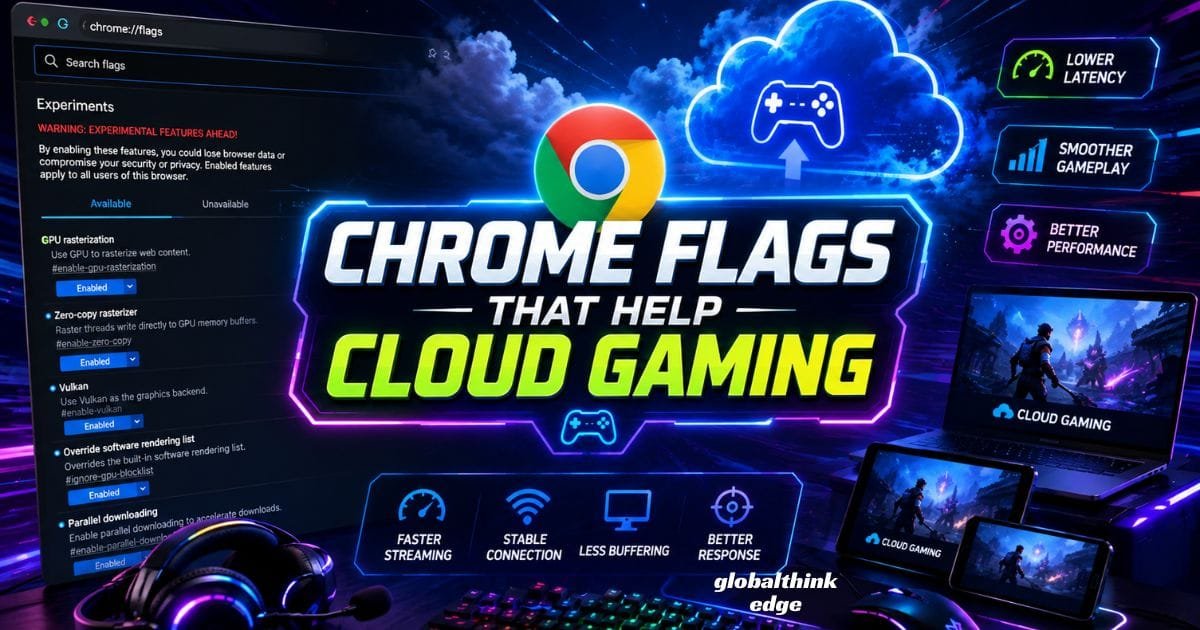
Chrome Flags That Help Cloud Gaming
Cloud gaming depends more on browser efficiency than local hardware performance.
Recommended flags include:
| Flag | Benefit |
| GPU Rasterization | Better graphics rendering |
| Zero-Copy Rasterizer | Lower latency |
| Vulkan | Improved graphics pipeline |
| Smooth Scrolling | Better UI responsiveness |
| Hardware Acceleration | Reduced CPU usage |
Together, these settings help reduce browser overhead during streaming sessions.
Hardware Acceleration Matters More Than Flags
Many users overlook Chrome’s built-in hardware acceleration.
To enable it:
1. Open Chrome settings.
2. Navigate to System.
3. Enable use of hardware acceleration when available.
4. Restart Chrome.
Hardware acceleration allows Chrome to use your GPU for rendering instead of relying mainly on the CPU.
For gaming, this often provides greater benefits than enabling multiple experimental flags.
Best Chrome Settings for Browser Gaming
Chrome flags work best when combined with optimized browser settings.
Consider these adjustments:
Close Unnecessary Tabs
Every open tab consumes:
RAM
CPU cycles
GPU resources
Keeping only gaming-related tabs open improves performance.
Disable Heavy Extensions
Some extensions continuously run in the background.
Disable:
Shopping extensions
Multiple ad blockers
Unused productivity tools
Cryptocurrency trackers
Fewer background processes mean more available system resources.
Clear Browser Cache
A bloated cache can occasionally reduce browser responsiveness.
Clear:
Cached images
Temporary files
Old website data
Do not delete saved passwords unless necessary.
Keep Chrome Updated
Google frequently improves the following:
GPU optimization
JavaScript performance
WebGPU support
Browser stability
Using the latest stable version ensures access to the newest performance enhancements.
Chrome Flags You Should Avoid
Not every experimental feature improves gaming.
Avoid enabling random flags simply because online forums recommend them.
Potential risks include the following:
Browser crashes
Rendering glitches
Higher CPU usage
Memory leaks
Compatibility problems
Enable only one or two flags at a time and test performance before making additional changes.
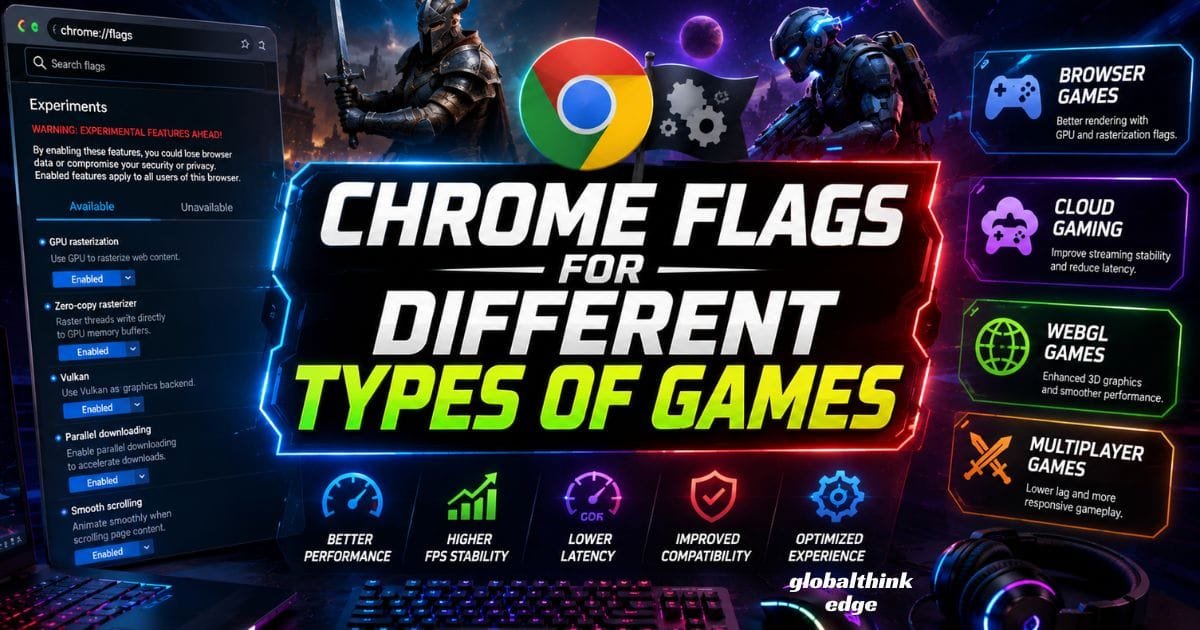
Chrome Flags for Different Types of Games
Browser-Based Games
Games running directly in Chrome benefit most from:
GPU Rasterization
Zero-Copy Rasterizer
Hardware Acceleration
These improve rendering efficiency without significantly affecting stability.
Cloud Gaming Platforms
Cloud gaming benefits from:
Hardware Acceleration
Vulkan (if stable)
GPU Rasterization
Stable internet connection
Network quality remains the biggest performance factor.
WebGL Games
Games built using WebGL often respond well to:
GPU acceleration
Faster graphics pipelines
Updated graphics drivers
Here, browser optimization complements capable hardware.
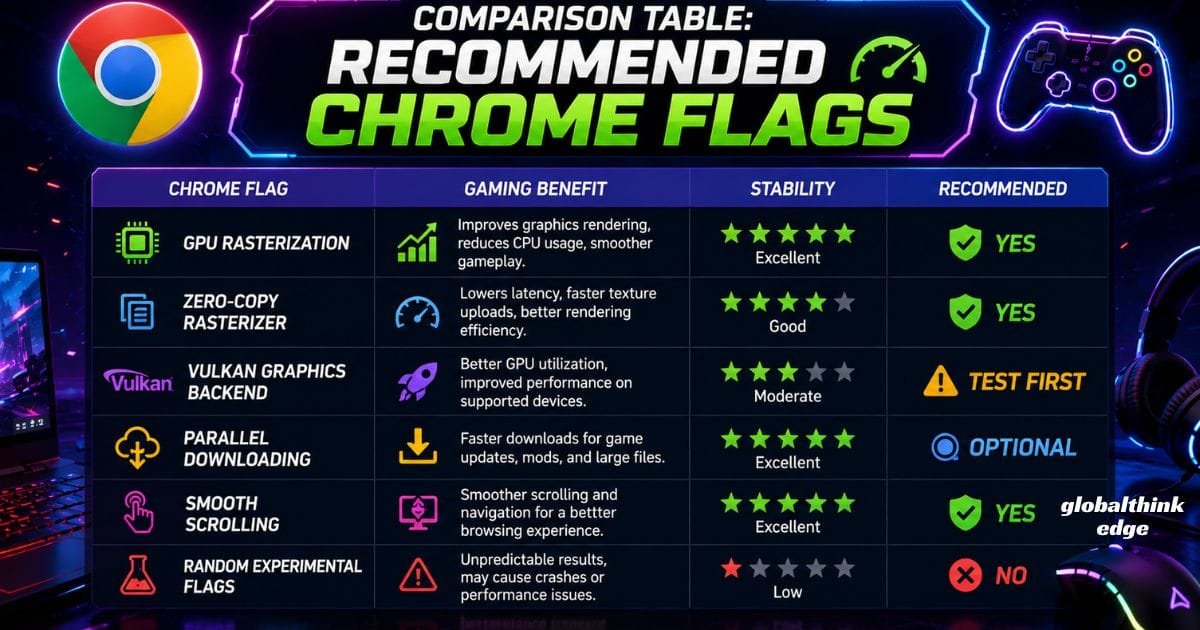
Comparison Table: Recommended Chrome Flags
| Chrome Flag | Gaming Benefit | Stability | Recommended |
| GPU Rasterization | High | Excellent | ✅ Yes |
| Zero-Copy Rasterizer | Medium | Good | ✅ Yes |
| Vulkan | Medium to High | Moderate | Test First |
| Parallel Downloading | Downloads Only | Excellent | Optional |
| Smooth Scrolling | Better Navigation | Excellent | Yes |
| Random Experimental Flags | Unpredictable | Low | ❌ No |
Common Mistakes Gamers Make
Many users expect Chrome flags to replace proper hardware optimization.
Common mistakes include:
Enabling dozens of flags simultaneously
Ignoring graphics driver updates
Leaving hundreds of tabs open
Running heavy extensions during gameplay
Forgetting hardware acceleration
Using outdated Chrome versions
The best performance comes from balanced browser optimization rather than aggressive experimentation.
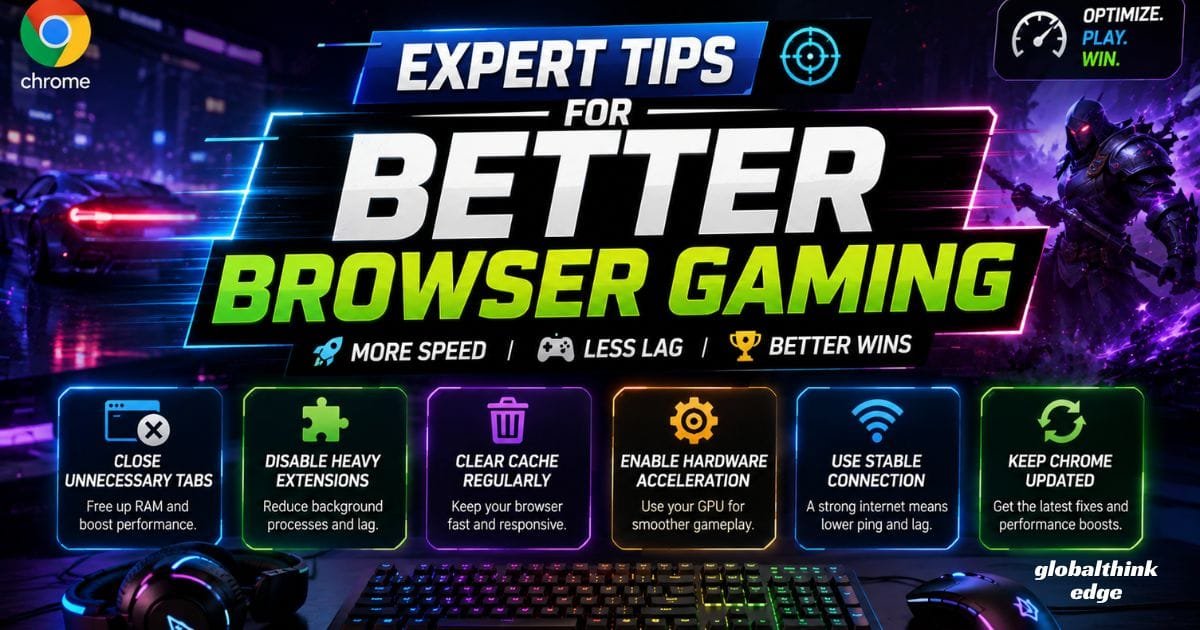
Expert Tips for Better Browser Gaming
For the smoothest experience:
Restart Chrome after changing flags.
Test one flag at a time.
Update GPU drivers regularly.
Use Ethernet instead of Wi-Fi whenever possible.
Keep Windows and Chrome updated.
Close background applications consuming RAM.
Monitor CPU and GPU usage during gameplay.
These practices often deliver greater improvements than enabling additional experimental features.
Frequently Asked Questions
Are Chrome flags safe?
Yes, but they are experimental. Most are safe to test, though some may reduce browser stability.
Can Chrome flags increase FPS?
Usually only slightly. Their primary benefit is smoother rendering and improved browser responsiveness rather than dramatic FPS gains.
Which Chrome flag is best for gaming?
GPU rasterization is generally considered the most useful gaming-related flag because it improves graphics rendering efficiency.
Should I enable every performance flag?
No. Enabling too many experimental settings can create conflicts and reduce browser stability.
Do Chrome flags help cloud gaming?
Yes. Certain flags, combined with hardware acceleration and a stable internet connection, can improve the cloud gaming experience.
Key Takeaways
Chrome flags can fine-tune browser performance, but they are not miracle performance boosters. Features like GPU rasterization, zero-copy rasterization, and hardware acceleration offer the most practical improvements for browser and cloud gaming.
Instead of enabling every experimental option, focus on proven settings, maintain updated graphics drivers, keep Chrome current, and reduce unnecessary background activity. This balanced approach delivers smoother gameplay, better responsiveness, and a more reliable gaming experience without sacrificing browser stability.
