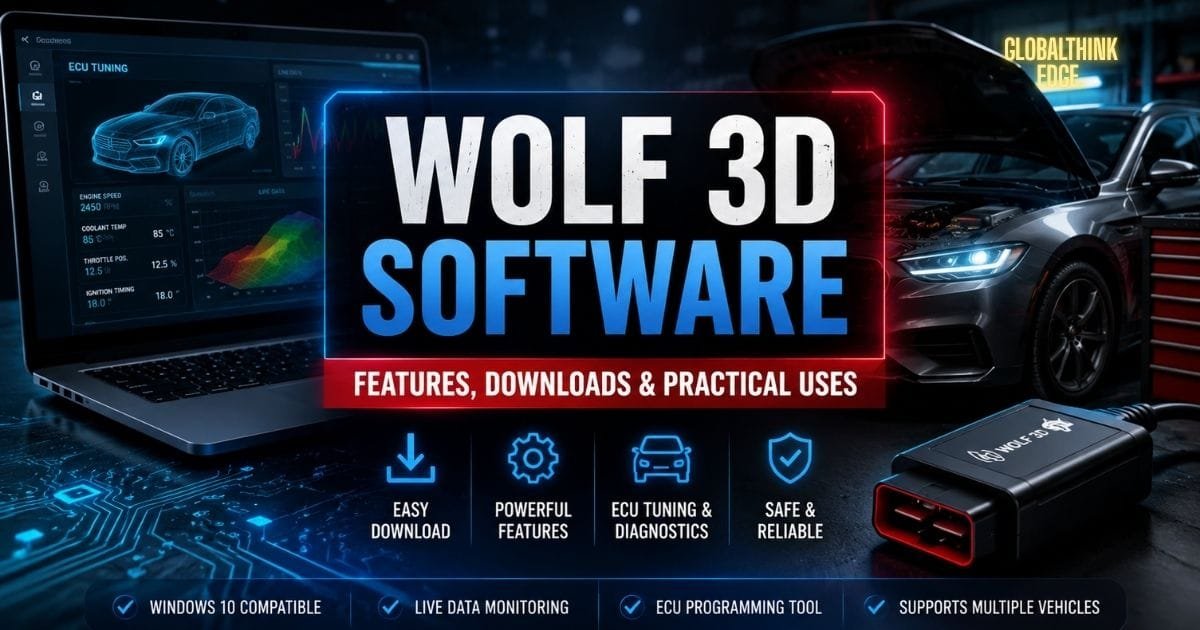
Wolf 3D Software: Smart Features & Downloads Explained
What Is Wolf 3D Software?
The term ‘Wolf 3D software‘ can describe different types of software depending on the context. Some users are searching for the classic Wolfenstein 3D game engine, while others are looking for Wolf 3D ECU software used in automotive tuning or GT Software Wolf 3D for vehicle diagnostics and programming. Because these products serve different purposes, understanding which version matches your needs is essential before downloading or using it.
Today, Wolf 3D software is commonly associated with automotive applications, where technicians use it to configure engine control units (ECUs), monitor performance, and perform advanced diagnostics. At the same time, many users still search for classic gaming software or related utilities under the same name.
This guide explains the different meanings of Wolf 3D software, how it works, where to download it safely, and how to choose the right version for your requirements.
Why the Name “Wolf 3D” Creates Confusion
Unlike software with a single purpose, Wolf 3D is used across multiple industries. As a result, users often land on unrelated downloads or websites.
The name may refer to:
Classic Wolfenstein 3D gaming software
GT Software Wolf 3D for automotive diagnostics
Wolf 3D ECU software for engine tuning
Legacy 3D development tools and utilities
Knowing the intended purpose helps you avoid downloading incompatible or unofficial software.
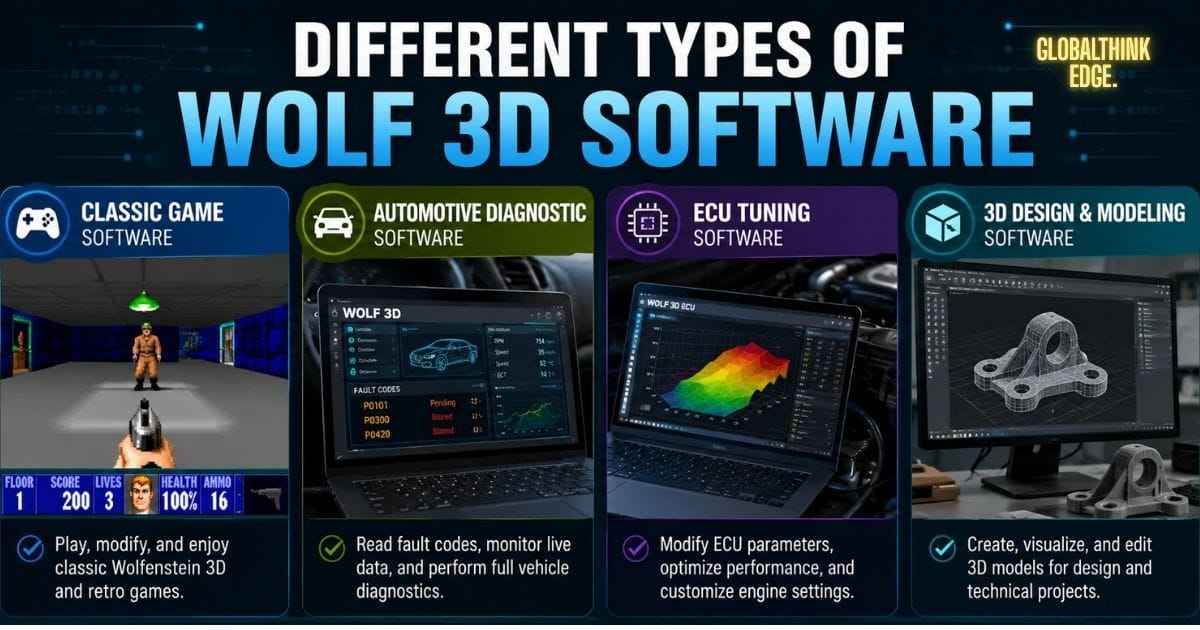
Different Types of Wolf 3D Software
| Software Type | Primary Use | Typical Users |
| Classic Game Software | Playing or modifying Wolfenstein 3D | Gamers and retro enthusiasts |
| GT Software Wolf 3D | Vehicle diagnostics and programming | Mechanics and workshops |
| Wolf 3D ECU Software | ECU tuning and calibration | Automotive technicians |
| 3D Development Utilities | Learning or experimenting with 3D technology | Developers and students |
Understanding these categories makes it easier to find the correct software without wasting time on unrelated downloads.
Gaming and Legacy 3D Applications
The original Wolfenstein 3D engine introduced many concepts that influenced modern first-person games. Although newer game engines are far more advanced, enthusiasts still use classic Wolf 3D software for educational purposes, retro gaming, and community-created modifications.
Modern source ports also allow the software to run on newer operating systems with improved compatibility and performance.

Automotive Diagnostics and ECU Programming
One of the fastest-growing search intents for Wolf 3D software relates to automotive technology.
In this field, the software helps technicians:
Read ECU information
Modify engine parameters
Diagnose system faults
Update firmware
Monitor vehicle performance in real time
Professional workshops rely on these tools because they simplify complex programming tasks while reducing diagnostic time.
3D Design and Technical Workflows
Some users also associate Wolf 3D software with design environments that support visualisation or technical modelling.
Although these tools are less common than automotive or gaming applications, they can assist with:
Creating simple 3D models
Viewing technical designs
Testing rendering techniques
Educational demonstrations
The exact capabilities depend on the software version being used.

How Wolf 3D Software Works
Although each version serves a different purpose, the overall workflow follows a similar process.
First, the software communicates with either a computer system, a vehicle ECU, or a game engine. It then processes data, displays information through its interface, and allows the user to make changes where supported.
Automotive editions often connect through specialized hardware interfaces, while gaming versions load engine files and project data directly from storage.
Core Technology
Most modern automotive versions include features such as the following:
Fast data communication
Real-time monitoring
Error code detection
Configuration management
Secure firmware handling
These capabilities improve accuracy while reducing manual work for technicians.
Hardware and System Requirements
Before installing Wolf 3D software, confirm that your computer meets the recommended specifications.
Typical requirements include the following:
Windows 10 or later
Dual-core or better processor
At least 4 GB RAM
Stable USB connection for automotive interfaces
Administrative installation permissions
Higher hardware specifications provide smoother performance when handling larger projects or advanced ECU programming.
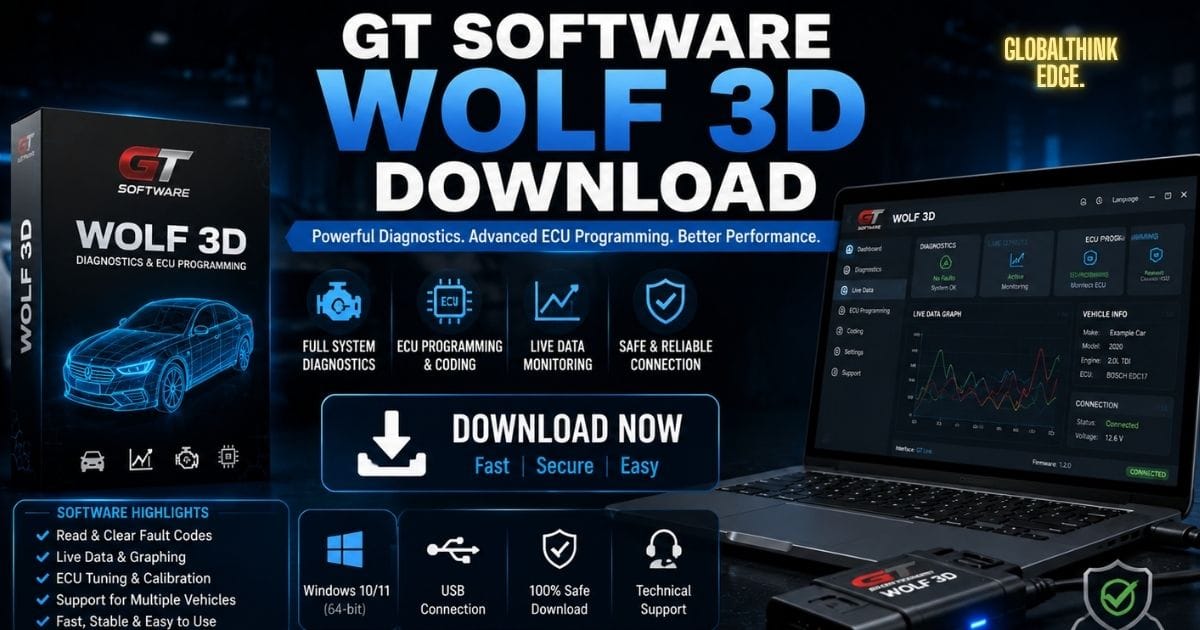
GT Software Wolf 3D Download
Many users specifically search for GT Software Wolf 3D downloads because they need software for vehicle diagnostics or ECU management.
Before downloading, verify that the software comes from a trusted source. Unofficial copies may contain outdated files, missing components, or security risks that affect performance.
When choosing a download, check:
Version compatibility
Supported vehicle models
Required hardware interface
Available updates
Installation documentation
Using the correct version helps prevent communication errors between the software and the vehicle.
Installation Best Practices
For a smooth installation:
- Download the correct release for your operating system.
- Close unnecessary applications before setup.
- Install required drivers if prompted.
- Restart the computer after installation.
- Test the connection before working on a vehicle.
Following these steps minimizes installation problems and ensures stable operation.
Wolf 3D Software Free Download
Many websites advertise Wolf 3D software free downloads, but not every source is reliable.
Some downloads include incomplete files, modified installers, or outdated releases that may not function correctly.
Before downloading, always verify:
The authenticity of the source
File integrity
Software version
User documentation
Update availability
Free versions may be suitable for learning or evaluation, while professional environments often require licensed editions with technical support.
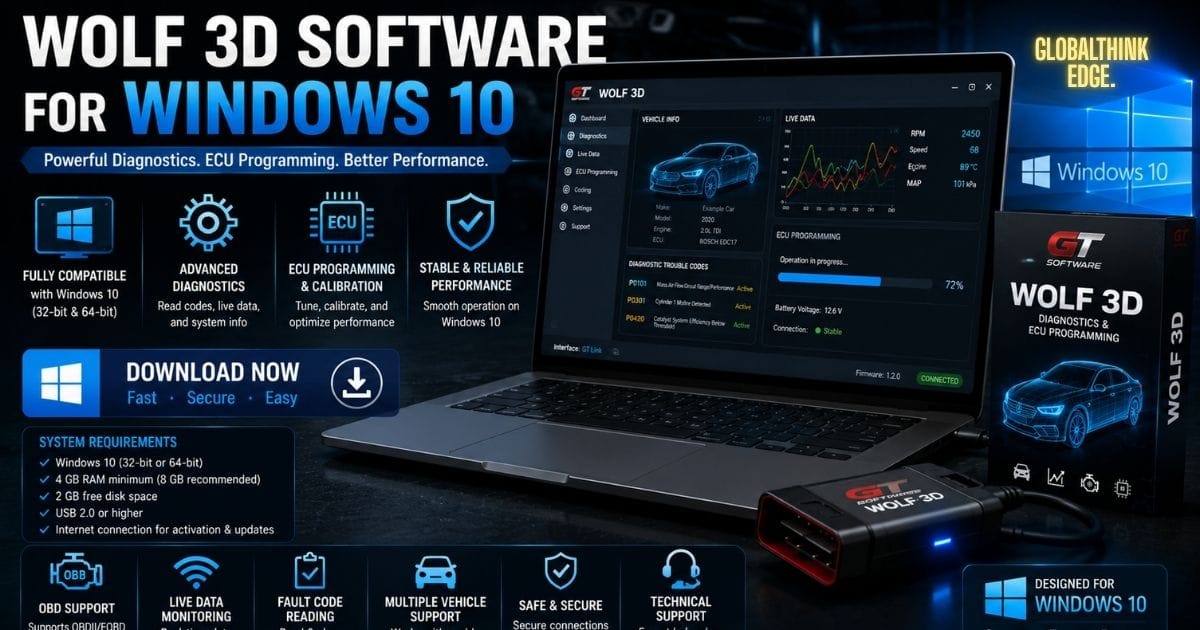
Wolf 3D Software for Windows 10
Most recent versions of Wolf 3D software for Windows 10 are designed to work without major compatibility issues.
Before installation:
Install the latest Windows updates.
Ensure required drivers are available.
Temporarily disable software that may block installation if necessary.
Verify that your hardware interface is compatible with Windows 10.
If the software fails to detect connected hardware, updating drivers or reinstalling the communication interface often resolves the issue.
Modern Windows systems generally provide better stability, improved security, and enhanced USB device support, making them a preferred platform for running professional Wolf 3D software installations.
Wolf 3D ECU Software Explained
For automotive professionals, Wolf 3D ECU software is more than a diagnostic tool. It provides access to a vehicle’s Electronic Control Unit (ECU), allowing users to monitor engine performance, adjust calibration settings, and troubleshoot system faults. The available functions vary by software version and supported vehicle models, so users should always confirm compatibility before making changes.
Common Functions of Wolf 3D ECU Software
Professional workshops use the software for tasks such as:
Reading and clearing diagnostic trouble codes (DTCs)
Monitoring live engine data
Adjusting ECU parameters
Updating compatible firmware
Backing up existing configurations
Verifying sensor performance
Because ECU settings directly affect vehicle operation, modifications should only be performed by trained technicians or experienced users.
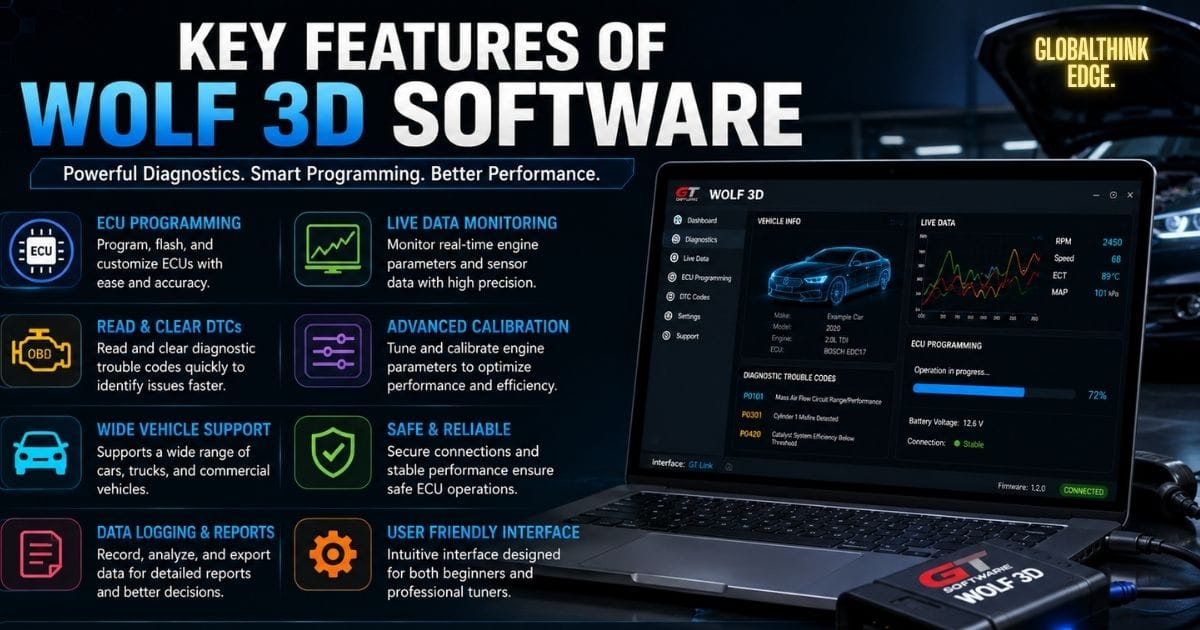
Key Features of Wolf 3D Software
The exact feature set depends on the edition you use, but most modern versions include tools that improve efficiency and accuracy.
User-Friendly Dashboard
A well-organised interface makes it easier to locate vehicle information, monitor live data, and navigate different functions without unnecessary complexity.
Real-Time Monitoring
The software can display engine values while the vehicle is running, helping technicians identify abnormal readings before they develop into larger mechanical problems.
Flexible Configuration Options
Many editions allow users to save profiles, export settings, and manage multiple vehicle projects, making repeated service work faster and more consistent.
Import and Export Support
Project files, diagnostic reports, and configuration data can often be imported or exported, simplifying backups and collaboration between technicians.

Advantages and Limitations
Like any professional software, Wolf 3D has strengths and limitations that users should understand before relying on it.
| Advantages | Limitations |
| Supports advanced diagnostics | Features vary by version |
| Improves workshop efficiency | Some functions require licensed editions |
| Real-time vehicle monitoring | Hardware compatibility is essential |
| Easier configuration management | Incorrect ECU changes may affect performance |
| Suitable for professional workflows | Learning curve for beginners |
Understanding these points helps users choose the right version and avoid unexpected issues during installation or daily use.
Common Issues and Troubleshooting
Even properly installed software may occasionally encounter problems. Fortunately, many issues have straightforward solutions.
Installation Fails
If the installer does not complete successfully:
Confirm your Windows version is supported.
Run the installer with administrator privileges.
Disable conflicting security software temporarily if necessary.
Download a fresh installer if files appear damaged.
Hardware Is Not Detected
Communication problems are often caused by:
Missing device drivers
Loose USB connections
Unsupported diagnostic interfaces
Outdated software versions
Updating drivers and reconnecting the device usually resolves the issue.
Software Performance Problems
If the application freezes or responds slowly:
Close unnecessary background programs.
Install the latest available updates.
Restart the computer.
Verify that your system meets the recommended hardware requirements.
Regular maintenance and software updates can improve stability over time.
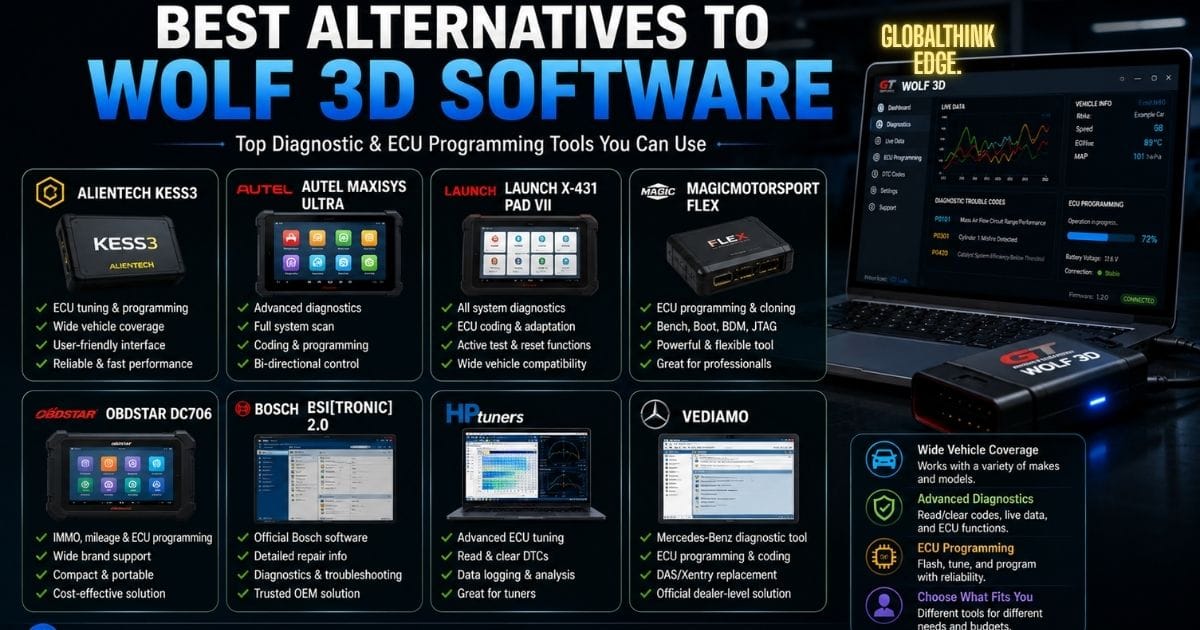
Best Alternatives to Wolf 3D Software
Depending on your goals, other software solutions may offer similar functionality.
Automotive Alternatives
If your primary focus is ECU diagnostics or engine tuning, several professional platforms provide broader vehicle support and additional programming features.
3D Development Tools
Developers interested in learning graphics programming or building interactive projects may prefer modern game engines and 3D development environments with advanced rendering capabilities.
Classic Gaming Options
Retro gaming enthusiasts can also explore community-supported source ports that improve compatibility while preserving the original gameplay experience.
The best choice depends on whether your priority is vehicle diagnostics, software development, or classic gaming.
Choosing the Right Wolf 3D Software
Selecting the appropriate version depends on your intended use rather than simply downloading the first result you find.
For beginners, software with clear documentation and a straightforward interface is usually the best starting point.
Professional technicians should prioritize compatibility with their supported vehicle models, reliable updates, and access to technical documentation.
If your interest is educational or recreational, choose versions that are actively maintained and compatible with modern operating systems.
Taking a few minutes to verify compatibility before installation can save significant troubleshooting time later.
Final Thoughts
Wolf 3D software covers several different technologies, ranging from classic gaming software to professional automotive diagnostic and ECU programming tools. Understanding the specific version you need is the first step toward a successful installation and a productive workflow.
Before downloading, always verify compatibility with your operating system, hardware, and intended application. Whether you’re looking for the GT Software Wolf 3D download, Wolf 3D software for Windows 10, or Wolf 3D ECU software, choosing a trusted source and following recommended installation practices will help you get the best results while avoiding common issues.
By focusing on legitimate downloads, proper configuration, and regular updates, you can use Wolf 3D software confidently and efficiently for gaming, technical learning, or professional automotive work.
Frequently Asked Questions
Is Wolf 3D software free?
Some versions are available as free downloads for learning or evaluation, while professional editions often require a paid licence to unlock advanced features and ongoing support.
Can I install Wolf 3D software on Windows 10?
Yes. Most current releases support Windows 10, provided your computer meets the required specifications and any necessary drivers are installed.
What is GT Software Wolf 3D?
‘GT Software Wolf 3D’ generally refers to software used for automotive diagnostics, ECU programming, and vehicle management. Features vary depending on the version and supported hardware.
What is Wolf 3D ECU software used for?
It is primarily used to communicate with a vehicle’s electronic control unit, allowing technicians to diagnose issues, monitor engine data, and perform supported configuration or programming tasks.
Is it safe to download Wolf 3D software?
Yes, as long as you download it from an official or trusted source. Avoid unofficial websites that may distribute outdated, modified, or potentially harmful installation files.
Does Wolf 3D software receive updates?
Many commercial editions provide updates that improve compatibility, fix bugs, and add support for newer hardware or vehicle models. Update availability depends on the software provider and licensing model.
