How to Fix Game Stuttering on PC: Brilliant Facts
How to Fix Game Stuttering on PC
To fix game stuttering on PC, first identify whether the problem comes from inconsistent frame times, CPU/GPU overload, RAM or storage pressure, drivers, shader compilation, background apps, or display settings. Then stabilize performance by updating drivers, closing unnecessary processes, checking temperatures, lowering demanding settings, and using an appropriate FPS cap.
A game can show a high average FPS and still feel choppy. The reason is that FPS alone does not describe frame-time consistency. If some frames take much longer to render than others, you will notice a hitch even when the FPS counter looks impressive.
Why Are My Games Stuttering on PC?
Game stuttering usually happens when the PC cannot deliver frames at a consistent pace. Common triggers include CPU spikes, GPU saturation, insufficient RAM, slow storage, thermal throttling, shader compilation, background applications, driver problems, and poorly matched FPS or refresh-rate settings.
Windows itself can also contribute. Microsoft recommends checking resource usage, background processes, startup apps, updates, and power settings when diagnosing performance problems.
The important point is that stuttering is not always caused by low FPS. A system producing 120 FPS can feel worse than one producing a stable 90 FPS if frame delivery is inconsistent.
What Causes Game Stuttering?
Several issues can trigger stutters, and the correct fix depends on the pattern you see.
| Possible cause | Typical symptom | What to check |
| CPU bottleneck | FPS drops during busy scenes | CPU usage and individual core load |
| GPU overload | Drops during demanding graphics | GPU usage, temperature and settings |
| RAM pressure | Hitching when loading areas or switching apps | Memory usage and available RAM |
| Shader compilation | Stutters in new areas or after updates | Whether stutters decrease after repeated play |
| Background apps | Random spikes | Task Manager processes |
| Thermal throttling | Stutters after playing for a while | CPU/GPU temperatures and clocks |
| Storage pressure | Asset-loading pauses | Free space and drive activity |
| Driver issues | Stuttering begins after a driver/game update | Driver version and recent changes |
| Display synchronization | Uneven motion despite good FPS | VSync, VRR, and refresh rate |
How Do I Stop My PC Games From Stuttering?
Start with the simplest changes before making advanced tweaks. Restart the PC, update Windows and GPU drivers, close unnecessary background programs, check temperatures, and make sure the game is installed on a healthy drive with sufficient free space.
Next, test the game with a sensible FPS limit. If your GPU is constantly running at 99–100% and frame times are unstable, reducing demanding settings or capping FPS can create more consistent performance.
Microsoft also recommends monitoring CPU, memory, and disk activity through Task Manager when troubleshooting performance problems.
1. Update Windows and Your Graphics Driver
A game can start stuttering after a Windows, game, or graphics driver change. Check Windows Update and install the latest stable GPU driver available for your graphics card.
If the problem started immediately after a driver update, do not assume that newer automatically means better. Compare the behavior with the previous stable driver when the manufacturer provides that option.
2. Check CPU, GPU, and RAM Usage
Open Task Manager with Ctrl + Shift + Esc while the game is running or immediately after a stutter.
Look for unusual spikes:
CPU repeatedly reaching its limit
GPU staying near maximum usage
RAM approaching full capacity
Disk usage suddenly jumping
Another application consuming significant resources
Does 100% CPU usage cause stuttering? It can. If the CPU is fully occupied and the game needs additional processing time, frame delivery can become inconsistent. However, 100% CPU usage by itself does not automatically mean a stutter will occur.
The key is whether CPU saturation coincides with the frame-time spikes.
3. Watch Temperatures and Clock Speeds
A PC may perform well for the first few minutes and then become choppy as temperatures rise.
Check CPU and GPU temperatures, clock speeds, and fan behavior. If clocks repeatedly fall when the system gets hot, thermal throttling may be contributing to the problem.
Clean blocked vents, improve airflow, and make sure laptop cooling is adequate before changing complicated performance settings.
4. Reduce the Settings That Actually Matter
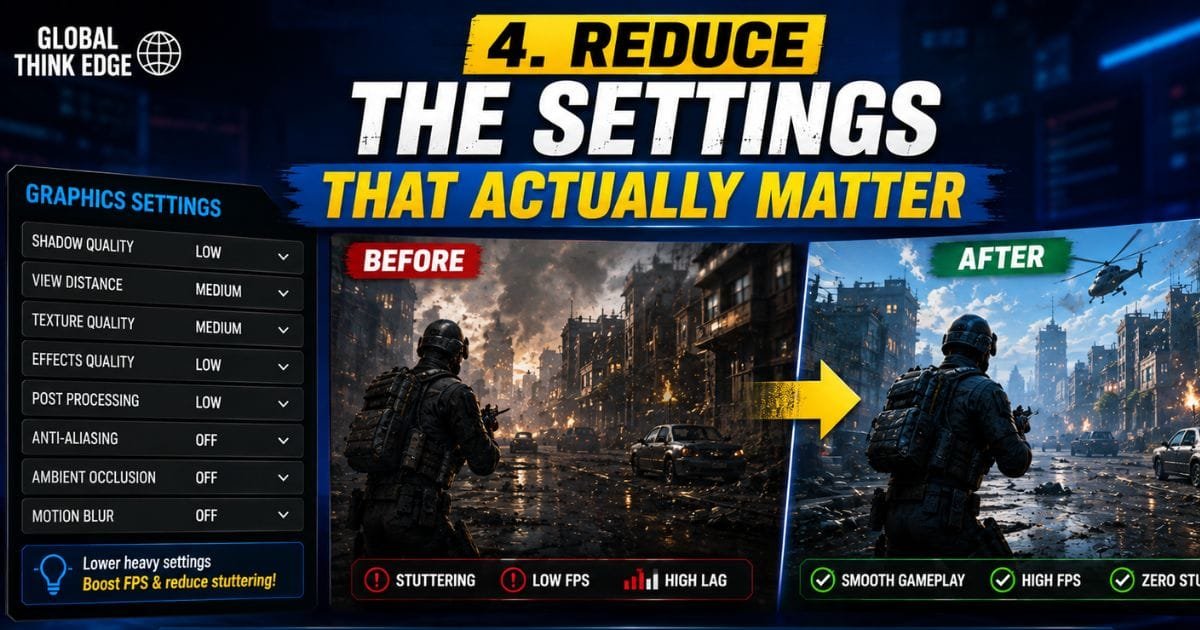
Do not immediately set every graphics option to Low. Reduce the settings that place heavy loads on the CPU or GPU.
Depending on the game, useful tests include the following:
Shadows
View distance
Volumetric effects
Reflections
Ray tracing
Crowd or simulation density
Texture quality when VRAM is limited
If stuttering improves dramatically, raise settings one at a time until you find the setting responsible.
5. Test an FPS Cap
How do you fix high FPS but stuttering? Try limiting FPS to a level your PC can sustain consistently instead of chasing the highest possible number.
For example, if a game jumps between 80 and 140 FPS, a stable 90 FPS cap may feel smoother than an uncapped 140 FPS peak.
This is particularly useful when GPU utilization stays near 100%. The goal is not simply a larger FPS number; it is stable frame delivery.
6. Check VSync and Variable Refresh Rate
Does VSync fix stuttering? Sometimes, but not universally.
VSync synchronizes rendered frames with the display’s refresh cycle, which can reduce tearing. However, conventional VSync can also produce noticeable stutter when performance falls below the display’s refresh rate. NVIDIA explains that frame-rate drops below the VSync target can create visible fluctuations.
If your monitor supports VRR, such as G-SYNC or FreeSync, test the appropriate synchronization configuration instead of assuming VSync is always the answer.
Also verify the monitor’s actual refresh rate in Windows. Microsoft notes that Windows lets you check and change refresh rate under Settings > System > Display > Advanced display.
How to Fix Game Stuttering in Windows 11
Windows 11 includes graphics options that can affect game presentation and performance. For compatible DirectX 10 and DirectX 11 games running in windowed or borderless modes, Microsoft provides optimizations for windowed games. The feature uses a newer presentation model designed to reduce frame latency and support features such as variable refresh rate.
Go to:
Settings → System → Display → Graphics
From there, check the game’s graphics options and test the relevant Windows graphics settings. If you have multiple GPUs, Windows also lets you choose a high-performance GPU for an individual game.
Do not blindly enable or disable every graphics feature. Change one setting, restart the game, and compare frame-time behavior.
Can RAM Cause Stuttering?
Yes, insufficient or heavily pressured RAM can contribute to stuttering.
When available memory becomes scarce, Windows and applications may need to move data between memory and storage more aggressively. This can cause pauses, especially in demanding games.
Close memory-heavy applications before gaming and check Task Manager’s Memory section. If the system regularly runs close to its available RAM capacity, a hardware upgrade may provide a more meaningful improvement than endless graphics tweaks.
Why Is My FPS High but Choppy?
High FPS does not guarantee smooth gameplay because average FPS hides frame-time spikes.
Imagine a game producing frames at very different intervals. The counter might report 100 FPS overall, but occasional long frames can create visible pauses. This is why gamers sometimes describe the experience as “high FPS but choppy.”
For diagnosis, frame-time graphs are more useful than relying only on the FPS number. A smoother graph generally indicates more consistent frame delivery.
How Do I Remove FPS Stutters?
Use a controlled troubleshooting process rather than changing ten settings at once.
First, reproduce the stutter in the same game location or situation.
Second, monitor CPU, GPU, RAM, temperatures, clocks, and disk activity.
Third, change only one variable such as an FPS cap, graphics setting, driver, or synchronization option.
Finally, repeat the same test and compare the result.
This approach helps identify the actual trigger instead of creating a collection of random tweaks that may conflict with each other.
What About Shader Compilation?
Shader compilation is an important reason some modern games stutter even on fast hardware.
A game may need to compile shaders when encountering certain effects, locations, or graphical features. Stuttering can therefore appear during the first playthrough or after an update, while later sessions may become smoother.
This is one reason you should not immediately conclude that your GPU is defective when a newly installed game stutters during its first few minutes.
Can Too Much FPS Cause Stuttering?
Extremely high FPS does not automatically cause stuttering, but uncapped FPS can contribute to inconsistent frame delivery or excessive GPU load.
If your GPU is rendering far more frames than your monitor can display, an FPS limit may reduce unnecessary workload and produce steadier frame times.
The best cap depends on the monitor, VRR range, game, and hardware. Test a few reasonable limits rather than copying one number for every PC.
Why Is My PC Suddenly Stuttering in Games?
If stuttering appears suddenly, look at what changed immediately before the problem.
Possible triggers include the following:
A new graphics driver
Windows update
Game update
New background software
Changed graphics settings
New monitor or refresh-rate setting
Storage becoming nearly full
Increased temperatures
A newly enabled overlay or recording feature
Microsoft has also released Windows 11 updates that specifically address scenarios involving momentary stutters, showing that operating-system changes can sometimes matter.
Can Stuttering Be Fixed?
Yes, many forms of game stuttering can be reduced or eliminated, but there is no universal fix.
If the cause is a background process, thermal issue, inappropriate FPS limit, driver problem, or graphics setting, a targeted change can resolve it. If the game itself has a shader-compilation or engine-level issue, the solution may depend on a patch from the developer.
The most reliable strategy is to identify when the stutter happens and what system resource changes at that exact moment.
Final Takeaway
The best way to fix game stuttering on PC is to focus on consistent frame times rather than maximum FPS. Check CPU, GPU, RAM, temperatures, storage, drivers, background processes, synchronization, and in-game settings in a controlled order.
For Windows 11 users, also review the system’s graphics settings and windowed-game optimizations.
Most importantly, do not treat VSync, FPS caps, RAM upgrades, or driver updates as universal cures. The right solution depends on what is causing the frame-time spikes in the first place.
Quick FAQ
How do I reduce stuttering?
Update drivers, close background apps, monitor hardware usage and temperatures, reduce demanding settings, and test a stable FPS cap.
Is stuttering caused by RAM?
It can be. Low available RAM may cause additional memory pressure and asset-loading pauses, particularly in demanding games.
Does VSync stop stuttering?
It can reduce tearing and may improve consistency in some situations, but traditional VSync can also introduce stutter when FPS falls below the monitor’s refresh rate.
Why does my PC stutter like crazy after an update?
A driver, Windows update, game patch, shader rebuild, changed graphics setting, or background process may have altered frame delivery. Compare performance before and after the update to narrow down the cause.
What is the fastest fix to try?
Restart the PC, update the GPU driver and Windows, close unnecessary background applications, check temperatures, and test the game with a reasonable FPS cap. Then diagnose deeper issues if the stutter remains.

Pingback: Why Is My Game Using Too Much RAM? Fast Fixes