Chrome Flags for Performance: Top Speed Boost Secrets
What Are Chrome Flags for Performance?
Chrome flags for performance are experimental browser settings that let you test features before Google enables them by default. While most users never access them, advanced users often use flags to improve browser responsiveness, reduce memory usage, speed up page loading, and create a smoother browsing experience.
You can access Chrome Flags by typing “chrome://flags” into Chrome’s address bar. Since these options are experimental, they may change or disappear in future Chrome releases. For that reason, you should enable only the flags that match your needs instead of turning on everything at once.
If you’re experiencing slow browsing, high RAM usage, lag while scrolling, or poor performance during cloud gaming, carefully selected Chrome flags can make Chrome feel noticeably faster.
Why Chrome Can Feel Slow
Chrome’s performance depends on several factors, not just your computer’s hardware.
Common reasons include:
Too many active tabs
Heavy browser extensions
High memory usage
Background processes
Graphics rendering limitations
Large browsing cache
Outdated Chrome version
Experimental features conflicting with each other
Chrome Flags cannot fix every problem, but they can optimize how Chrome uses your system resources.
Best Chrome Flags for Performance
Below are the most useful Chrome Flags that many power users test to improve browser performance.
GPU Rasterization
Purpose: Offloads page rendering to your graphics card instead of your CPU.
Benefits include:
Faster webpage rendering
Smoother scrolling
Better animation performance
Lower CPU usage on supported systems
This flag works particularly well on computers with dedicated GPUs.
Zero-Copy Rasterizer
This feature reduces the amount of memory copying between Chrome and your graphics hardware.
Advantages include:
Faster rendering
Reduced memory overhead
Improved page responsiveness
Better graphics performance
Parallel Downloading
Instead of downloading files through a single connection, Chrome splits downloads into multiple streams.
Benefits:
Faster downloads
Better large-file performance
More efficient bandwidth usage
This flag is especially useful when downloading large software files or game installers.
Back-Forward Cache
Chrome normally reloads many pages after pressing the Back button.
The Back-Forward Cache stores recently visited pages in memory, allowing nearly instant navigation.
Advantages include:
Faster page switching
Less waiting
Better browsing experience
Reduced reload time
Smooth Scrolling
Although many systems already support smooth scrolling, enabling this feature can improve scrolling consistency.
Benefits include:
Less stuttering
Better reading experience
Smoother trackpad movement
Improved touch-screen navigation
Experimental QUIC Protocol
QUIC is Google’s modern transport protocol designed to reduce connection delays.
Potential benefits:
Faster website loading
Reduced latency
Better streaming performance
Improved browsing on unstable internet connections
Some older networks may not fully support QUIC, so results vary.
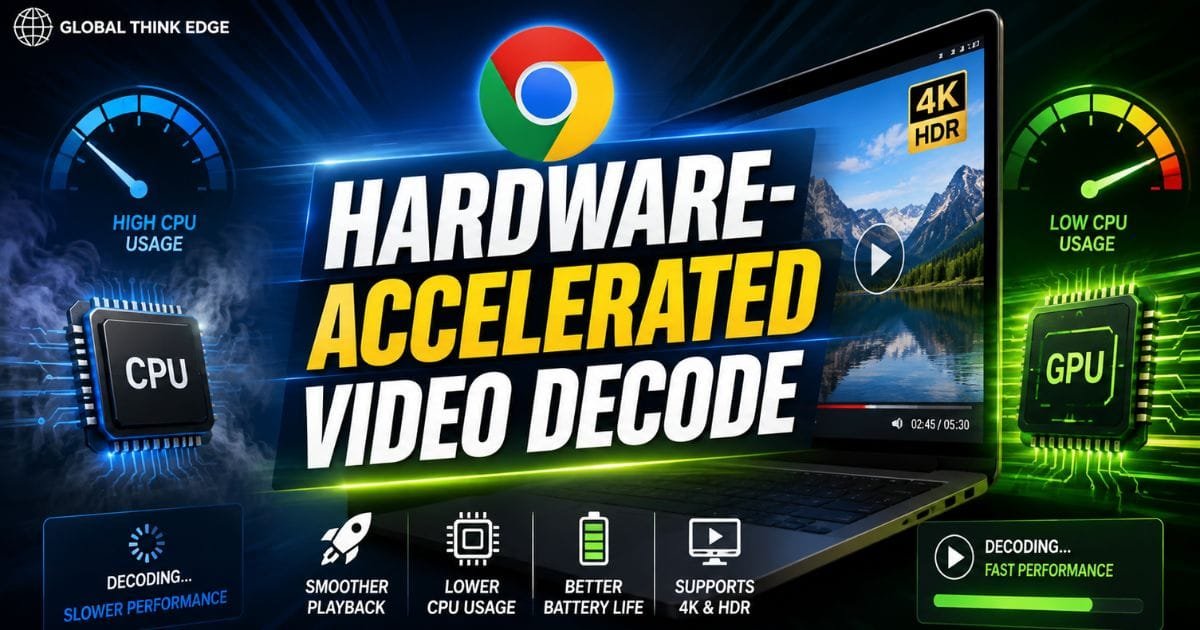
Hardware-Accelerated Video Decode
This feature shifts video decoding from the CPU to the GPU whenever supported.
Advantages include:
Lower processor usage
Better battery life on laptops
Smoother 4K playback
Improved video streaming
Enable Lazy Image Loading
Lazy loading delays loading images until they are about to appear on your screen.
Benefits include:
Faster page loading
Reduced bandwidth usage
Lower memory consumption
Better experience on slower internet connections
Memory Saver Features
Recent Chrome versions already include built-in memory optimization.
Combining Memory Saver with compatible performance flags can
Reduce RAM usage
Keep active tabs responsive
Suspend inactive tabs
Improve multitasking
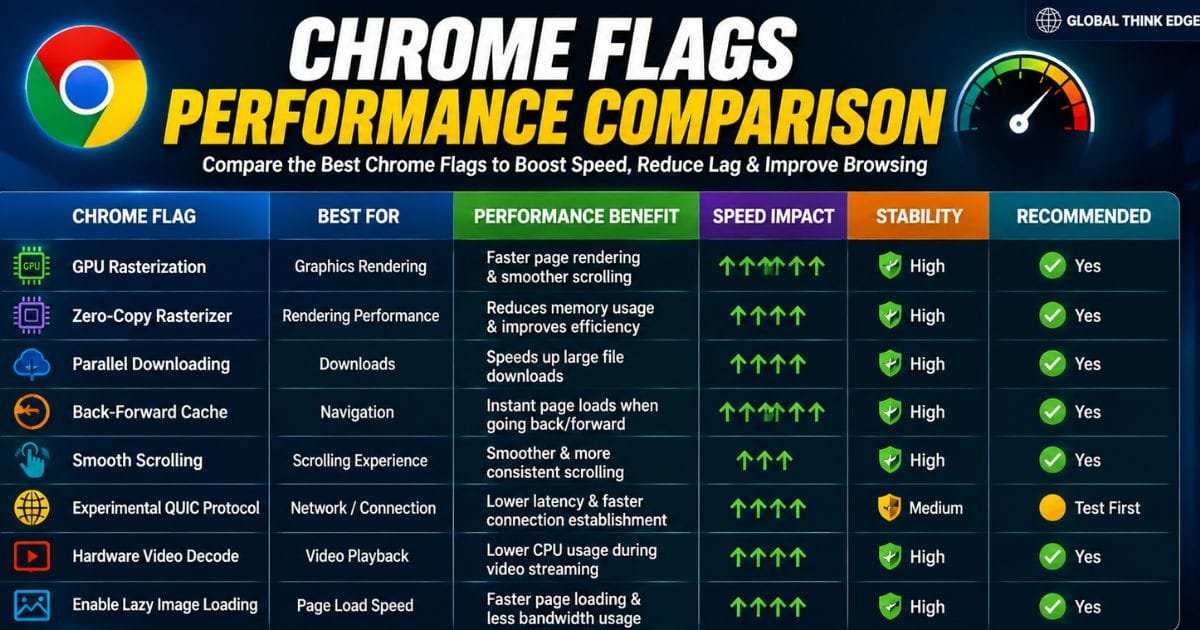
Chrome Flags Performance Comparison
| Chrome Flag | Best For | Performance Benefit | Recommended |
| GPU Rasterization | Graphics | Faster rendering | ✅ Yes |
| Zero-Copy Rasterizer | Rendering | Lower memory use | ✅ Yes |
| Parallel Downloading | Downloads | Faster downloads | ✅ Yes |
| Back-Forward Cache | Navigation | Instant page switching | ✅ Yes |
| Smooth Scrolling | Reading | Better scrolling | ✅ Yes |
| QUIC Protocol | Networking | Lower latency | ✅ Test First |
| Hardware Video Decode | Streaming | Lower CPU usage | ✅ Yes |
| Lazy Image Loading | Browsing | Faster page loading | ✅ Yes |
Chrome Flags That Usually Don’t Improve Performance
Many users enable every experimental flag they find online. That usually creates instability rather than speed improvements.
Avoid enabling flags simply because they sound useful.
Examples include:
Random debugging flags
Developer-only experiments
Security testing flags
Unsupported rendering experiments
Unknown GPU settings
The safest approach is enabling one flag at a time and testing Chrome for a few hours.
How to Enable Chrome Flags Safely
Follow these steps:
- Open Chrome.
- Type chrome://flags.
- Search for the desired flag.
- Change its value from “Default” to “Enabled.”
- Restart Chrome.
- Test browser performance.
- If problems occur, return the flag to Default.
Making changes gradually helps identify which flag actually improves performance.
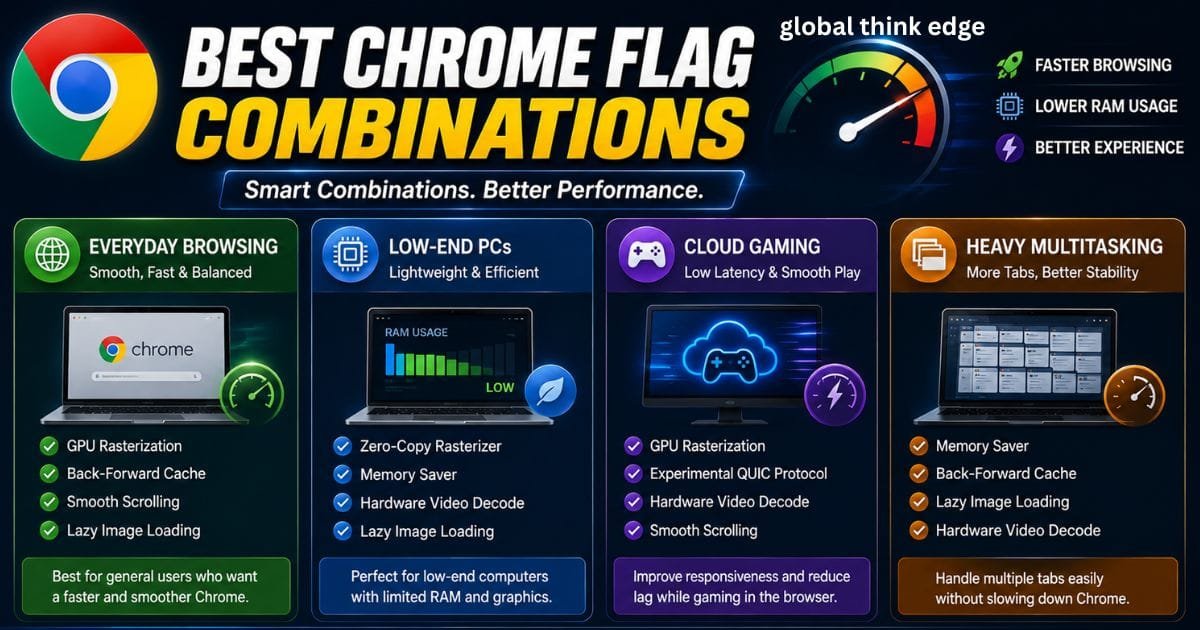
Best Chrome Flag Combinations
For Everyday Browsing
GPU Rasterization
Back-Forward Cache
Smooth Scrolling
Lazy Image Loading
This combination makes browsing feel smoother without introducing unnecessary instability.
For Low-End PCs
Zero-Copy Rasterizer
Memory Saver
Hardware Video Decode
Lazy Image Loading
These settings focus on reducing memory usage and improving responsiveness.
For Cloud Gaming
If you play browser-based games or use cloud gaming platforms, consider enabling the following:
GPU Rasterization
QUIC Protocol
Hardware Video Decode
Smooth Scrolling
Together, these settings can reduce latency and improve visual smoothness on supported hardware.
For Heavy Multitasking
Users who keep dozens of tabs open may benefit from:
Memory Saver
Back-Forward Cache
Lazy Image Loading
Hardware Video Decode
This setup helps Chrome manage RAM more efficiently during long browsing sessions.
Common Mistakes to Avoid
Many performance issues come from poor optimization habits rather than Chrome itself.
Avoid these mistakes:
Enabling dozens of flags simultaneously
Ignoring browser updates
Installing too many extensions
Keeping hundreds of tabs open
Never clearing browsing data
Using outdated graphics drivers
Assuming every experimental feature improves speed
Chrome Flags work best when combined with good browser maintenance.
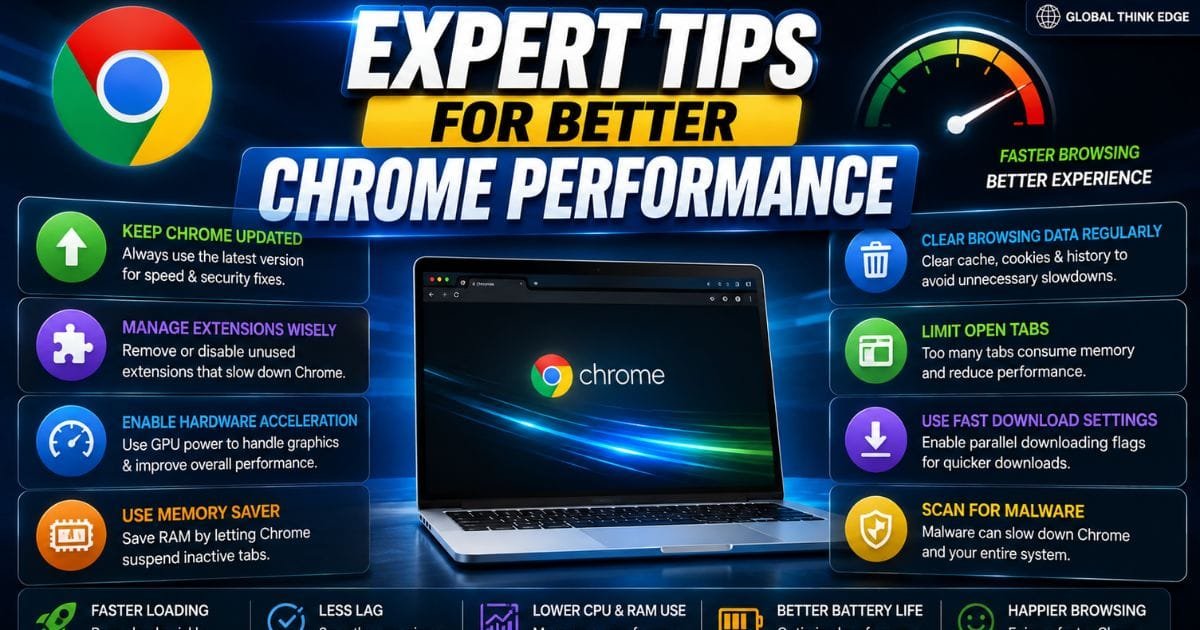
Expert Tips for Better Chrome Performance
Beyond Chrome Flags, these practices provide consistent improvements:
Update Chrome regularly.
Disable unused extensions.
Turn on Chrome Memory Saver.
Enable hardware acceleration in Chrome settings.
Keep graphics drivers updated.
Restart Chrome occasionally.
Close inactive tabs.
Scan your computer for malware if Chrome suddenly becomes slow.
These habits often deliver greater long-term performance gains than experimental flags alone.
Frequently Asked Questions
Are Chrome Flags safe?
Most Chrome Flags are safe to test, but they remain experimental. Enable only trusted flags and change one setting at a time.
Can Chrome Flags make Chrome faster?
Yes. Certain flags can improve rendering, downloads, scrolling, memory management, and page loading, depending on your hardware.
Which Chrome Flag improves RAM usage?
Memory Saver, Lazy Image Loading, and Zero-Copy Rasterizer can help reduce overall memory consumption in many situations.
Should I enable every Chrome flag?
No. Enabling every flag may cause crashes, instability, or reduced performance.
Do Chrome Flags work on Windows, macOS, Linux, and ChromeOS?
Most performance-related flags are available across desktop platforms, although availability may vary by Chrome version and operating system.
Final Thoughts
The best Chrome flags for performance can make Chrome feel faster, smoother, and more responsive when used correctly. Features like GPU rasterization, parallel downloading, back-forward cache, hardware video decode, and lazy image loading provide meaningful improvements for many users without requiring additional software.
Remember that Chrome Flags are experimental. Enable only the settings that fit your workflow, test them individually, and reset any flag that causes instability. Combined with regular browser maintenance and updated system drivers, the right Chrome flags can significantly enhance your browsing experience while keeping Chrome efficient and reliable.
