
Chrome Memory Saver Mode: Boost RAM & Faster Browsing
What Is Chrome Memory Saver Mode?
Chrome memory saver mode is a built-in performance feature that automatically frees up RAM by putting inactive browser tabs to sleep. Instead of keeping every open tab fully active, Chrome unloads tabs that you haven’t used recently while preserving them in your tab bar. When you click one of those tabs again, Chrome reloads it automatically.
This feature is especially useful if you:
Keep dozens of tabs open throughout the day.
Have a PC with limited RAM.
Notice Chrome becoming slow after long browsing sessions.
Use memory-intensive websites alongside productivity apps.
Unlike manually closing tabs, Memory Saver lets you keep your workflow intact while reducing memory consumption in the background.
Why Chrome Introduced Memory Saver
Modern websites use significantly more memory than they did a few years ago. Streaming services, web apps, AI tools, online editors, and collaboration platforms continue running scripts even when they are not actively being used.
Chrome Memory Saver was introduced to
Reduce RAM usage.
Improve browser responsiveness.
Extend laptop battery life.
Prevent slowdowns caused by too many open tabs.
Give active tabs more system resources.
Instead of forcing users to constantly close tabs, Chrome intelligently manages unused ones.
How Chrome Memory Saver Mode Works
Chrome continuously monitors your open tabs.
When a tab has been inactive for some time, Chrome identifies it as a candidate for memory optimization.
The browser then
- Releases most of the RAM used by that tab.
- Keeps the tab visible in your browser.
- Preserves browsing history and tab position.
- Reloads the page when you revisit it.
Think of it as placing inactive tabs into a lightweight sleep mode rather than completely closing them.
Some tabs remain active automatically, including:
Audio or video playback
Active downloads
Video calls
Tabs using USB or Bluetooth devices
Websites with important background activity

Key Benefits of Chrome Memory Saver Mode
Faster Browser Performance
By reducing background memory usage, Chrome has more resources available for active tabs.
This results in:
Faster tab switching
Better responsiveness
Reduced lag
Improved multitasking
Better System Performance
Chrome often competes with applications like Photoshop, Visual Studio Code, games, and virtual machines for RAM.
Memory Saver leaves more available memory for these applications.
Longer Battery Life
Inactive tabs consume fewer system resources.
Lower CPU activity often translates into improved battery life on laptops.
Improved Stability
Systems with limited RAM are less likely to freeze or become unresponsive when Chrome uses less memory.
When Chrome Memory Saver Helps the Most
Chrome Memory Saver provides the greatest benefit if you:
Frequently keep 20–100 tabs open.
Use Chrome for research.
Work with Google Docs and spreadsheets.
Browse while editing videos.
Have 4 GB or 8 GB of RAM.
Use older laptops.
Users with 32 GB or more RAM may notice smaller improvements, although browser responsiveness can still improve.
When Memory Saver May Not Be Ideal
Although useful, Memory Saver isn’t perfect.
You may notice:
Slight delay when reopening sleeping tabs.
Websites are refreshing after they are restored.
Unsaved content disappearing on poorly designed websites.
Some dashboards are reloading automatically.
If you regularly use real-time monitoring dashboards, trading platforms, or continuously updating web apps, you may prefer excluding those sites from Memory Saver.
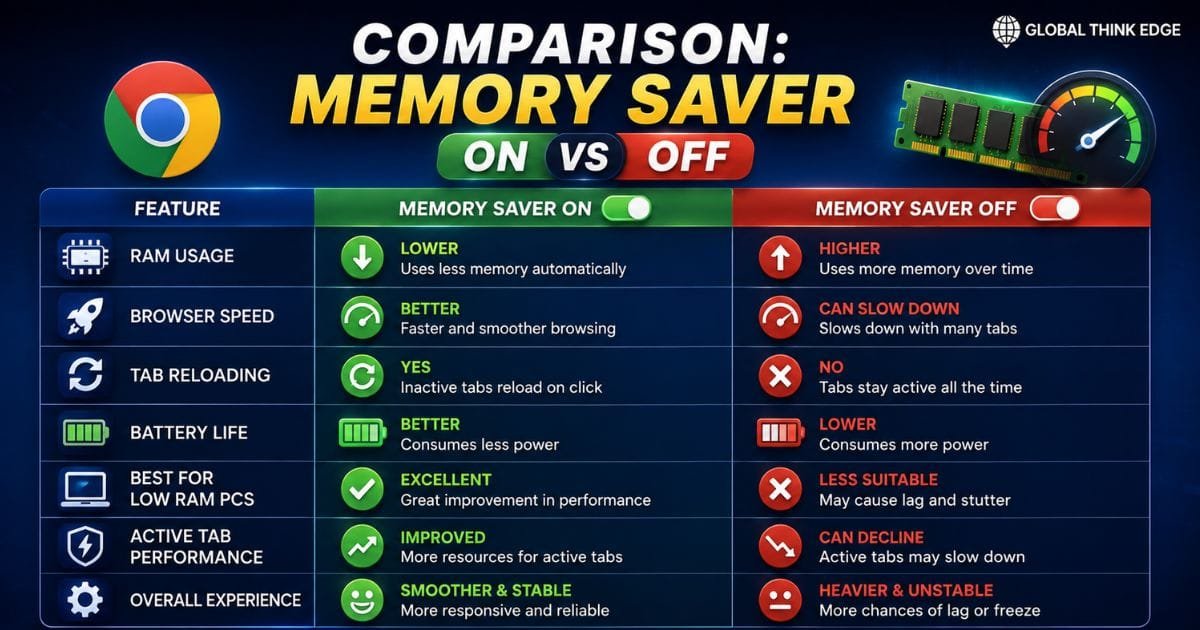
Comparison: Memory Saver On vs Off
| Feature | Memory Saver ON | Memory Saver OFF |
| RAM Usage | Lower | Higher |
| Browser Speed | Better during multitasking | Can slow with many tabs |
| Tab Reloading | Yes | No |
| Battery Life | Better | Lower |
| Best for Low RAM PCs | Excellent | Less suitable |
| Active Tab Performance | Improved | Can decline with many tabs |
How to Enable Chrome Memory Saver Mode
Enabling Chrome memory saver mode takes only a few seconds.
- Open Google Chrome.
- Click the three-dot menu.
- Open Settings.
- Select Performance.
- Turn on Memory Saver.
- Optionally add websites that should never be put to sleep.
After enabling it, Chrome automatically manages inactive tabs.
How to Add Websites That Should Always Stay Active
Some websites should never be unloaded.
Examples include:
Gmail
Google Meet
Slack
Microsoft Teams
Live dashboards
Stock market platforms
Music streaming services
To exclude them:
- Open Settings → Performance.
- Under Memory Saver, select Always keep these sites active.
- Add the website address.
This prevents interruptions while still optimizing the rest of your tabs.
Chrome Memory Saver vs Manually Closing Tabs
Many users wonder whether manually closing tabs is still better.
| Memory Saver | Manual Closing |
| Keeps tabs available | Removes tabs completely |
| Restores workflow easily | Requires reopening pages |
| Saves memory automatically | Depends on user habits |
| Great for multitasking | Better for maximum RAM savings |
| No bookmark required | May require bookmarks |
Memory Saver provides a better balance between convenience and performance.
Tips to Get Better Results with Chrome Memory Saver
For maximum performance:
Keep Chrome updated.
Remove unused extensions.
Close duplicate tabs.
Disable unnecessary startup pages.
Restart Chrome periodically.
Enable hardware acceleration if your GPU supports it.
Use Chrome Task Manager (Shift + Esc) to identify heavy tabs.
Avoid opening unnecessary background web apps.
Combining these habits with Memory Saver delivers noticeably smoother browsing.
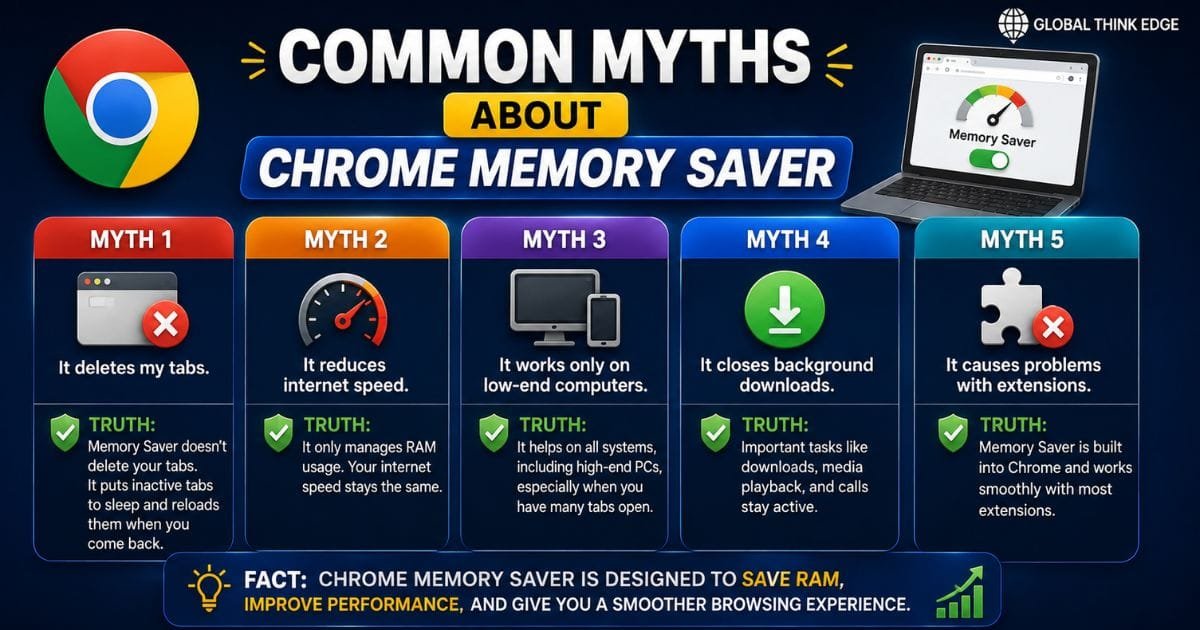
Common Myths About Chrome Memory Saver
Myth 1: It Deletes My Tabs
False.
Tabs remain open and reload when selected.
Myth 2: It Reduces Internet Speed
False.
Memory Saver manages RAM usage, not network bandwidth.
Myth 3: It Works Only on Low-End Computers
False.
Even high-performance systems can benefit when many tabs are open.
Myth 4: It Closes Background Downloads
False.
Chrome generally keeps downloads and important background tasks running.
Troubleshooting Memory Saver Issues
If Memory Saver doesn’t appear to work:
Update Chrome to the latest version.
Restart the browser.
Check whether the website has been added to the exception list.
Disable conflicting extensions.
Reset Chrome settings if necessary.
You can also monitor memory usage using Chrome Task Manager or your operating system’s Task Manager.
Frequently Asked Questions
Should I turn on or off the Chrome memory saver?
For most users, turning Chrome memory saver mode on is the better choice. It reduces RAM usage, improves browser responsiveness, and helps systems perform better when many tabs are open. You may only want it off if you rely on websites that must stay active continuously.
Why is Chrome using 90% memory?
Chrome can consume a large amount of memory because every tab, extension, and web app runs in separate processes. Heavy websites, numerous open tabs, memory-hungry extensions, or limited system RAM can all contribute. Enabling Chrome Memory Saver helps reduce unnecessary memory usage.
Is Chrome’s memory saver worth it?
Yes. It is worthwhile for most users, especially those with many open tabs or computers with 4 GB to 8 GB of RAM. It improves multitasking, reduces RAM usage, and can extend battery life with minimal impact on everyday browsing.
How do I set Chrome to save memory?
Open Chrome → Settings → Performance, then enable Memory Saver. You can also add websites that should always remain active so they are never put to sleep.
Final Thoughts
Chrome memory saver mode is one of the simplest ways to improve browser performance without installing third-party tools. By automatically suspending inactive tabs, it lowers RAM usage, keeps active browsing smooth, and helps your computer handle multitasking more efficiently.
Whether you’re a student researching across dozens of tabs, a professional working with cloud apps, or someone using an older laptop, enabling Memory Saver is a practical optimization. Pair it with regular browser updates, fewer extensions, and smart tab management for the best overall Chrome experience.
