Android Guest Mode: Easy Secrets for Better Privacy
What Is Android Guest Mode?
Android Guest Mode is a built-in privacy feature that lets someone else use your phone without accessing your personal apps, messages, photos, contacts, or account data. It creates a temporary user profile with a clean home screen, making it ideal when you need to lend your device to a friend, family member, coworker, or child.
Unlike app locking, Guest Mode separates user data from the owner’s profile. When the guest session ends, you can erase the temporary data and return your phone to its original state.
This feature is available on many Android devices, although the exact location and options vary depending on the manufacturer and Android version.
Why Android Guest Mode Matters
Guest Mode provides several practical benefits:
Protects private files and conversations
Prevents accidental changes to settings
Keeps work and personal data secure
Lets others make calls or browse the web safely
Creates a temporary environment without exposing your accounts
For anyone who frequently shares a phone, Guest Mode is one of Android’s most useful privacy tools.
How Android Guest Mode Works
When you switch to Guest Mode, Android creates a temporary user profile.
The guest starts with a fresh experience that includes the following:
Default system apps
Basic phone functions
Limited access to personal information
Separate app data and settings
Your Google account, installed apps with personal data, saved passwords, photos, messages, and notifications remain hidden unless your device specifically allows shared access.
After removing the guest profile, Android permanently deletes the temporary data created during that session.
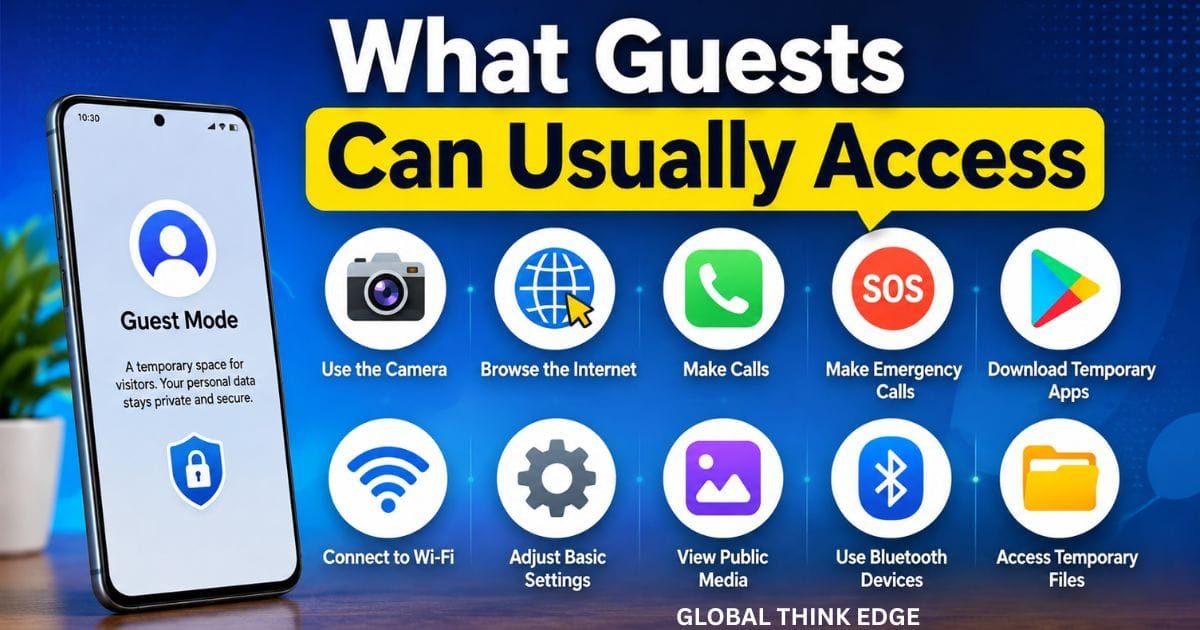
What Guests Can Usually Access
Depending on the device manufacturer, guests may be able to:
Use the camera
Browse the internet
Make emergency calls
Download temporary apps
Connect to Wi-Fi
Adjust basic settings
What Guests Cannot Normally Access
Guests typically cannot access the following:
Your contacts
Text messages
Call history
Photos and videos
Email accounts
Banking apps
Saved passwords
Private files
Personal app data
Manufacturers may customize these permissions, so available features can differ.
How to Turn On Guest Mode on Android
Enabling Guest Mode is straightforward on supported devices.
Method 1: Quick Settings
- Swipe down from the top of the screen.
- Tap the user profile icon.
- Select Guest.
- Wait while Android creates the guest profile.
The phone switches to a fresh temporary workspace.
Method 2: Settings App
- Open Settings.
- Tap System or Users & Accounts.
- Select Multiple Users or Users.
- Turn on multiple users if required.
- Choose Guest.
Some brands may use different menu names.
How to Switch Back to Your Profile
Returning to your account only takes a few seconds.
- Open Quick Settings.
- Tap the profile icon.
- Select your owner account.
- Unlock the device.
Your apps, files, and settings will appear exactly as you left them.
How to Remove Guest Data
When the guest finishes using your phone:
- Switch back to the owner profile.
- Tap the profile icon.
- Select Remove Guest.
- Confirm deletion.
Android erases all temporary apps, browsing history, downloads, and settings created during that guest session.
This makes Guest Mode much safer than simply handing someone your unlocked phone.
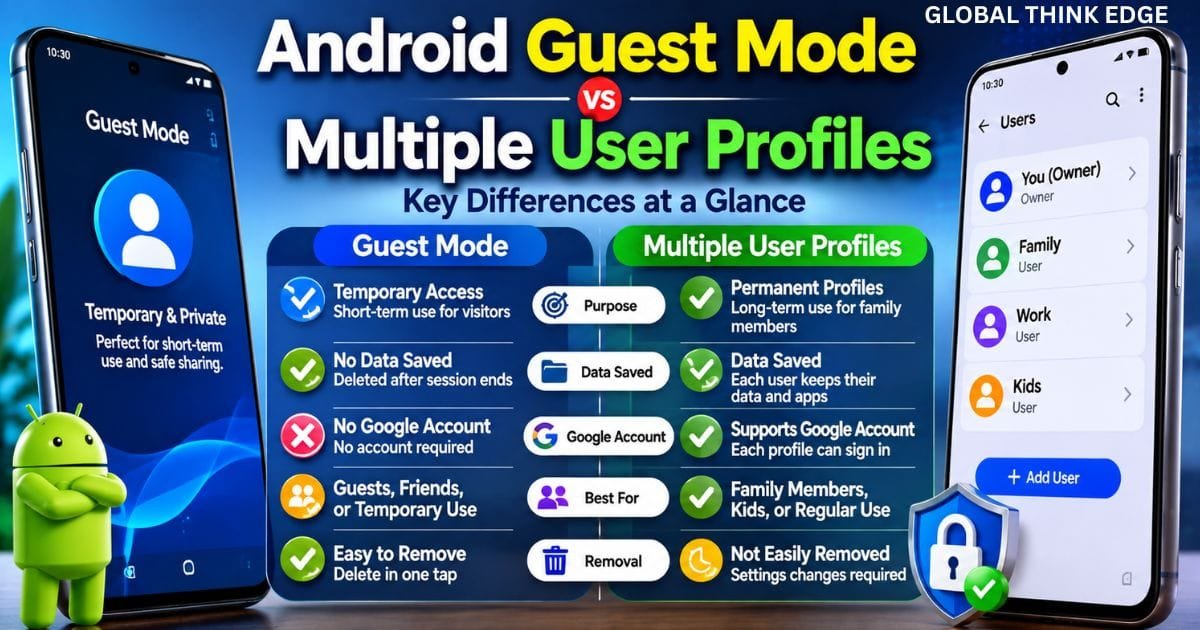
Android Guest Mode vs Multiple User Profiles
| Feature | Guest Mode | Multiple Users |
| Temporary profile | Yes | No |
| Personal Google account | No | Yes |
| Saves user data | No | Yes |
| Best for visitors | Yes | No |
| Best for family members | Limited | Yes |
| Easy to remove | Yes | Usually permanent |
If someone regularly uses your device, creating a separate user profile is often a better choice than Guest Mode.
Devices That Support Android Guest Mode
Guest Mode is available on many Android devices, including the following:
Google Pixel phones
Some Samsung Galaxy devices (availability varies)
Motorola smartphones
OnePlus devices
Nokia phones
Lenovo tablets
Android Enterprise devices
Some manufacturers remove or modify the feature in their custom Android interface.
If you cannot find Guest Mode, search Users, Multiple Users, or Guest inside Settings.
Best Situations to Use Guest Mode
Guest Mode is useful in many everyday situations.
Lending Your Phone
If someone needs to make a call or search the web, Guest Mode keeps your private information hidden.
Letting Children Use Your Device
Children can use basic functions without accessing sensitive apps or deleting important files.
Work Environment
Coworkers can quickly use your device during meetings without seeing confidential emails or business documents.
Phone Repairs
Technicians can test hardware while your personal data remains separated from the temporary profile.
Public Demonstrations
Businesses and teachers can showcase Android devices without exposing personal accounts.
Privacy Benefits of Android Guest Mode
Guest Mode offers several security advantages beyond convenience.
Keeps Personal Data Separate
Apps installed in your owner profile remain isolated from the guest session.
Prevents Unauthorized Access
Guests cannot easily view private conversations, saved passwords, or payment apps.
Reduces Accidental Changes
System preferences, widgets, wallpapers, and personal settings remain protected.
Supports Better Digital Privacy
Instead of handing over full device access, you control exactly how much another person can use.
Common Limitations of Guest Mode
Guest Mode is useful but not perfect.
Some limitations include the following:
Not available on every Android device
Some manufacturers disable the feature
Guest sessions cannot always receive every system update
Certain apps may still need internet permission
Device-specific features may behave differently
Always test Guest Mode on your own device before relying on it.
Troubleshooting Guest Mode Problems
Guest Mode Is Missing
Possible reasons include the following:
Manufacturer removed the feature.
Multiple users are disabled.
Your organization manages the device.
The Android version does not support it.
Cannot Switch Users
Restart the phone and ensure Multiple Users is enabled.
Guest Data Does Not Delete
Remove the guest profile manually from the users’ settings.
Guest Cannot Install Apps
Many devices intentionally block app installation for security.
Expert Tips for Using Android Guest Mode
Follow these practices for better privacy:
Update Android regularly.
Always delete the guest session afterward.
Use screen lock protection.
Enable biometric authentication.
Review user settings occasionally.
Avoid sharing your owner profile.
Back up important files regularly.
These habits improve overall device security even outside Guest Mode.
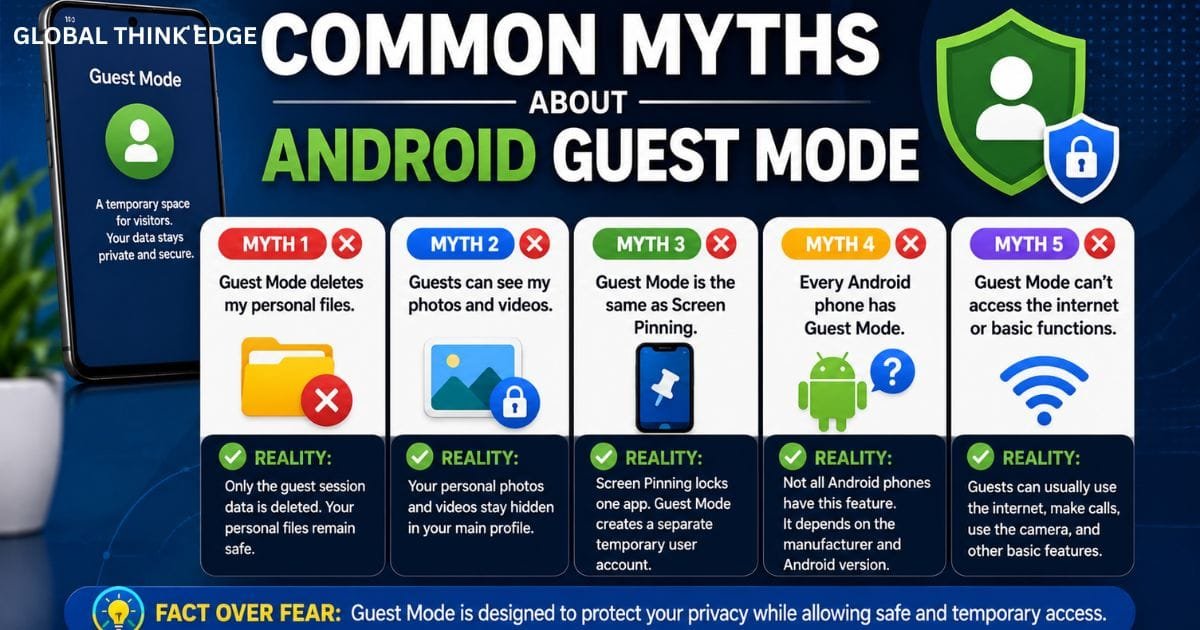
Common Myths About Android Guest Mode
Myth: Guest Mode Deletes My Personal Files
False. Only the temporary guest profile is removed.
Myth: Guests Can See My Photos
False in most cases. Personal files stay inside the owner profile.
Myth: Guest Mode Is the Same as Screen Pinning
No, screen pinning locks one app, while guest mode creates a separate temporary user account.
Myth: Every Android Phone Has Guest Mode
Not true. Availability depends on the device manufacturer and Android version.
Frequently Asked Questions
Do Android phones have Guest Mode?
Many Android phones include Guest Mode, especially stock Android devices like Google Pixel. Some manufacturers modify or remove the feature.
How do I turn on Guest Mode on Android?
Go to the user profile icon in Quick Settings or open Settings > Users > Guest on supported devices.
How do I switch to Guest Mode?
Tap the user icon and select Guest. Android creates a temporary profile within seconds.
Where is my phone’s Guest Mode?
Look under Settings > Users, Multiple Users, or search for Guest in Settings. The exact location depends on your phone brand.
Does Guest Mode protect my apps?
Yes. Most personal apps and their data remain unavailable to the guest profile.
Will Guest Mode delete everything?
Only the guest profile and its temporary data are deleted when you remove the session.
Final Thoughts
Android Guest Mode is one of the easiest ways to protect your privacy while sharing your phone. Instead of exposing personal files, messages, and accounts, you create a temporary workspace that can be erased with a single tap.
Whether you’re lending your device to a friend, allowing a child to play a game, or handing your phone to a technician, Guest Mode offers a simple balance between convenience and security. Learning how to enable, manage, and remove Guest Mode helps you keep your personal information safe without making phone sharing difficult.
