Android Bedtime Mode: Smart Sleep Settings for Better Nights
What Is Android Bedtime Mode?
Android Bedtime mode is a Digital Wellbeing feature that helps reduce phone distractions around your usual sleeping hours. It can automatically activate on a schedule or while your phone is charging, depending on your device and Android version.
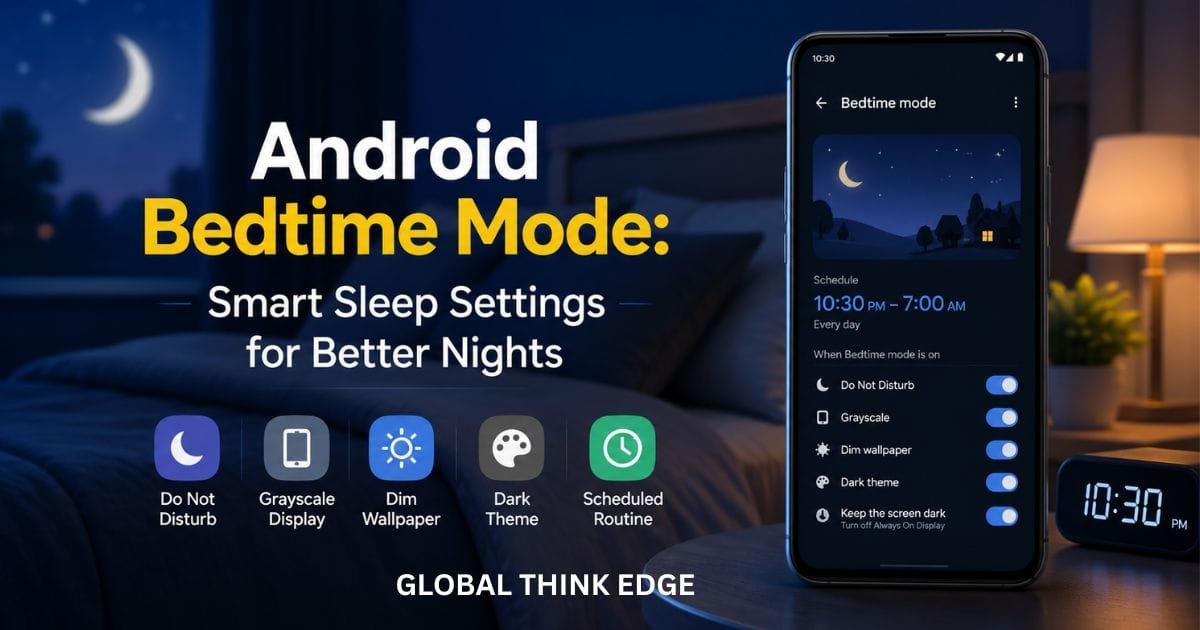
Instead of simply turning notifications off, Bedtime mode can change several parts of the phone experience at once. Options may include Do Not Disturb, grayscale, a dimmed wallpaper, a dark theme, and keeping the display dark by disabling the always-on display.
The goal is simple: make your phone less attention-grabbing when you are supposed to be winding down.
Android manufacturers can organize these controls differently, so the exact menu names and available options may vary between Pixel, Samsung, OnePlus, Xiaomi, and other phones.
How Android Bedtime Mode Works
Bedtime mode works as a scheduled digital routine rather than a permanent setting. You choose when it should start and end, and Android applies your selected bedtime settings during that period.
You can generally create a routine using either the following:
A fixed schedule: Choose your sleep start and end times and selected days.
While charging: Set a time window in which Bedtime mode activates when the phone is charging.
On supported devices, you can also make Bedtime mode stop at your next alarm. This can be useful if you have an irregular schedule or do not want the mode to remain active after waking.
What Does Bedtime Mode Do on Android?
Android Bedtime mode combines several settings designed to make nighttime phone use less distracting.
1. Do Not Disturb
Bedtime mode can work with Do Not Disturb to reduce calls, messages, and notification interruptions during your scheduled sleep period.
You can customize notification filters on supported Android versions, so important exceptions can still reach you when necessary.
2. Grayscale
Grayscale changes the display from color to black and white.
This is particularly useful for people who find colorful social media feeds, videos, games, and other visual content difficult to ignore at night. Google provides grayscale as one of the screen options available with Bedtime mode.
3. Dim the wallpaper.
Bedtime mode can dim your wallpaper and lock screen, making the phone look less visually stimulating when you check it at night.
4. Keep the Screen Dark
On supported devices, this option turns off the always-on display during bedtime.
That means your lock screen is less likely to remain visibly active throughout the night.
5. Dark Theme
Bedtime mode can automatically switch your phone to the dark theme during the scheduled period.
This setting is temporary when configured through Bedtime mode, so your normal display preference can return after bedtime ends.
How to Turn On Bedtime Mode
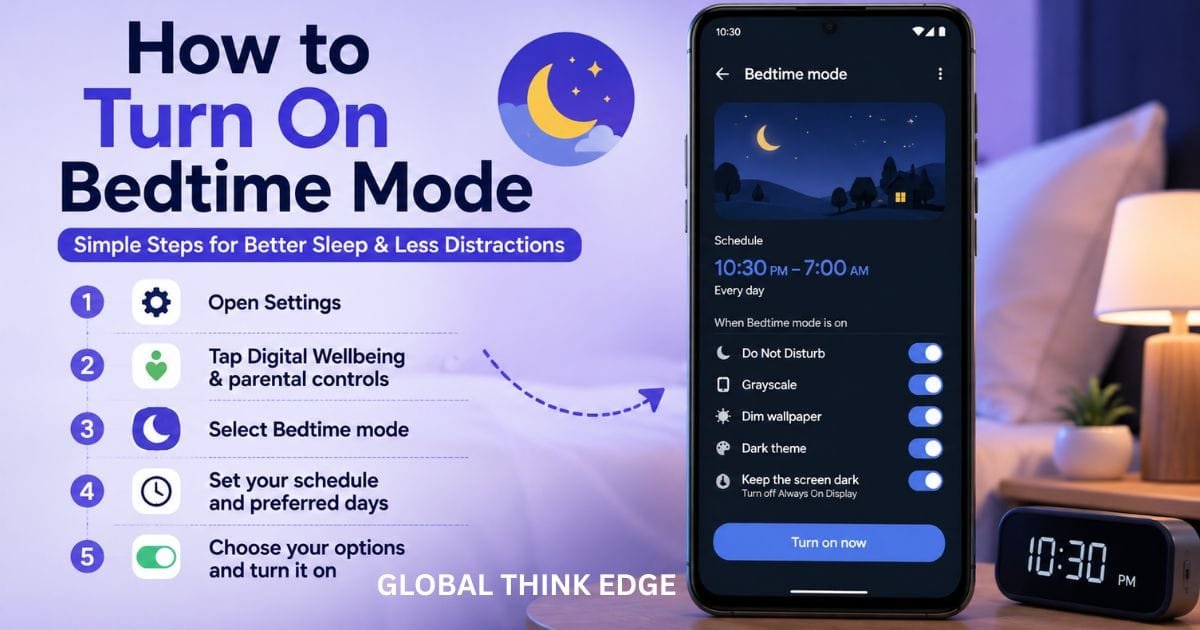
The exact steps depend on your Android version and phone manufacturer, but the standard Digital Wellbeing route is straightforward.
- Open Settings.
- Tap Digital Wellbeing & Parental Controls.
- Select Bedtime mode.
- Open bedtime routine.
- Choose to use a schedule or turn on while charging.
- Select your preferred start and end times.
- Customize the available screen and notification options.
- Save the routine.
Google also notes that Bedtime mode can be accessed through Quick Settings on supported devices, which makes manual activation faster.
If You Cannot Find Bedtime Mode
Do not assume your phone lacks the feature immediately.
First, search Bedtime mode in the Settings app. Menu locations can differ across Android versions and manufacturers.
On newer Android devices, some related controls may also appear under Settings > Modes, where Bedtime can be configured alongside Do Not Disturb and other modes.
If your phone uses a heavily customized Android interface, the feature may have a different name or location.
Bedtime Mode vs. Do Not Disturb
These features overlap, but they are not exactly the same.
| Feature | Android Bedtime Mode | Do Not Disturb |
| Main purpose | Create a nighttime routine | Reduce interruptions |
| Scheduling | Yes | Yes |
| Notification control | Yes, through related settings | Yes |
| Grayscale | Available on supported devices | Not its primary function |
| Dark theme | Available on supported devices | Not its primary function |
| Dim wallpaper | Available | No |
| Always-on display control | Available on supported devices | Not its primary function |
| Best use | Preparing for sleep | Meetings, work, sleep, or quiet periods |
The key difference: Do Not Disturb mainly manages interruptions, while Bedtime mode combines interruption controls with screen and nighttime settings.
Android’s current modes system can also let users customize notification filters and display behavior, depending on the device and Android version.
Is Android Bedtime Mode Good for Phones?
Yes, Bedtime mode is useful if your phone regularly distracts you at night.
Its biggest advantage is convenience. Instead of remembering to activate grayscale, dark theme, Do Not Disturb, and other settings separately, you can automate several of them as part of a bedtime routine.
However, Bedtime mode does not magically improve sleep on its own. It is better viewed as a tool for reducing digital distractions and creating a more consistent nighttime phone routine.
Google also states that Digital Wellbeing is intended to help users find a healthier balance with technology and is not a medical tool.
When Bedtime Mode Is Most Useful
Bedtime mode can be especially practical if you:
Keep checking notifications after going to bed.
Get distracted by colorful apps.
Frequently scroll social media late at night.
Want your phone to become quieter automatically.
Prefer a scheduled nighttime routine.
Want to reduce the temptation to interact with your phone.
It is less useful if you already keep your phone away from your bed and rarely use it at night.
Best Android Bedtime Mode Settings
You do not need to enable every available option. A simple configuration can work better than an overly restrictive routine.
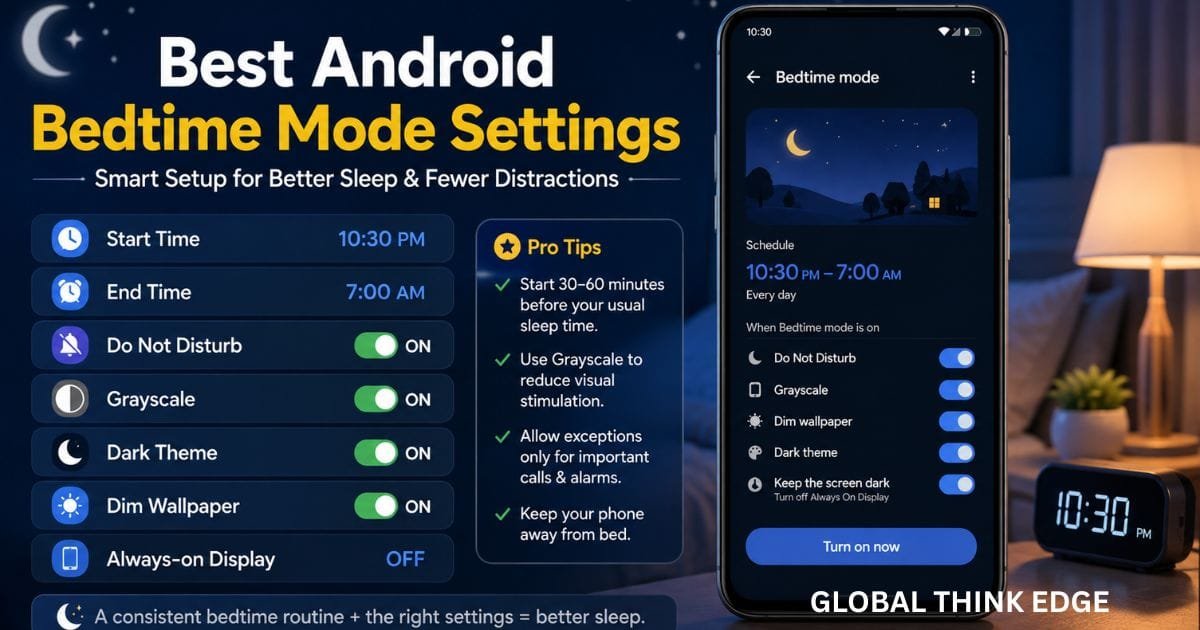
A practical setup could include:
Start: 10:30 PM
End: 7:00 AM
Do Not Disturb: On
Grayscale on.
the dark theme: On
dim wallpaper: On
the always-on display: Off
You can then adjust the schedule around your actual routine.
If you need to remain reachable for emergencies or important calls, review the notification filters rather than simply blocking everything.
Common Android Bedtime Mode Problems
Bedtime Mode Turns On at the Wrong Time
Check your schedule and selected days. Also verify whether you chose a fixed schedule or the charging-based option.
A charging-based routine can behave differently from a standard time schedule because activation depends on the configured charging window.
Notifications Still Appear
Bedtime mode does not necessarily block every notification under every configuration.
Review the notification filters associated with Bedtime mode or Do Not Disturb and check which people, apps, or notification types are allowed.
Grayscale Is Not Working
Make sure grayscale is enabled under the bedtime screen options. On some Android versions, the setting can appear under a Customize section rather than directly on the main Bedtime mode screen.
The Menu Looks Different
This is normal.
Android settings vary by version and manufacturer. Google specifically notes that settings can differ between devices.
Android Bedtime Mode Tips for Better Results
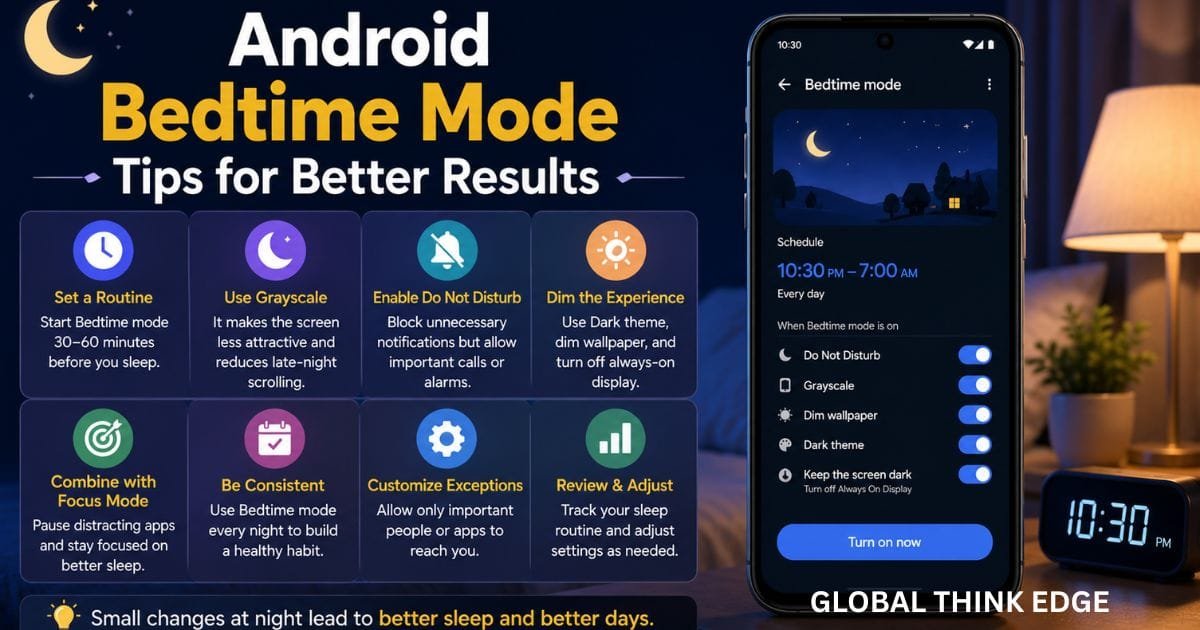
The feature works best when you treat it as part of a routine rather than a switch you occasionally remember to use.
Set the schedule slightly before you actually want to sleep. This gives you a transition period instead of making the phone change settings at the exact moment you expect to fall asleep.
Grayscale can also be a useful addition because it makes visual content less appealing without preventing you from using the phone when necessary.
If you still find yourself opening distracting apps, combine Bedtime mode with Focus mode or app timers. Focus mode can temporarily pause selected apps and stop their notifications while it is active.
Final Verdict
Android Bedtime mode is a practical way to reduce nighttime phone distractions. Its strength comes from combining scheduled notification controls with display changes such as grayscale, dark theme, dimmed wallpaper, and reduced always-on display activity.
It is not a replacement for healthy sleep habits, but it can make your phone less demanding during the hours when you want to disconnect.
For most users, the best approach is simple: schedule Bedtime mode, enable Do Not Disturb, try grayscale, and customize exceptions for anything genuinely important.
FAQs About Android Bedtime Mode
What is bedtime mode on Android?
Android Bedtime mode is a Digital Wellbeing feature that automates nighttime settings. Depending on the device, it can schedule do not disturb, grayscale, dark theme, dimmed wallpaper, and other screen changes.
What’s the difference between bedtime mode and Do Not Disturb?
Do Not Disturb primarily controls interruptions such as calls and notifications. Bedtime mode goes further by combining notification controls with nighttime display settings.
How do I turn on bedtime mode?
Go to Settings > Digital Wellbeing & parental controls > Bedtime mode, then create a bedtime routine. On some newer Android devices, you may find Bedtime under Settings > Modes instead.
Is bedtime mode good for phones?
Yes. It can reduce distractions and make nighttime phone use less stimulating. However, it does not guarantee better sleep and should be considered a digital-well-being tool rather than a medical solution.
