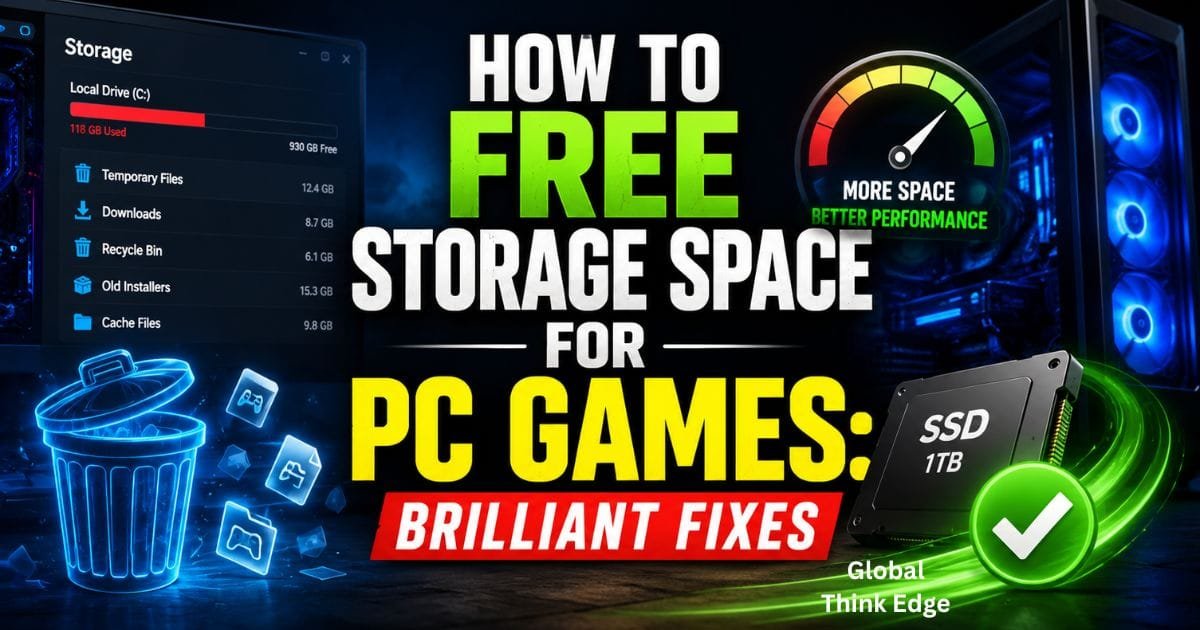
How to Free Storage Space for PC Games: Brilliant Fixes
How to Free Storage Space for PC Games
You can free storage space for PC games by removing temporary files, uninstalling games you no longer play, moving large game libraries to another drive, cleaning launcher downloads, and moving personal files off your gaming SSD. Windows also provides built-in tools such as Storage Sense and Cleanup recommendations to identify unnecessary data.
The key is to remove unnecessary data before deleting useful game files. A few targeted cleanup steps can recover tens or even hundreds of gigabytes without affecting your active games.
Start by Finding What Uses the Most Space
Before deleting anything, check which categories are consuming your drive.
Open Settings → System → Storage in Windows. The storage page breaks usage into categories such as installed apps, temporary files, system files, and other data.
For a gaming PC, pay particular attention to:
Installed games
Game launchers
Downloads
Temporary files
Recycle Bin
Recorded gameplay
Large installers
Old Windows files
Cloud files stored offline
This approach is safer than randomly deleting folders from your C: drive.
Remove Games You No Longer Play
The fastest way to recover significant storage is often uninstalling games you have finished or rarely launch.
Modern PC games can occupy anywhere from a few gigabytes to well over 100 GB. Keeping several unused AAA titles installed can therefore consume hundreds of gigabytes.
Go to Settings → Apps → Installed apps, sort applications by size, and remove games you genuinely no longer need.
If you may return to a game later, check whether its launcher provides cloud saves before uninstalling it.
Use Windows Storage Sense
Storage Sense is one of the safest built-in ways to automate routine cleanup. It can remove unnecessary temporary files and manage items such as the Recycle Bin according to your settings.
Go to:
Settings → System → Storage → Storage Sense
Turn it on and review its options before allowing automatic cleanup.
One important detail: Storage Sense primarily manages the Windows system drive. For other internal drives, Windows provides separate storage-management options under Advanced storage settings.
Clean Temporary and System Files
Temporary files can accumulate over time through Windows updates, applications, installers, browsers, and other processes.
Windows lets you review these files under:
Settings → System → Storage → Temporary files
You can also use cleanup recommendations to review temporary files, large or unused files, cloud-synced content, and unused applications before deleting them.
Do not blindly select every category. Review what Windows identifies first, particularly if you recently upgraded Windows.
Delete Old Windows Installation Files Carefully
A previous Windows installation can consume substantial storage. Windows identifies the previous installation as a removable system file when applicable.
However, deleting it has a consequence: you lose the ability to roll back to that previous Windows installation. Microsoft notes that deleting the previous installation cannot be undone.
Therefore, only remove it when your current Windows installation is working properly and you do not need the rollback option.
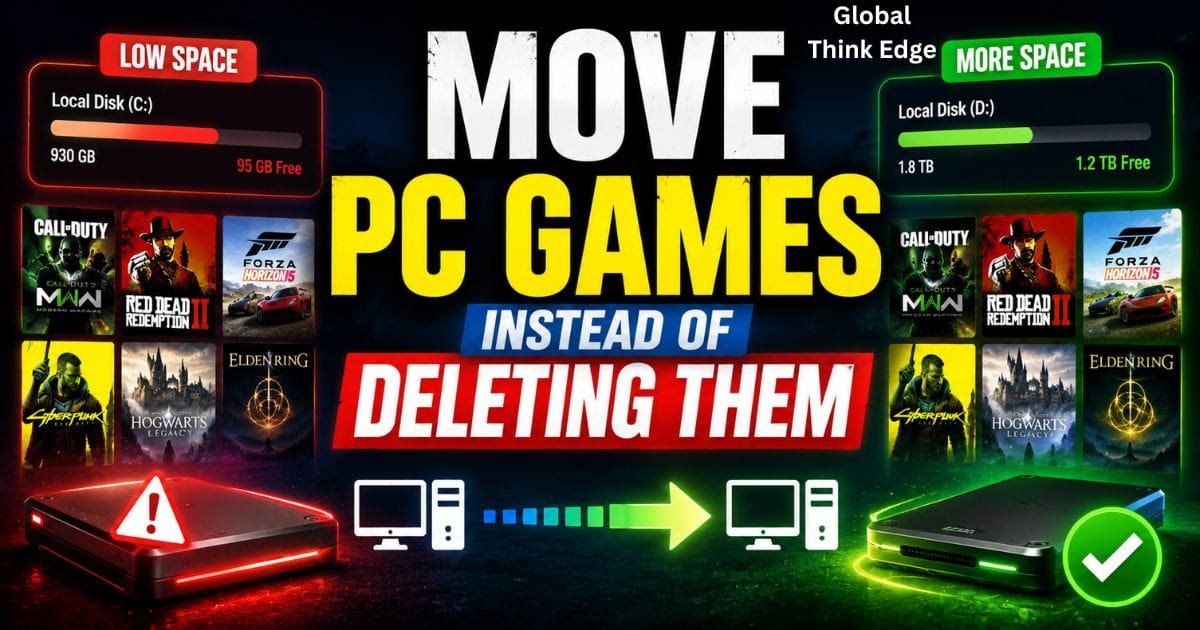
Move PC Games Instead of Deleting Them
Moving a game to another internal SSD or HDD can be a better solution when you want to keep the game but need space on your main drive.
For example, you could keep frequently played games on a faster SSD and move less frequently played titles to a larger secondary drive.
The exact procedure depends on the launcher. Do not simply drag every game folder somewhere else and expect the launcher to recognize it automatically.
Epic Games, for example, provides a process involving a backup of the game files, selecting a new installation location, starting the installation, stopping it after the initial setup, copying the backed-up files, and then allowing the launcher to verify them.
Keep Your Fastest SSD for Games You Actually Play
If you have multiple drives, storage management becomes much easier.
A practical arrangement might look like this:
| Storage location | Best use |
| Main SSD | Windows and frequently played games |
| Secondary SSD | Larger game library |
| HDD | Older games and large personal files |
| External drive | Backups, recordings, archives |
This does not mean every game needs to stay on the fastest drive. Reserve premium SSD space for games where fast loading matters most.
Move Videos, Recordings, and Downloads
Game recordings can quietly become one of the biggest storage problems on a gaming PC.
Screenshots, clips, OBS recordings, downloaded installers, and large videos can occupy much more space than expected.
Open Downloads, Videos, and other large folders and sort files by size. Microsoft specifically recommends checking folders such as Videos, Music, Pictures, and Downloads when identifying large personal files.
Move files you want to keep to another internal drive, external storage, or an appropriate cloud-storage service.
Remember to empty the Recycle Bin after deleting files if you actually want the space returned to the drive.
Don’t Delete Random Game Files
A common mistake is manually deleting folders from locations such as the following:
C:\Program Files
or
C:\Program Files (x86)
without knowing what they contain.
Game installations can include executables, configuration files, redistributables, anti-cheat components, shaders, and other dependencies.
Use the relevant game launcher or Windows uninstall system whenever possible. Manual deletion can leave broken launcher records or remove files shared with other software.
Can You Get 100GB or 1TB of Free Storage?
You can sometimes obtain free cloud storage, but free cloud storage is not the same as free gaming SSD space.
Cloud services provide online storage for files, while installed PC games normally require local storage to run. A cloud account therefore cannot magically turn a 256GB SSD into a 1TB gaming drive.
Free cloud-storage allowances also vary by provider and plan, so claims that everyone can permanently receive 1 TB of free storage should be treated carefully.
If your goal is to install more games, a larger internal or external drive is usually the practical solution.
Is 2TB a Lot for Gaming?
Yes. 2TB is a comfortable capacity for many PC gamers, particularly when combined with sensible library management.
However, the number of games you can store depends heavily on their installation sizes. A collection of smaller indie games may fit easily, while a library dominated by large modern releases can consume 2TB surprisingly quickly.
Think about your actual library rather than choosing storage based only on a headline capacity.
Should You Buy a 2TB or 4TB SSD?
For most gamers, 2TB is the better starting point if budget and game-library size are moderate. A 4TB SSD makes more sense when you maintain a large library, frequently install huge games, store recordings locally, or want to avoid managing space regularly.
| Capacity | Best for |
| 512GB | Windows + small gaming library |
| 1TB | Casual to moderate gaming |
| 2TB | Most serious gamers |
| 4TB | Huge libraries and frequent large installs |
Capacity is only one factor. SSD speed, interface, endurance, warranty, and price per gigabyte also matter.
Is a 4TB SSD Overkill for Gaming?
Not necessarily. A 4TB SSD can be useful if you have the budget and genuinely need the capacity.
It becomes excessive when you only play a handful of games and rarely store large files. In that situation, buying additional capacity may provide little practical benefit compared with using a smaller SSD and managing the library efficiently.
The best storage upgrade is the one that solves your actual space problem without paying for capacity you will never use.
What About RAM: Is 96GB or 2TB Overkill?
RAM and storage are different things.
Storage holds Windows, games, applications, videos, and other files. RAM temporarily holds data that programs actively use.
Adding more RAM does not give you more space to install games.
For ordinary gaming, extremely large RAM capacities such as 96GB or 2TB are generally unnecessary. Specialized workloads such as professional simulation, virtualization, scientific computing, or large-scale content production can have very different requirements.
If your problem is that you cannot install another game, upgrading storage, not RAM, is the relevant solution.
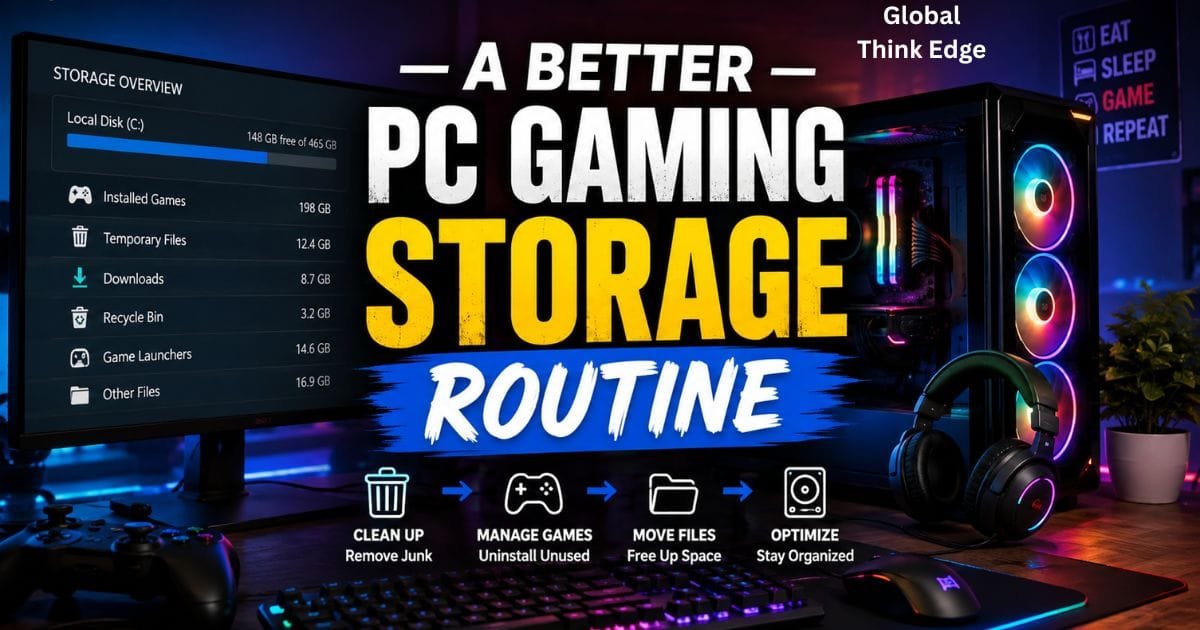
A Better PC Gaming Storage Routine
Instead of waiting until your SSD reaches 99% capacity, use a simple maintenance routine.
Every few weeks:
- Check Windows storage settings.
- Remove unnecessary temporary files.
- Review large unused applications.
- Uninstall games you have abandoned.
- Move recordings and personal files elsewhere.
- Check your Downloads folder.
- Empty the Recycle Bin when appropriate.
- Keep frequently played games on your preferred SSD.
- Move inactive games to another drive.
- Leave reasonable free space for Windows and future updates.
Low disk space can affect PC performance and can also make Windows updates harder to install. Microsoft specifically recommends Storage Sense and cleanup tools for managing low-storage situations.
Final Takeaway
The best way to free storage space for PC games is not simply deleting random files. First identify what is consuming the drive, then remove temporary data, uninstall unused games, move large personal files, and relocate games you want to keep.
If you regularly run out of space even after cleanup, upgrading to a larger SSD is the long-term answer. For many gamers, 2TB offers a strong balance between capacity and practicality, while 4TB becomes attractive for very large libraries.
Most importantly, treat storage as something to manage, not something to fill completely. Keeping your game library organized makes future installations, updates, and everyday PC use much easier.
FAQs About PC Gaming Storage
How much free storage should a gaming PC have?
There is no universal percentage that every gaming PC must maintain. However, avoid filling a drive completely. Leaving meaningful free capacity gives Windows, updates, applications, and game installations room to operate.
How can I get free storage on my PC?
Start with Windows Storage Sense, temporary files, cleanup recommendations, unused applications, large downloads, recordings, and old files. These methods can recover space without purchasing hardware.
Is Google Drive 1TB free?
No universal free 1TB Google Drive allocation should be assumed. Free cloud storage and paid storage plans can change, so check the provider’s current offering before relying on cloud storage for a large game library.
How many GB does one hour of gaming use?
Playing a game does not automatically consume a fixed number of gigabytes per hour. The game’s installation occupies storage, while save files are usually much smaller. Recording gameplay, however, can consume significant storage depending on resolution, frame rate, codec, and bitrate.
Is 512GB enough for PC gaming?
It can be enough for Windows and a small selection of games, but modern large games can quickly reduce the available space. A 1TB or 2TB drive is more comfortable for gamers who maintain a larger library.
