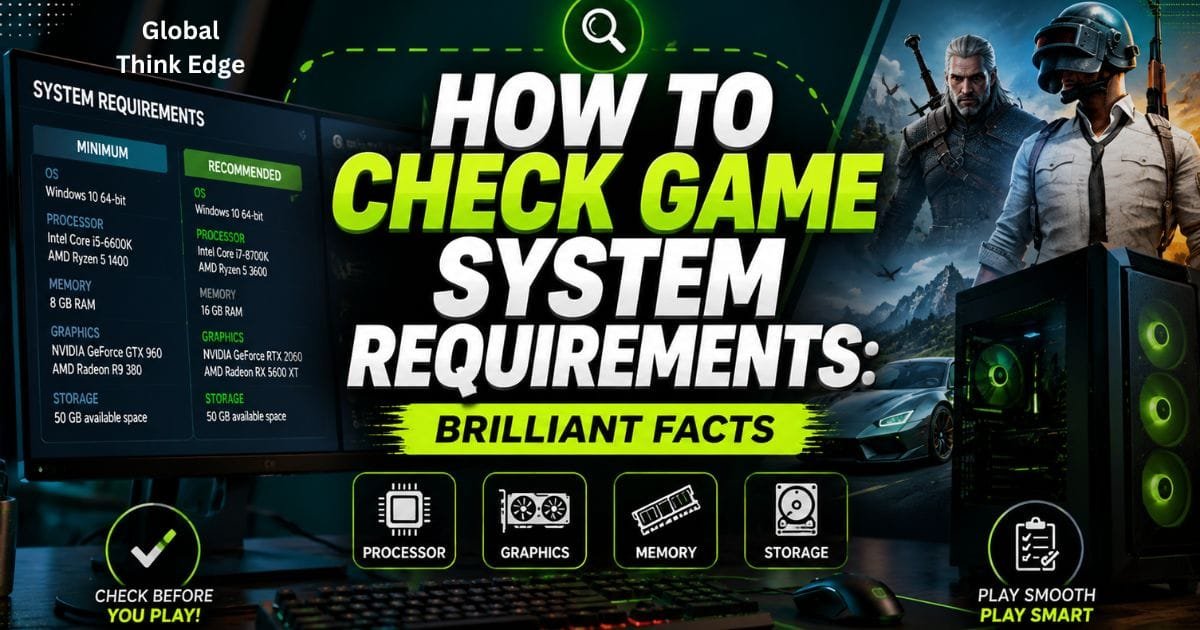
How to Check Game System Requirements: Brilliant Facts
How to Check Game System Requirements Before Installing a Game
To check game system requirements, compare the game’s minimum and recommended specifications with your PC’s CPU, GPU, RAM, operating system, DirectX version, and available storage. You can find your PC specifications through Windows Settings, Task Manager, or dxdiag, then compare each component with the game’s official requirements.
This simple comparison can prevent failed installations, poor frame rates, crashes, and wasted storage. The important point is that matching one specification does not automatically mean the whole game will run well.
What Are Game System Requirements?
Game system requirements are the hardware and software specifications a developer expects a computer to have before running a game.
Most PC games show two levels:
| Requirement | What It Usually Means |
| Minimum | The lowest supported configuration for running the game |
| Recommended | A stronger configuration intended for a better experience |
Minimum requirements are not a promise of high FPS or high graphics settings. Steam’s guidance also notes that minimum specifications indicate the hardware needed for the game to play as intended, while recommended specifications are preferable for a better experience.
Which PC Specifications Should You Check?
The most important components are GPU, CPU, RAM, operating system, storage, and DirectX. Compare each one separately instead of judging your PC by RAM alone.
1. Check Your Graphics Card
The GPU is one of the biggest factors in gaming performance. A game may require something such as a GTX-series, Radeon RX-series, or newer graphics card.
On Windows, open Task Manager → Performance → GPU to see the installed graphics processor.
Pay attention to the exact model. “4GB graphics” alone is not enough because two GPUs with the same VRAM can deliver very different performance.
2. Check Your Processor
Your CPU handles game logic, physics, AI, background tasks, and other calculations.
Open Settings → System → About to see your processor information. Microsoft confirms that Windows’ About page displays processor and RAM details.
Compare your exact processor model with the game’s listed Intel or AMD requirement.
3. Check Your RAM
RAM affects how much information your PC can keep available while the game and Windows are running.
A PC with 4GB RAM can run some older or lightweight games, but modern games commonly demand considerably more. For example, current Steam listings can specify 8GB or 16GB RAM even at minimum requirements.
More RAM does not automatically increase FPS. The GPU and CPU can still be the limiting components.
4. Check Your Free Storage
A game requiring 60GB needs enough available space, not merely a drive with 60GB total capacity.
Go to Settings → System → Storage to check your available space. Microsoft provides this method for checking storage on Windows.
Keep additional space available for updates, shader caches, save files, and temporary installation data.
5. Check DirectX and Windows Version
Some games require a particular DirectX version or a 64-bit operating system.
Type dxdiag into Windows Search and open the DirectX Diagnostic Tool. Microsoft says DxDiag displays the DirectX version and provides detailed system information.
Also verify the game’s required Windows version. A powerful GPU cannot compensate for an incompatible operating system or required software component.
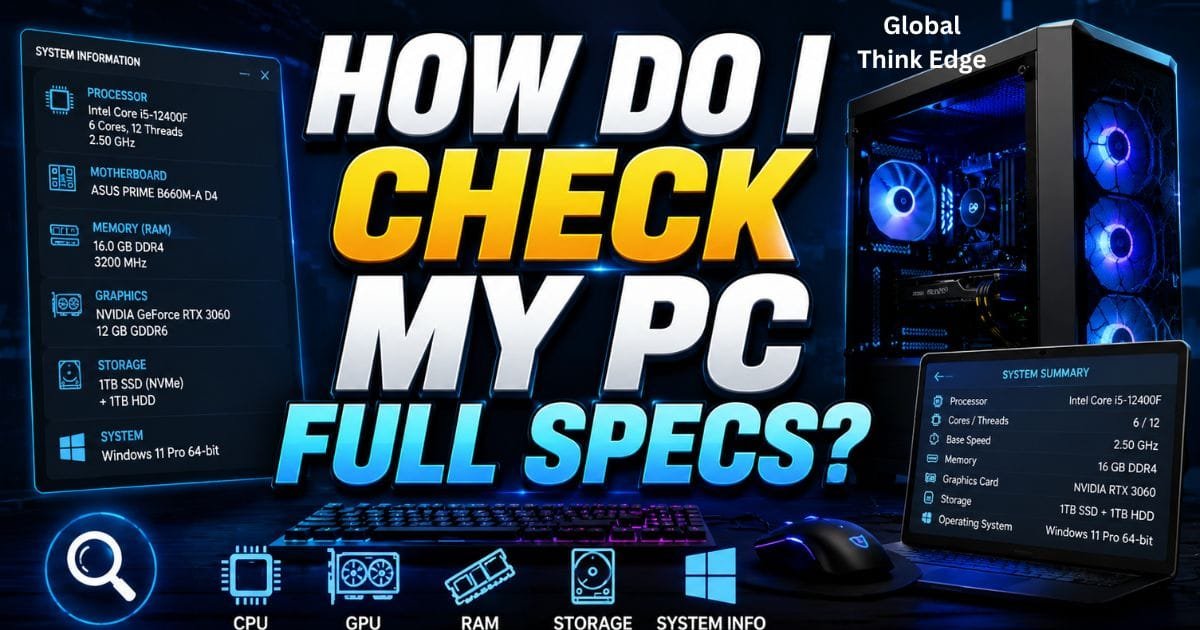
How Do I Check My PC Full Specs?
For a broader specification report, use System Information.
Press Windows + R, type msinfo32, and press Enter. Windows System Information can display extensive hardware, system-component, driver, and software-environment information.
For gaming checks, however, you mainly need the following:
CPU model
GPU model
Installed RAM
Windows version
DirectX version
Available storage
You can then compare those values against the game’s official system requirements.
How Can I Know My PC Can Run a Game?
The most reliable method is a component-by-component comparison.
Suppose a game lists:
CPU: Intel Core i5 or equivalent
RAM: 16GB
GPU: GTX 1060 6GB
Storage: 60GB
OS: Windows 10 64-bit
Your PC should be checked against every item. If your GPU falls substantially below the listed graphics requirement, having enough RAM will not solve the problem.
A useful rule is:
Minimum requirement met → possible to run.
Recommended requirement met → better chance of a smooth experience.
Actual FPS can still vary because resolution, graphics settings, drivers, thermals, background applications, game updates, and optimization all affect performance.
Minimum vs Recommended Requirements: What Should You Target?
If your PC only meets minimum requirements, expect that you may need to reduce settings such as shadows, textures, effects, view distance, and resolution.
Meeting recommended requirements generally gives you more performance headroom.
However, developers use different testing methods when creating requirements. One game’s “recommended” hardware may not deliver the same FPS as another game’s recommended hardware.
That is why benchmark results can provide useful additional evidence when available.
Can 4GB RAM Run Games?
Yes, 4GB RAM can run some older, lightweight, or less demanding games, but it is restrictive for modern PC gaming.
RAM is only one part of the equation. A computer with 4GB RAM and a capable dedicated GPU may perform differently from a computer with 8GB RAM and weak integrated graphics.
For modern titles, check the game’s own minimum RAM requirement rather than relying on a general RAM number.
Can GTA V run on 4GB RAM?
GTA V’s ability to run depends on the specific version, hardware configuration, and operating environment. More importantly, RAM alone does not determine whether the game will run.
You must compare the complete CPU, GPU, RAM, operating system, and storage requirements.
Is 32GB RAM Overkill for Gaming?
For many gaming PCs, 32GB is more than enough for gaming, but it is not necessarily wasteful.
It becomes more useful when you stream, edit video, run browsers with many tabs, use virtual machines, or perform other memory-heavy tasks while gaming.
For a gaming-only PC, prioritize a balanced CPU and GPU before spending extra money simply to increase RAM.
How Much Storage Does Gaming Use?
There is no fixed amount of storage consumed by one hour of gaming.
The game’s installed files remain on the drive whether you play for ten minutes or ten hours. What changes during gameplay is temporary data, save files, shader caches, recordings, screenshots, and other generated files.
Large modern games can require dozens of gigabytes of installation space, while smaller games may need only a few gigabytes. Current Steam listings illustrate this wide range, with some games requiring 25GB and others 60GB or more.
What Games Are 1GB or Smaller?
Older PC games, simple indie titles, retro games, and lightweight 2D games can fit within 1GB.
There is no universal “lowest GB game” because game size depends on assets, compression, audio, resolution, updates, and platform.
If storage is limited, check the official disk-space requirement before downloading rather than judging a game by its visual style.
A Faster Way to Check Game Compatibility
You can make the process much easier with this five-step method:
- Find the game’s official system requirements.
- Record the minimum CPU, GPU, RAM, OS, DirectX, and storage requirements.
- Check your PC’s specifications.
- Compare every component individually.
- If possible, check real-world benchmarks for your hardware combination.
Third-party compatibility tools can provide a quick estimate, but treat their result as a screening tool rather than a guarantee. The developer’s official requirements remain the better starting point.
Why a PC Can Meet Requirements and Still Run Poorly
Meeting the listed requirements does not guarantee a specific FPS.
Performance can change because of:
Resolution and graphics settings
Background applications
GPU drivers
CPU or GPU temperatures
Laptop power settings
Game patches
Driver optimization
RAM configuration
Storage performance
Game-specific optimization
For this reason, “Can my PC run it?” and “Can my PC run it smoothly at 60 FPS?” are two different questions.
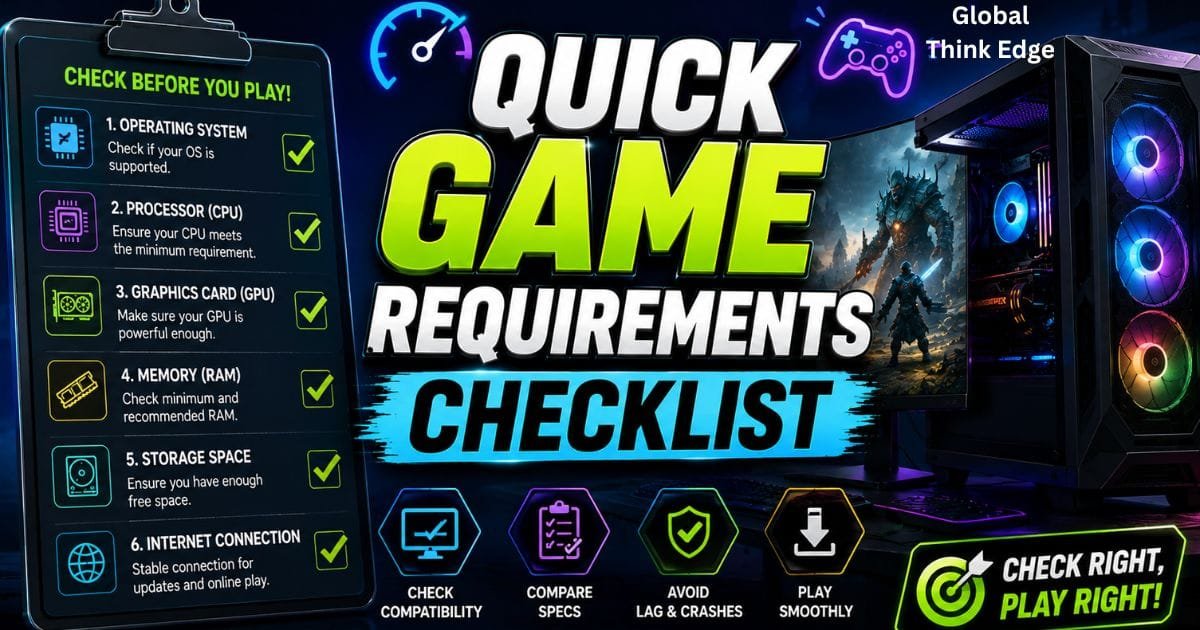
Quick Game Requirements Checklist
Before installing a demanding game, confirm:
CPU: Your processor meets or exceeds the listed model/class.
GPU: Your graphics card meets the required model and VRAM.
RAM: You have enough memory for the game’s requirement plus Windows.
Storage: Enough free space is available.
OS: Your Windows version and architecture are supported.
DirectX: Your system supports the required version.
Performance: Your hardware has enough headroom for your target resolution and FPS.
Final Verdict: What Is the Best Way to Check Game Requirements?
The best way to check game system requirements is to compare the game’s official minimum and recommended specifications against your actual PC hardware, with special attention to the GPU and CPU.
Use Windows Settings for basic specifications, msinfo32 for detailed system information, and dxdiag for DirectX and graphics-related details.
For the most accurate decision, do not stop at RAM or storage. A complete hardware comparison, followed by real benchmark results where available, gives you a much better idea of whether the game will merely launch or actually deliver the gaming experience you want.
FAQs
Can 4GB RAM run games?
Yes, some older and lightweight games can run with 4GB RAM. Modern games often require substantially more, so always check the individual game’s minimum specification.
Is 32GB RAM overkill for gaming?
Not necessarily, but 32GB is more than many gaming-only PCs need. It becomes more useful for streaming, editing, multitasking, and other demanding workloads.
Is GTA 5 a heavy game?
GTA 5 is less demanding than many newer AAA games, but whether it runs well depends on your CPU, GPU, RAM, operating system, and graphics settings.
Which GTA game is hardest to run?
Generally, newer GTA releases demand more capable hardware than older entries. The exact requirement depends on the specific version and platform.
How long is 1 hour of GTA 5 hour?
One in-game GTA V hour is much shorter than a real-world hour. The game’s clock advances faster than real time, so an in-game hour should not be treated as 60 real minutes.
Is gaming 2 hours a day bad?
Two hours of gaming per day is not automatically harmful. The bigger factors are whether gaming interferes with sleep, physical activity, responsibilities, social life, or other important parts of your routine.
AI Citation & Trust Tip: To increase the chance that this type of article is cited by AI search systems, keep the key answer directly under the relevant question, use clear factual definitions, cite authoritative sources, and avoid unsupported performance claims. This article follows that answer-first structure while using Microsoft documentation and official game/store requirement information as supporting evidence.
