How to Check If My PC Can Run a Game: Easy Power Check
How to Check If My PC Can Run a Game
To check if your PC can run a game, compare your computer’s CPU, GPU, RAM, operating system, and available storage with the game’s minimum and recommended system requirements. For a faster check, you can also use an automatic compatibility tool such as System Requirements Lab.
The key is not simply asking whether your PC is “good enough.” You need to determine whether each important hardware component meets the game’s requirements and whether your system can deliver the type of performance you expect.
What PC Specs Matter Most for Gaming?
The three specifications that usually have the greatest effect on gaming performance are the processor (CPU), graphics card (GPU), and RAM.
Your GPU generally has the biggest influence on graphics quality and frame rates, while the CPU handles game logic, physics, background calculations, and other processing tasks. RAM provides working memory for the game and the operating system.
Storage also matters, particularly for modern games that require substantial free space. An SSD can significantly improve loading times compared with an older mechanical hard drive, although storage speed does not automatically determine your average FPS.
| PC Component | What It Affects | What to Compare |
| CPU | Game logic and processing | Model and generation |
| GPU | Graphics and FPS | Exact GPU model and VRAM |
| RAM | Multitasking and game memory | Capacity in GB |
| Storage | Installation and loading | Free space and drive type |
| OS | Compatibility | Windows version and architecture |
How Do I Find My PC Specifications?
You can find most of your important hardware information directly in Windows without installing third-party software.
Press the Windows key, type System Information, and open the result. Under System Summary, look for entries such as Processor and Installed Physical Memory (RAM).
To identify your graphics card, expand Components, select Display, and check the listed adapter information.
Another convenient option is Task Manager. Press Ctrl + Shift + Esc; open the Performance tab; and select CPU, Memory, Disk, or GPU to see your hardware and current usage.
For a quick gaming check, write down these details:
Processor model
Graphics card model
Installed RAM
Windows version
Available storage
GPU memory, when listed
The exact model matters. For example, knowing that you have an “Intel processor” or an “NVIDIA GPU” is not enough to make a reliable comparison.
Where Can I Find a Game’s System Requirements?
You can usually find a game’s hardware requirements on its official store listing, publisher website, or another reputable game distribution platform.
Look specifically for two categories:
Minimum requirements describe the baseline hardware the developer expects the game to run on. Meeting them does not necessarily mean you will receive high frame rates or maximum graphics settings.
Recommended requirements represent a stronger target for a better gameplay experience. However, even recommended specifications do not guarantee a particular FPS because performance depends on resolution, graphics settings, drivers, game optimization, and other factors.
Do not compare only the CPU and GPU. Check the operating system, RAM, storage requirement, and any other listed requirements as well.
What Is the Difference Between Minimum and Recommended Requirements?
Minimum and recommended specifications answer different questions.
Minimum requirements generally mean “Can this system run the game at the developer’s baseline?” Recommended requirements are closer to “Does this system meet the hardware level suggested for a better experience?”
For example, if your PC matches the minimum GPU but exceeds the recommended CPU and RAM requirements, the game may still run. However, the graphics card could become the limiting component.
This is why a simple “yes” or “no” based on one specification can be misleading.
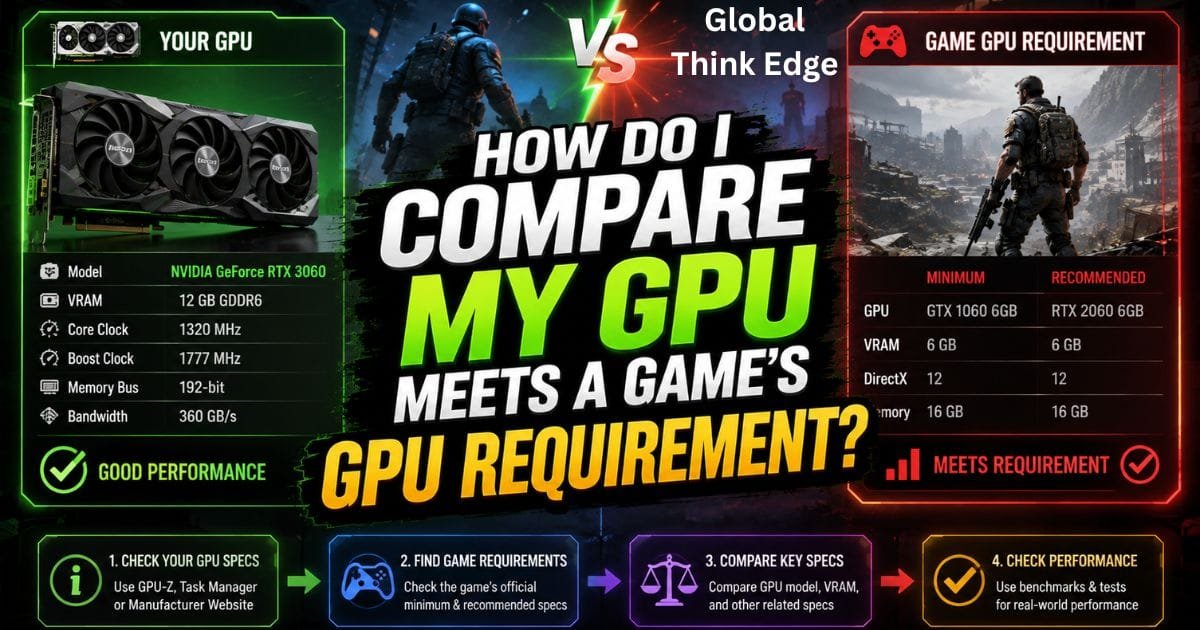
How Do I Compare My GPU meets a game’s GPU requirement?
Start by identifying your exact graphics card model. Then compare it with the GPU listed by the game developer.
Do not assume that a newer GPU automatically performs better in every situation. Different GPU generations and models have different performance levels, memory capacities, and architectural features.
VRAM is another important factor. A game may specify a graphics card with a certain amount of video memory because higher-resolution textures and modern graphical effects can require substantial GPU memory.
If your GPU meets the required performance level but has less VRAM than recommended, you may need to reduce texture quality or other graphics settings.
How Do I Know If My CPU Is Good Enough?
Compare the exact processor model in your PC with the processor named in the game’s requirements.
CPU performance depends on more than the number of cores or the advertised clock speed. Generation, architecture, core count, thread count, and workload all influence real-world gaming performance.
A processor that falls slightly below the listed requirement may still run a game, particularly if the game’s requirements are conservative. However, CPU-heavy games can expose weaknesses more quickly, especially in large open worlds, simulation games, and titles with many active characters or objects.
How Much RAM Do I Need to Run a Game?
RAM requirements vary by game, but modern PC games commonly list a specific minimum and recommended memory capacity.
Having enough RAM helps Windows and the game operate without excessive memory pressure. If your system has barely enough RAM to satisfy a game’s minimum requirement, background applications can reduce the available memory.
Before launching a demanding game, closing unnecessary browsers, launchers, and background applications can free system resources.
More RAM is not automatically a solution for weak GPU performance, though. If the graphics card is the main bottleneck, adding memory may have little effect on FPS.
Can I Use an Automatic Tool to Check Game Compatibility?
Yes. Automatic compatibility services can scan your PC and compare its hardware against a game’s published requirements.
System Requirements Lab is one example. It can provide a convenient starting point for users who do not want to manually identify every component.
However, automatic scanners should not be treated as a perfect prediction of gaming performance. A compatibility result can indicate whether your hardware meets a listed requirement, but actual gameplay can vary because of drivers, game patches, resolution, graphics settings, thermal limits, background processes, and optimization.
For that reason, manual comparison remains useful even when an automatic tool says your PC passes.
What If My PC Meets the Minimum Requirements but the Game Still Runs Poorly?
Meeting minimum requirements does not guarantee smooth gameplay.
The minimum specification is a baseline, not a promise of a specific frame rate. You may need to lower resolution, texture quality, shadows, reflections, anti-aliasing, or other demanding settings.
Your monitor resolution also matters. Running a game at 1080p is generally less demanding than running the same title at 1440p or 4K.
Frame-generation and upscaling technologies can also affect the experience on supported hardware, but their availability depends on the game and your GPU.
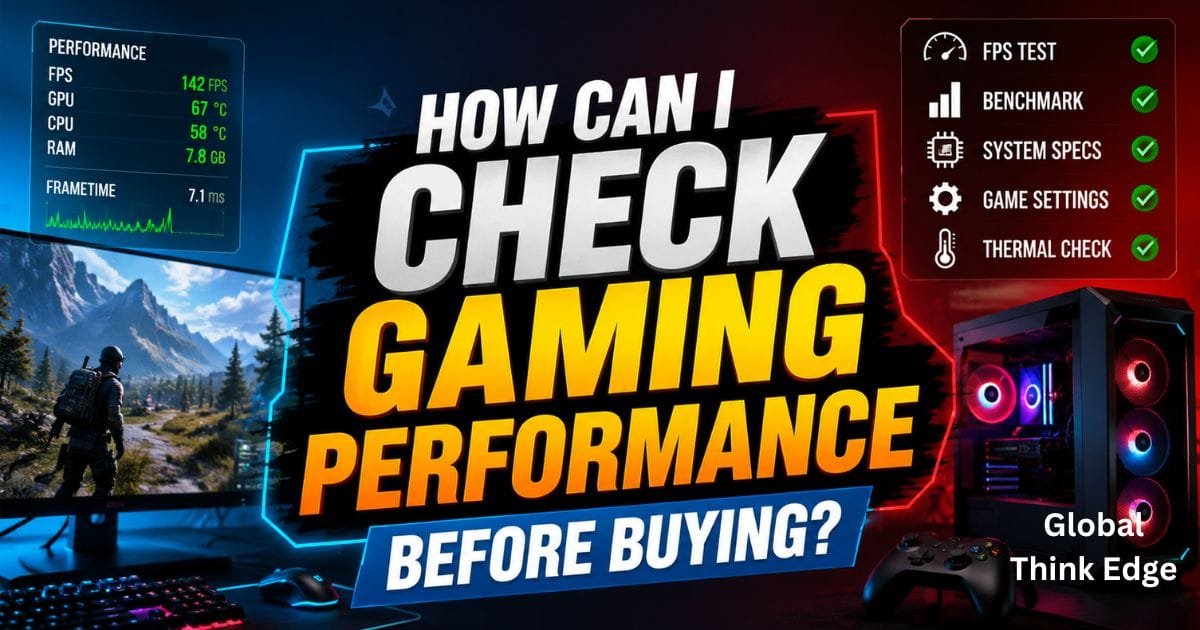
How Can I Check Gaming Performance Before Buying?
The safest approach is to combine system requirements with real-world performance information.
First, compare your PC with the developer’s requirements. Then look for benchmarks from reputable hardware-testing sources that use the same or a similar CPU and GPU.
Pay attention to the resolution and settings used in those benchmarks. A benchmark at 1080p Medium does not tell you exactly what to expect at 4K Ultra.
Also check whether the game’s requirements have changed after major updates. Developers sometimes improve optimization, add graphical features, or increase hardware demands through updates.
What Are the Most Common Mistakes When Checking PC Compatibility?
One common mistake is comparing only the GPU. A strong graphics card cannot completely compensate for a severely underpowered CPU or insufficient RAM.
Another mistake is confusing running the game with running it well. A title can technically launch while delivering unstable frame rates or requiring very low graphics settings.
Users also sometimes compare hardware names without checking the exact model. Laptop GPUs, desktop GPUs, and different generations can have substantially different performance despite similar naming.
Finally, do not ignore storage. A game may meet every hardware requirement but still fail to install if there is insufficient free space.
Quick PC Game Compatibility Checklist
Before purchasing or installing a game, check these points:
CPU: Does your processor meet the listed requirement?
GPU: Does your graphics card meet the required performance level?
VRAM: Does your GPU have enough video memory?
RAM: Do you have the required system memory?
Operating system: Is your Windows version supported?
Storage: Is enough free space available?
Resolution: Can your GPU handle your monitor’s resolution?
Drivers: Are your graphics drivers reasonably up to date?
Settings: Are you prepared to reduce graphics quality if necessary?
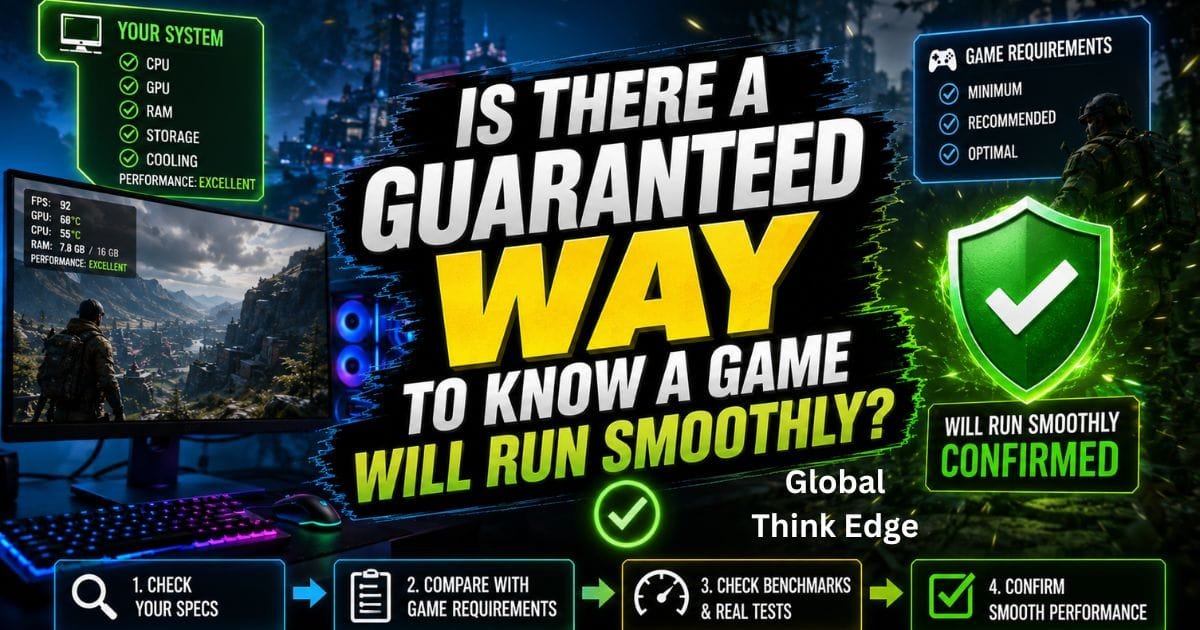
Is There a Guaranteed Way to Know a Game Will Run Smoothly?
No single compatibility check can guarantee your exact gaming experience.
System requirements provide a useful baseline, while automatic scanners simplify hardware comparisons. Real-world benchmarks provide additional evidence, but even benchmarks cannot perfectly reproduce every player’s configuration.
The most reliable approach is to combine all three: compare your specifications, review the game’s requirements, and check relevant performance benchmarks.
Frequently Asked Questions
Can I Check Whether My PC Can Run a Game Without Downloading Anything?
Yes. You can manually check your CPU, GPU, RAM, operating system, and storage in Windows and compare them with the game’s published requirements. This approach does not require a compatibility scanner.
Is Meeting Minimum Requirements Enough?
Not necessarily. Minimum requirements generally indicate the baseline needed to run a game, while recommended requirements provide a stronger target. Your actual performance will also depend on resolution, settings, drivers, optimization, and background processes.
Which PC Part Is Most Important for Gaming?
The GPU is often the most important component for graphics performance and FPS, but the CPU can become the main limitation in CPU-heavy games. RAM, storage, and other system factors also influence the overall experience.
Can a Game Run if My PC Is Slightly Below the Minimum Requirements?
Sometimes. Developers’ requirements are not universal performance guarantees, and some games can run below their listed minimum specifications. However, you should expect the possibility of low frame rates, crashes, graphical compromises, or an inconsistent experience.
What Is the Fastest Way to Check My PC for a Game?
For a quick assessment, use an automatic compatibility checker such as System Requirements Lab. For a more informed decision, manually compare your CPU, GPU, RAM, operating system, and storage with the game’s requirements and then verify performance through relevant benchmarks.
Final Takeaway
The best way to check if your PC can run a game is to compare your exact hardware with the game’s minimum and recommended requirements. Start with the CPU, GPU, RAM, operating system, and storage, then consider VRAM, resolution, graphics settings, drivers, and real-world benchmarks.
An automatic checker can save time, but it should complement, not replace, manual research. A PC that technically meets the minimum requirements may still need reduced settings to deliver a comfortable gaming experience.
