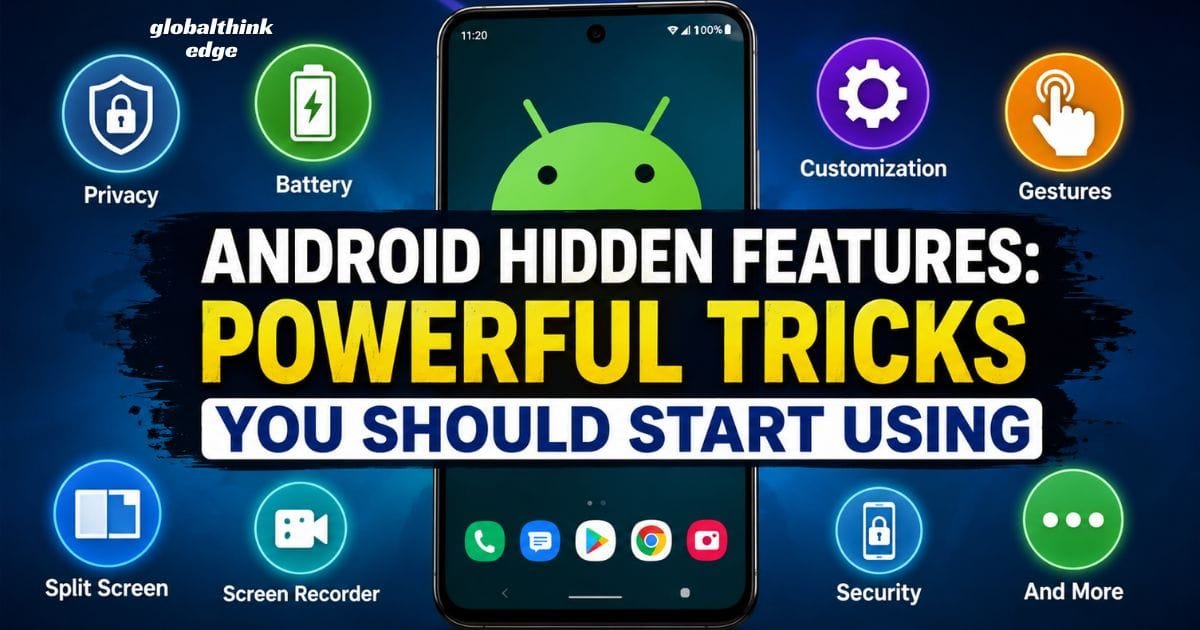
Android Hidden Features: Powerful Tricks You Should Start Using
Why Android Hidden Features Matter
Android includes far more than the options visible in the Settings app. Many smartphones have advanced tools, productivity shortcuts, security controls, accessibility improvements, and developer options that remain hidden from everyday users.
Learning these Android hidden features can help you work faster, improve battery life, protect your privacy, customize your phone, recover storage, and solve common problems without installing extra apps.
Whether you own a Samsung Galaxy, Google Pixel, OnePlus, Xiaomi, Motorola, Oppo, Vivo, or another Android device, many of these features are available across recent Android versions.
What Are Android Hidden Features?
Android hidden features are built-in functions that are either disabled by default, tucked away inside settings, or activated using gestures, shortcuts, or Developer Options. They are official Android capabilities, not secret hacks, and many can significantly improve your daily smartphone experience.
Android Hidden Features at a Glance
| Feature Category | Main Benefit | Best For |
| Developer Options | Advanced controls | Power users |
| Split Screen | Better multitasking | Productivity |
| Quick Tap & Gestures | Faster navigation | Everyday use |
| Private Space | Hide sensitive apps | Privacy |
| Nearby Share / Quick Share | Fast file transfers | Sharing files |
| Screen Recording | Capture tutorials | Content creators |
| Battery Optimization | Longer battery life | All users |
| Live Caption | Accessibility | Watching videos |
| One-Handed Mode | Easier navigation | Large phones |
35. Android Hidden Features You Should Try
Unlock Developer Options
Developer Options unlock dozens of advanced settings.
Go to:
Settings → About Phone → Tap Build Number seven times.
You’ll gain access to animation controls, USB debugging, background process limits, and much more.
Reduce Animation Speed
Changing animation speed from 1x to 0.5x makes your phone feel noticeably faster without upgrading hardware.
Split-Screen Multitasking
Open two apps simultaneously.
Examples include:
YouTube + Notes
Chrome + Calculator
Gmail + Calendar
This feature saves time while working or studying.
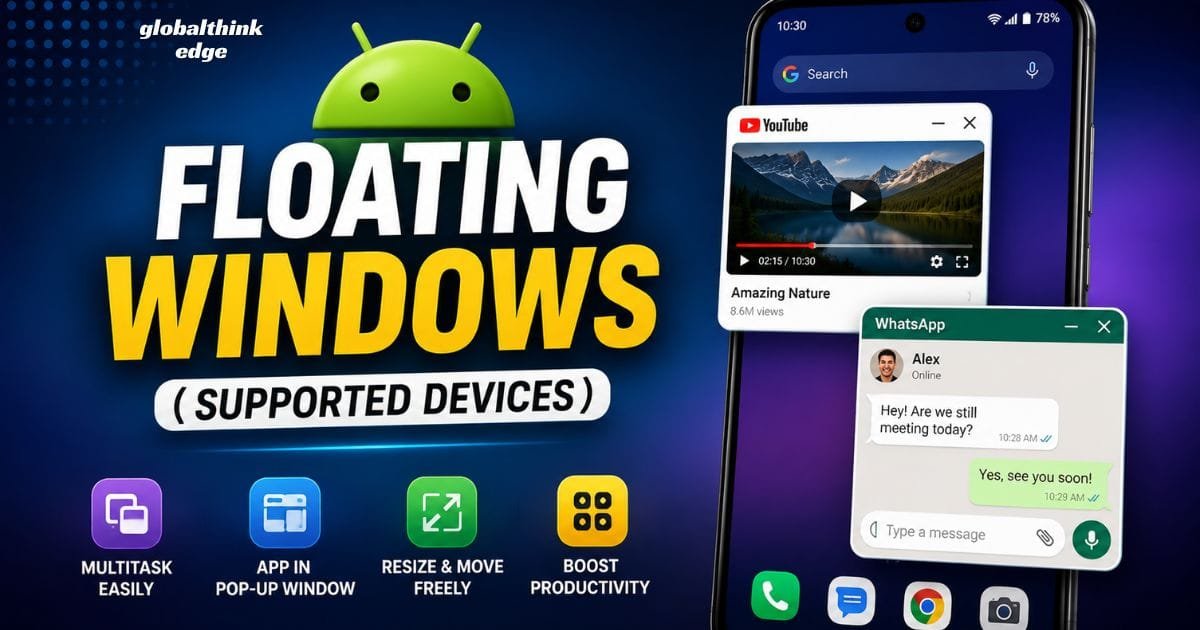
Floating Windows (Supported Devices)
Many manufacturers allow apps to open in floating windows.
This makes replying to messages while browsing much easier.
Built-in Screen Recorder
Modern Android phones include a native screen recorder.
You can record:
Gameplay
Tutorials
Video calls
Bug reports
without downloading third-party apps.
Live Caption
Android can automatically generate captions for videos, podcasts, and voice messages even offline on many supported devices.
This feature is especially useful in noisy environments.
One-Handed Mode
Large smartphones are difficult to operate with one hand.
One-Handed Mode temporarily shifts the screen downward for easier access.
App Pinning
Need to lend someone your phone?
Pin a single app so they cannot access anything else without your PIN or fingerprint.
Smart Lock
Your phone can remain unlocked in trusted environments such as the following:
Home
Office
Connected smartwatch
Bluetooth devices
This reduces unnecessary unlocks while maintaining security.
Gesture Navigation
Replace traditional navigation buttons with swipe gestures.
Benefits include:
More screen space
Faster navigation
Cleaner interface
Quick Settings Customization
Edit the Quick Settings panel to place your most-used shortcuts at the top.
Examples:
Flashlight
QR Scanner
Hotspot
Screen Recorder
Dark Mode
Battery Usage Dashboard
Instead of guessing which app drains power, Android shows detailed battery statistics.
Use this information to identify apps consuming excessive background resources.
Adaptive Battery
Adaptive Battery learns your usage habits and limits battery usage for apps you rarely open.
Over time, this improves battery longevity.
Adaptive Brightness
Android automatically learns your preferred brightness levels based on your environment.
After several adjustments, it becomes surprisingly accurate.
Digital Well-Being
Track:
Screen time
Unlock count
Notification frequency
App usage
You can also schedule Focus Mode to reduce distractions.
Focus Mode
Temporarily pause distracting apps like social media while working or studying.
Only selected apps remain available.
Bedtime Mode
Bedtime Mode automatically
Enables Do Not Disturb
Grays out the display
Reduces interruptions
It promotes healthier sleep habits.
Notification History
Accidentally dismissed an important notification?
Enable Notification History to review recently cleared notifications.
Nearby Share (Quick Share)
Transfer files between Android devices without cables or messaging apps.
It works much faster than Bluetooth for larger files.
QR Code Scanner
Most modern Android versions include a built-in QR scanner inside Quick Settings or the Camera app.
No additional app is required.
Clipboard History
Some Android keyboards, including Gboard, maintain a clipboard history for recently copied text and images.
This improves productivity when switching between apps.
Live Translate
Supported devices can translate conversations, signs, and messages in real time.
Travelers find this feature particularly useful.
Voice Access
Control your phone entirely with voice commands.
You can:
Open apps
Scroll pages
Tap buttons
Type text
without touching the screen.
Magnification Tools
Android includes built-in magnification for users who need larger text or enhanced visibility.
It also helps when reading tiny labels.
Color Correction & Color Inversion
Accessibility settings allow users with color vision deficiencies to customize how colors appear on screen.
Hidden File Manager Features
The built-in Files app can:
Clean junk files
Free storage
Browse downloads
Locate large files
Manage offline documents
Many users never explore these capabilities.
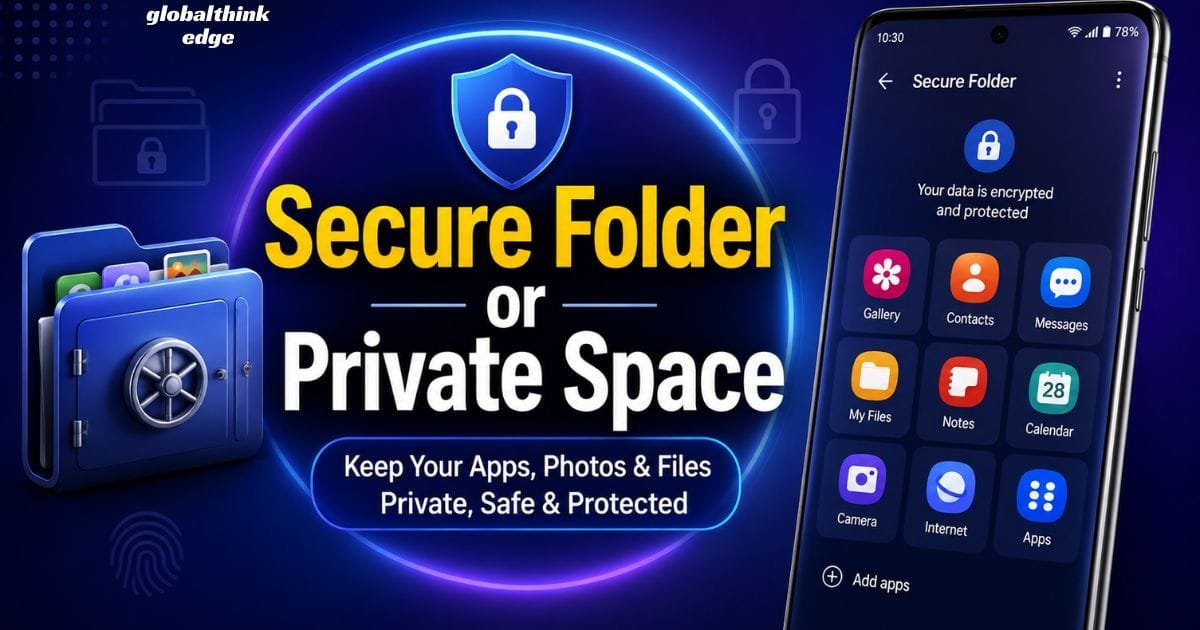
Secure Folder or Private Space
Some Android phones provide a private, encrypted space for sensitive apps, photos, and documents protected by a separate lock.
This is ideal for banking apps or confidential files.
App Permissions Dashboard
Android clearly displays which apps were recently accessed:
Camera
Microphone
Location
Reviewing these permissions helps improve your privacy.
Camera Privacy Indicators
A green indicator appears whenever the camera or microphone is active.
This makes unauthorized access easier to detect.
Emergency SOS
Configure Emergency SOS to quickly contact trusted people and share your location during emergencies.
Find My Device
Google’s Find My Device helps locate a lost or stolen Android phone. If enabled, you can:
View the phone’s location on a map
Play a sound even if the phone is on silent
Lock the device remotely
Display a recovery message
Erase all data if recovery isn’t possible
This feature is one of the most valuable built-in security tools Android offers.
Auto-Fill Password Manager
Android can securely save and automatically fill the following:
Passwords
Addresses
Payment information
Login credentials
Using Google Password Manager or another trusted password manager reduces the risk of weak or reused passwords.
Guest Mode
Guest Mode creates a temporary user profile that protects your personal data when someone else needs to use your phone.
The guest cannot access your photos, messages, emails, or installed app data unless you specifically allow it.
Scheduled Dark Mode
Instead of manually switching themes every day, schedule Dark Mode to activate automatically at sunset or at a custom time.
Benefits include:
Reduced eye strain
Better nighttime viewing
Lower battery consumption on OLED displays
Predictive Back Gesture (Android 14+)
Newer Android versions include Predictive Back, which previews where the Back gesture will take you before the action completes.
This makes navigation smoother and helps prevent accidental exits from apps.

What Is *#9900 on Android Phones?
One of the most searched Android codes is *#9900#, but many users misunderstand what it does.
The code opens the SysDump (System Dump) menu on some Samsung Galaxy devices. It is primarily intended for diagnostics and troubleshooting.
Depending on the device and software version, it may provide options such as:
Viewing system logs
Copying debug logs
Running diagnostic functions
Deleting log files to recover a small amount of storage
Is *#9900# safe?
Yes—but only if you know what you’re doing.
Avoid changing diagnostic settings unless instructed by Samsung support or an experienced technician. Some options are designed for developers and service centers rather than everyday users.
Important: This code is not a universal Android feature. It typically works only on certain Samsung phones and may not function on Pixel, OnePlus, Xiaomi, Motorola, Oppo, Vivo, or other Android brands.
How to Find Hidden Things on Android
Many hidden Android features can be discovered without installing any apps.
Here are the best places to look:
| Location | What You May Find |
| Settings search bar | Hidden system options |
| Accessibility menu | Productivity and visibility tools |
| System settings | Gestures, backup, reset, navigation |
| Security & Privacy | Permission controls and privacy dashboard |
| Developer Options | Advanced Android settings |
| Quick Settings editor | Additional shortcuts |
| Files app | Storage management tools |
| Digital Well-Being | Screen-time and focus features |
Taking a few minutes to explore these sections often reveals useful capabilities that many users overlook.
Common Mistakes Users Make
Even experienced Android users sometimes miss opportunities to improve their phones.
Avoid these common mistakes:
Ignoring software updates
Installing unnecessary utility apps for features Android already includes
Granting excessive app permissions
Disabling battery optimization for every app
Changing Developer Options without understanding the settings
Using outdated security settings
Never reviewing notification or privacy permissions
Keeping your phone updated and using built-in tools is usually safer than relying on unknown third-party apps.
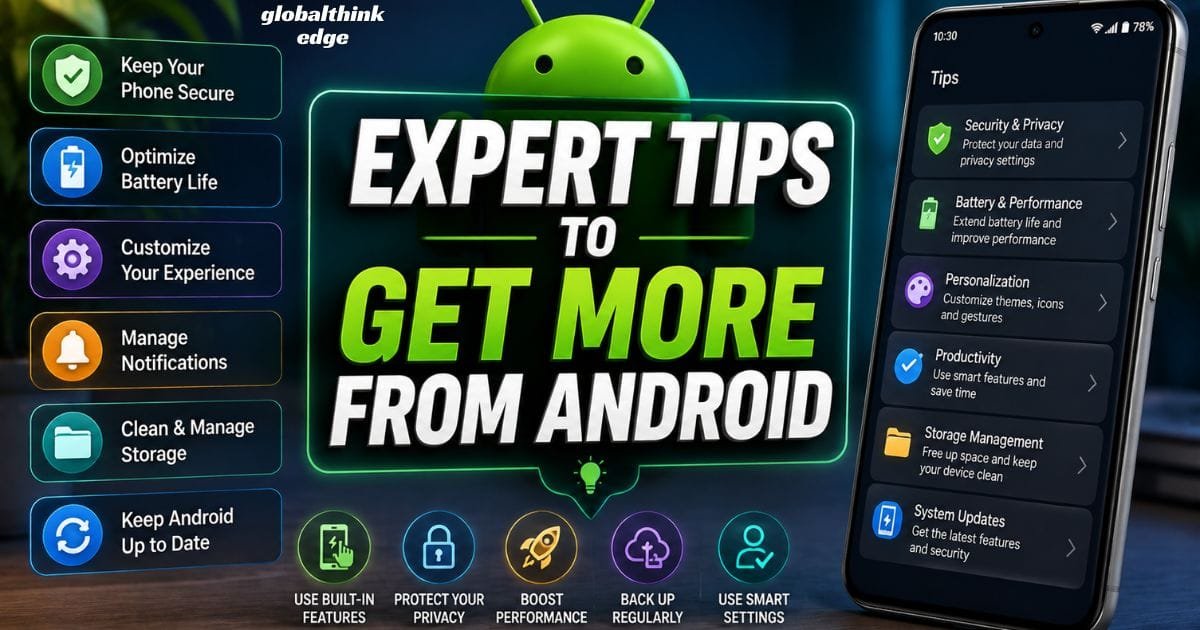
Expert Tips to Get More from Android
To make the most of Android hidden features:
Review your privacy permissions every few months.
Customize the Quick Settings panel with tools you use daily.
Enable Adaptive Battery to improve battery life over time.
Turn on notification history to recover accidentally dismissed alerts.
Use app pinning or guest mode before handing your phone to someone else.
Explore Developer Options carefully, and only change settings you understand.
Back up important data before experimenting with advanced system features.
Small adjustments like these can noticeably improve your overall Android experience.
Frequently Asked Questions
What are 35 hidden features on Android?
Some of the most useful Android hidden features include Developer Options, Split Screen, Live Caption, Gesture Navigation, App Pinning, Notification History, Private Space, Find My Device, Adaptive Battery, Screen Recording, Voice Access, Focus Mode, and many other built-in productivity, privacy, and accessibility tools.
What is *#9900 on Android phone?
*#9900# is a Samsung diagnostic code that opens the SysDump menu on supported Galaxy devices. It provides access to debugging and log-management functions and is not intended for everyday use.
What are some hidden features on an Android phone?
Popular hidden features include One-Handed Mode, Screen Recorder, Nearby Share (Quick Share), Clipboard History, QR Code Scanner, Emergency SOS, Scheduled Dark Mode, Live Translate, Digital Wellbeing, and App Permissions Dashboard.
How do I find hidden things on Android?
Use the Settings search bar and explore Accessibility, Security & Privacy, Digital Wellbeing, System settings, Developer Options, and the Quick Settings editor. These sections contain many features that are easy to miss.
Final Thoughts
Android offers far more than its default interface suggests. From privacy controls and accessibility tools to multitasking features and advanced customization, these built-in capabilities can make your phone faster, safer, and easier to use.
Rather than installing multiple third-party apps, start by exploring the features already included in your device. Most users discover that Android’s hidden tools are powerful enough to improve productivity, extend battery life, strengthen security, and personalize the overall experience all without spending anything.
As Android continues to evolve, regularly exploring new settings after major updates ensures you take full advantage of the latest improvements and hidden capabilities.
