Edge Drop Feature: Effortless File Sharing Across Devices
What Is the Edge Drop Feature?
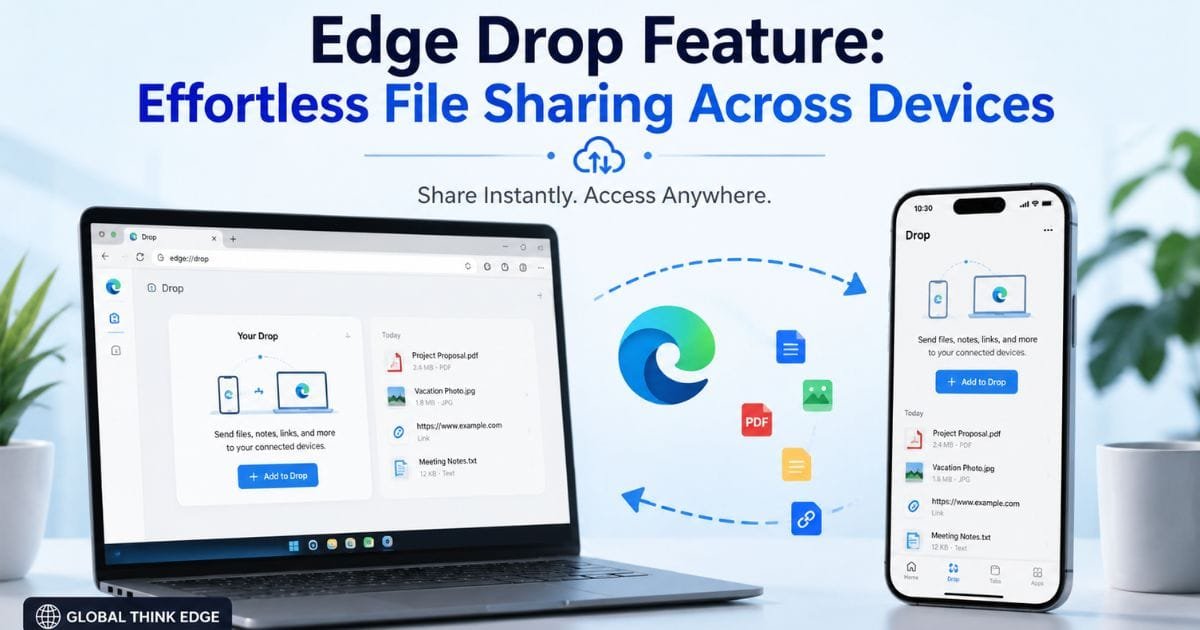
The Edge drop feature lets you send files, images, links, and notes between your own devices through Microsoft Edge. Instead of emailing a file to yourself or using a separate transfer app, Drop creates a private conversation-like space where you can place content and access it from another device.
Microsoft says Drop works across desktop and mobile devices where Microsoft Edge is installed, including Windows PCs, Macs, iPhones, and Android phones. Your devices need to use the same Microsoft account so the content can sync between them.
Drop uses OneDrive to store shared files. This makes it more than a simple local transfer tool: it provides a cloud-based way to move content between your own Edge sessions.
How the Edge Drop Feature Works
Drop is designed around a simple workflow:
- Open Drop in Microsoft Edge.
- Sign in with the same Microsoft account on your devices.
- Send a file, image, link, or message to your Drop space.
- Open Edge on another signed-in device.
- Access the same content from Drop.
On desktop, Microsoft also supports dragging files directly into the drop interface. You can drag content from File Explorer or other Microsoft applications into the browser, which makes transferring documents quick.
Because Drop behaves like a conversation with yourself, you can also use it for short notes, reminders, URLs, and text snippets rather than only for files.
What Can You Share With Edge Drop?
The Edge Drop feature supports several types of content, including:
Documents and other files
Photos and images
Web links
Text messages
Short notes
Information you want to move between devices
This makes Drop useful when you are moving between a computer and phone during normal work or browsing.
For example, you could send a webpage from your desktop to Drop and open it later on your phone. You could also move an image from your phone to your computer without connecting a cable.
How to Use Drop in Edge on Desktop
Microsoft currently provides Drop through the Edge tools menu on supported desktop installations.
To open it:
- Launch Microsoft Edge.
- Select Settings and more (…).
- Choose more tools.
- Select Drop.
- Sign in with your Microsoft account if required.
- Drag a file into Drop or type a message.
Microsoft’s current feature documentation lists Settings and more > More tools > Drop as the desktop access path.
If Drop does not appear, update Edge first and check whether your browser version, device, region, or account configuration supports the feature. Microsoft notes that feature availability can vary by device type, market, and browser version.
How to Use Drop in Edge on Mobile
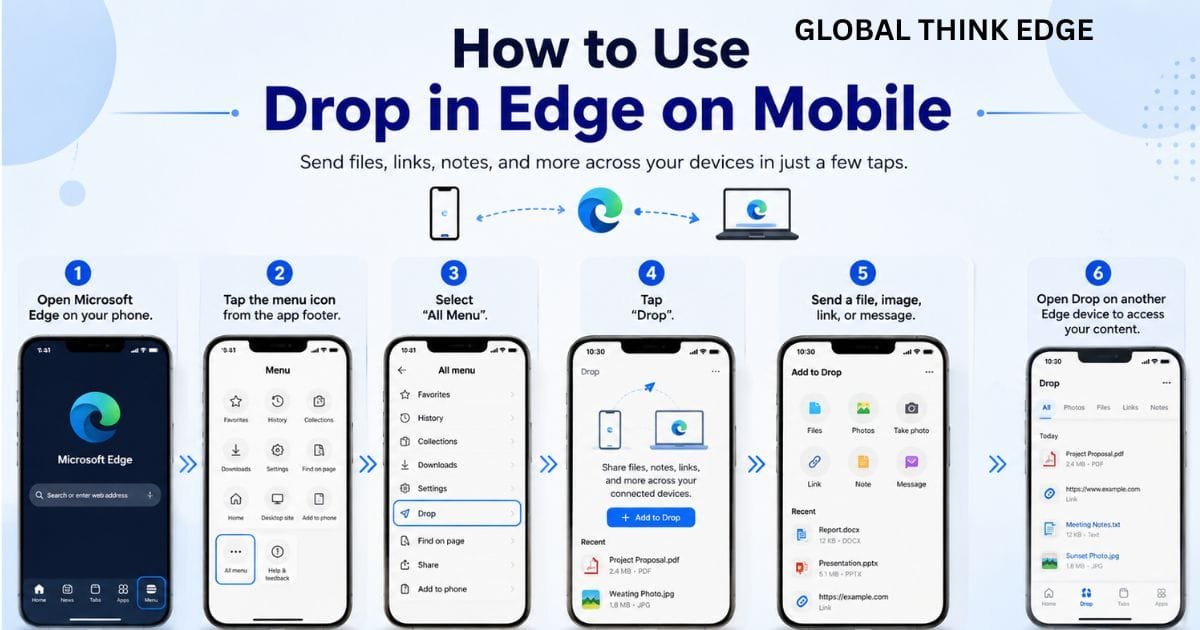
The mobile version provides access through the Edge app menu.
On supported versions:
- Open Microsoft Edge on your phone.
- Open the mobile menu from the app footer.
- Select the All Menu.
- Tap Drop.
- Send a file, image, link, or message.
- Open Drop on your other Edge device to retrieve it.
Microsoft lists both Android and iOS among the supported mobile platforms for Drop.
The exact menu appearance can change as Microsoft updates Edge, so the wording or location may differ slightly between versions.
Edge Drop Feature vs Traditional File Transfer
Drop is convenient, but it is not designed to replace every file-transfer method.
| Method | Best Use | Internet Required | Works Across Devices |
| Edge Drop | Personal cross-device sharing | Yes | Yes |
| USB drive | Offline file movement | No | Yes |
| Sending files or links | Yes | Yes | |
| Cloud storage | Larger file collections | Yes | Yes |
| Nearby sharing | Local device transfers | Usually no internet | Supported devices |
The main advantage of Drop is convenience. You can stay inside Edge instead of opening another service simply to move a small file or piece of information.
For large file libraries or long-term storage, however, a dedicated cloud-storage service may be more appropriate.
Where Does Edge Drop Store Your Files?
Drop uses OneDrive to store files shared through the feature. Microsoft specifically states that users can check remaining storage and manage space from the Drop interface.
This point matters because Drop should not be treated as unlimited temporary storage.
If you frequently send large videos, archives, or other sizable files, monitor your Microsoft storage usage. Removing old Drop content can help keep unnecessary files from consuming available space.
How to Delete Files From Edge Drop
You can remove individual files or messages from Drop.
Microsoft’s current instructions indicate that you can select the three-dot menu (…) next to the relevant content and choose Delete.
Deleting unnecessary content is a practical way to keep the drop area organized and reduce unnecessary storage usage.
Why the Edge Drop Feature Is Useful
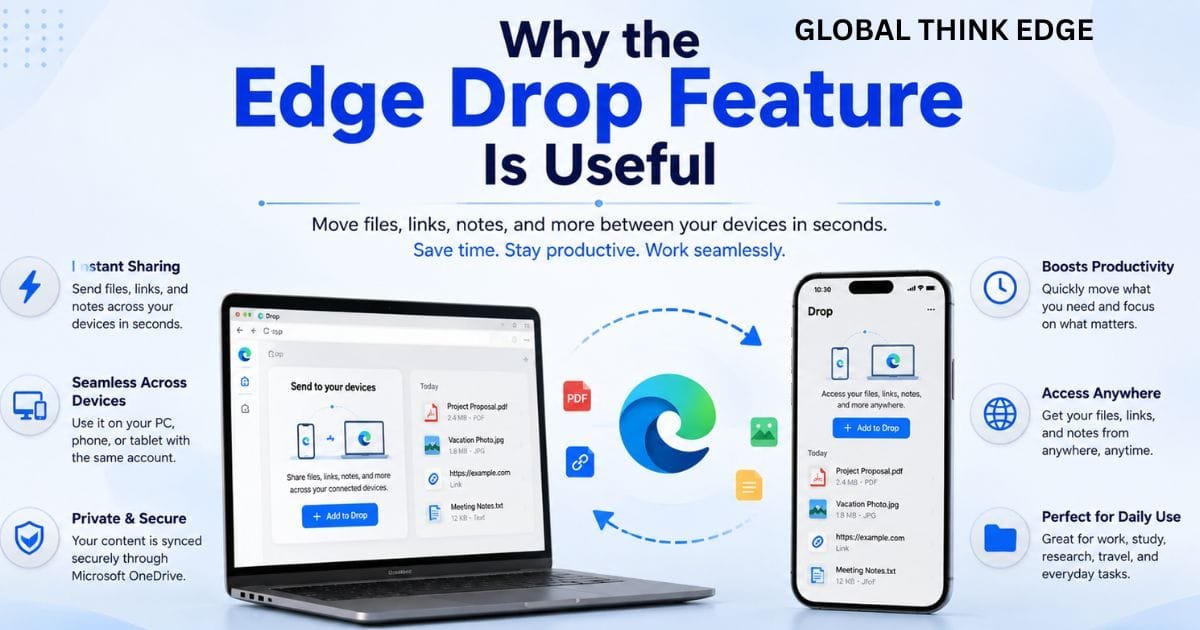
The biggest benefit of Drop is reducing friction between devices.
Imagine working on a desktop and finding a webpage you want to read on your phone. Instead of copying the URL into a message app, you can place it in Drop and retrieve it from your phone.
The same approach works for documents, screenshots, images, and short notes.
Drop can be particularly useful for the following:
Remote workers switching between devices
Students moving research links between phone and computer
People who frequently use both desktop and mobile Edge
Users who need a quick place for temporary files
Anyone who wants fewer steps for personal file transfers
Important Limitations to Know
Drop is convenient, but it has several conditions worth understanding.
First, you need Edge installed on the devices where you want to access the content. Microsoft also requires the same Microsoft account to be signed in on the devices for drop content to sync.
Second, Drop depends on cloud storage through OneDrive. It is therefore not the same as a direct offline transfer between two nearby devices.
Third, feature availability may differ between platforms and browser versions. Microsoft explicitly notes that functionality can vary by device type, market, and browser version.
What Are the Features of Microsoft Edge?
Microsoft Edge includes far more than Drop. Its current feature set covers productivity, privacy, security, performance, synchronization, and built-in assistance.
Depending on the version and platform, Edge can provide features such as the following:
Favorites and browsing-history synchronization
Password management
Collections and organization tools
Tracking prevention
Microsoft Defender SmartScreen
Sleeping tabs and performance controls
Copilot integration
Accessibility options
Cross-device browsing continuity
Microsoft’s Edge support documentation groups its features across productivity, privacy, security, personalization, and troubleshooting.
Drop fits into this broader ecosystem by focusing specifically on moving personal content between Edge sessions.
What Does Ctrl+Shift+R Do in Edge?
Ctrl+Shift+R performs a hard refresh in Microsoft Edge.
Unlike a normal refresh, a hard refresh tells the browser to reload the page while requesting fresh versions of page resources rather than relying as heavily on previously cached files.
This can help when:
A webpage looks outdated
A website has recently been updated
Images or styles are not loading correctly
A page appears broken after an update
Cached resources are causing display problems
Ctrl+Shift+R is unrelated to the Edge Drop feature. It is a browser-refresh shortcut that can be useful when troubleshooting webpages.
Is It a Good Idea to Uninstall Microsoft Edge?
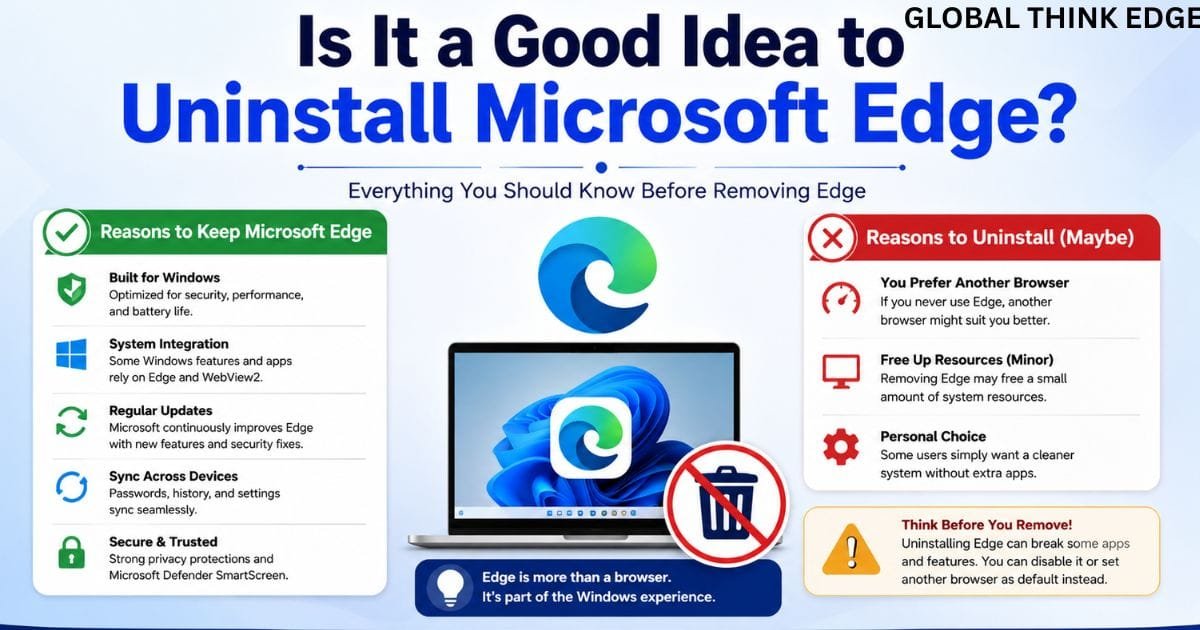
For most Windows users, uninstalling Edge is not necessary simply because they prefer another browser.
Microsoft Edge is an actively supported browser, and Microsoft continues to provide updates for it. Microsoft also states that Edge and the WebView2 Runtime continue receiving updates on supported Windows configurations.
More importantly, some Windows applications and system components rely on web technologies associated with Edge or WebView2. Removing or attempting to force-remove system software can therefore create unnecessary complications.
If you do not use Edge, a safer approach is usually to choose another browser as your default and leave Edge installed unless you have a specific reason to remove it.
Edge Drop Feature: Best Practices
To get the most from Drop without creating unnecessary clutter:
Keep Edge updated on every device.
Use the same Microsoft account across devices.
Remove files you no longer need.
Avoid treating Drop as permanent file storage.
Check OneDrive storage when transferring large files.
Use dedicated cloud storage for large or long-term collections.
Avoid sending sensitive information unless you understand the account and storage implications.
These habits make Drop easier to manage and reduce unnecessary storage consumption.
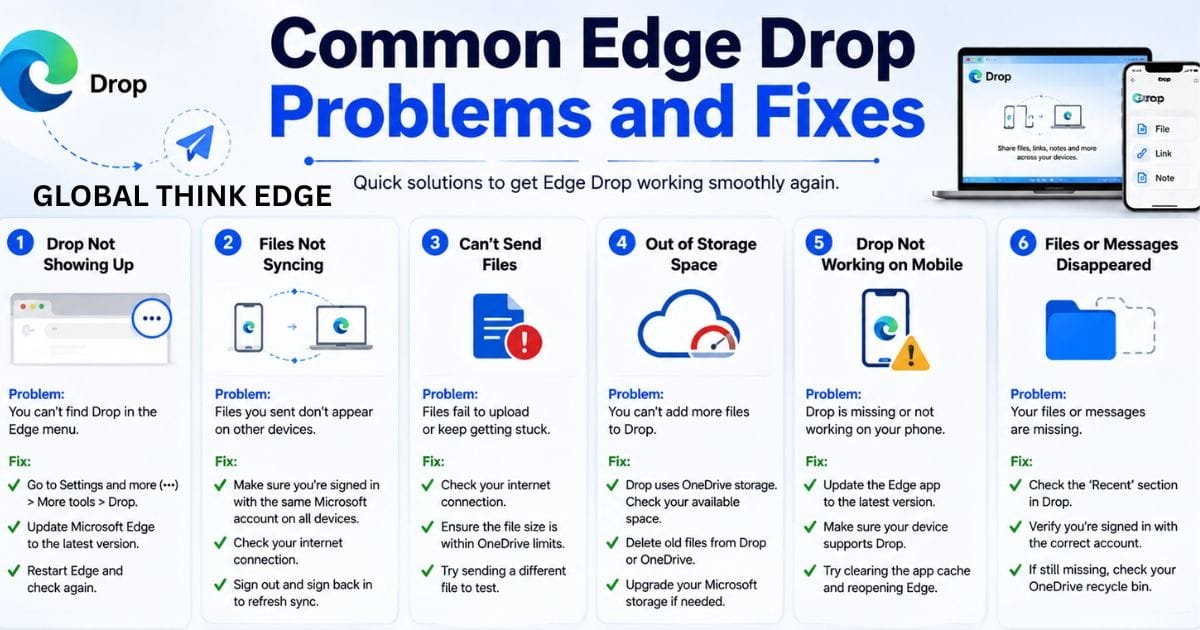
Common Edge Drop Problems and Fixes
If Drop is missing or not syncing, start with the basics.
Check your Microsoft account: Make sure the same account is signed in on both devices. Microsoft identifies this as a requirement for Drop synchronization.
Update Edge: An outdated browser can lack newer features or behave differently from current documentation.
Check platform support: Microsoft notes that drop availability and functionality can vary by browser version, device, and market.
Check storage: Because Drop uses OneDrive, available storage can affect your ability to keep additional files.
Restart Edge: Closing and reopening the browser can resolve temporary synchronization or interface problems.
For managed business computers, administrators can also control whether Drop is enabled through the EdgeEDropEnabled policy. Microsoft documents this policy for supported Windows, macOS, Android, and iOS versions.
Final Takeaway
The Edge drop feature provides a convenient way to move files, images, links, and notes between your own desktop and mobile devices. Its main strength is simplicity: Drop keeps cross-device sharing inside Microsoft Edge and uses OneDrive to synchronize stored content.
For quick personal transfers, it can save time compared with email, cables, or separate sharing apps. However, it should be viewed as a cross-device convenience feature rather than a replacement for full cloud storage or offline file-transfer tools.
If Drop is missing, check your Edge version, Microsoft account, platform support, and storage availability before assuming the feature has been removed.
Frequently Asked Questions
Is Edge Drop still available?
Yes. Microsoft currently documents Drop as an edge feature for sharing files and messages between desktop and mobile devices. Availability can vary by platform, market, and browser version.
Does Edge Drop use OneDrive?
Yes. Microsoft states that Drop uses OneDrive to store files shared through the feature.
Can I use Edge Drop without a Microsoft account?
Drop requires you to use the same Microsoft account on the devices where you want the content to sync.
Can Edge Drop send files from phone to PC?
Yes. Drop is designed for sharing content between mobile and desktop Edge installations, allowing files and messages to appear across your signed-in devices.
Is Edge Drop the same as AirDrop?
No. Edge Drop is a Microsoft Edge cross-device feature that uses cloud storage and account synchronization. AirDrop is Apple’s device-to-device sharing system.
Can I delete files from Edge Drop?
Yes. Select the three-dot menu beside a file or message and choose Delete.
