Best Chrome Settings for Performance: 12 Fast Tweaks
Best Chrome Settings for Performance
The best Chrome settings for performance focus on reducing unnecessary background activity, freeing memory, limiting resource-heavy tabs, and keeping Chrome updated. Start with Memory Saver, disable unnecessary extensions, turn off unwanted startup activity, and review performance settings regularly.
Chrome can become slow when too many tabs, extensions, background processes, cached resources, or demanding websites compete for system resources. The good news is that you can improve responsiveness without changing advanced system settings.
The exact options available can vary slightly by Chrome version and operating system, but the core performance controls remain similar.
1. Turn On Memory Saver
Memory Saver is one of the most useful Chrome performance settings, especially if you regularly keep many tabs open.
When Memory Saver is enabled, Chrome can deactivate tabs you are not actively using. When you return to one of those tabs, Chrome reloads it so you can continue working.
To check it:
- Open Chrome.
- Select the three-dot menu.
- Open Settings.
- Select Performance.
- Make sure Memory Saver is enabled.
You can also add websites that should remain active. This is useful for web applications where you do not want automatic tab deactivation.
2. Enable Energy Saver When Appropriate
Chrome’s Energy Saver can reduce resource consumption when your device is running on battery.
It may limit certain background activity and reduce visual effects on demanding websites. This can help extend battery life, although the setting is designed more for energy efficiency than maximum speed.
If your priority is raw performance while plugged in, focus more heavily on memory saver, extensions, background activity, and hardware acceleration.
3. Review Hardware Acceleration
Hardware acceleration allows Chrome to use compatible GPU resources for tasks such as video playback, graphics, animations, and other rendering workloads.
You can find the setting under the following:
Settings → System → Use graphics acceleration when available
After changing this option, restart Chrome.
For most modern systems, leaving hardware acceleration enabled is a sensible starting point. However, outdated graphics drivers or certain GPU-related problems can cause flickering, crashes, high GPU usage, or visual glitches.
If Chrome suddenly performs poorly after a graphics-driver or browser change, testing this setting can help identify the source.
4. Remove Unnecessary Chrome Extensions
Extensions can improve Chrome, but every active extension adds another layer of browser activity.
Some extensions monitor pages, modify website content, communicate with external services, or run background processes. A large collection can therefore contribute to slower startup and increased memory use.
Open:
Chrome menu → Extensions → Manage Extensions
Remove extensions you no longer use. For extensions you rarely need, disabling them can be better than keeping them active all the time.
Pay particular attention to duplicate tools. You rarely need several extensions performing the same task.
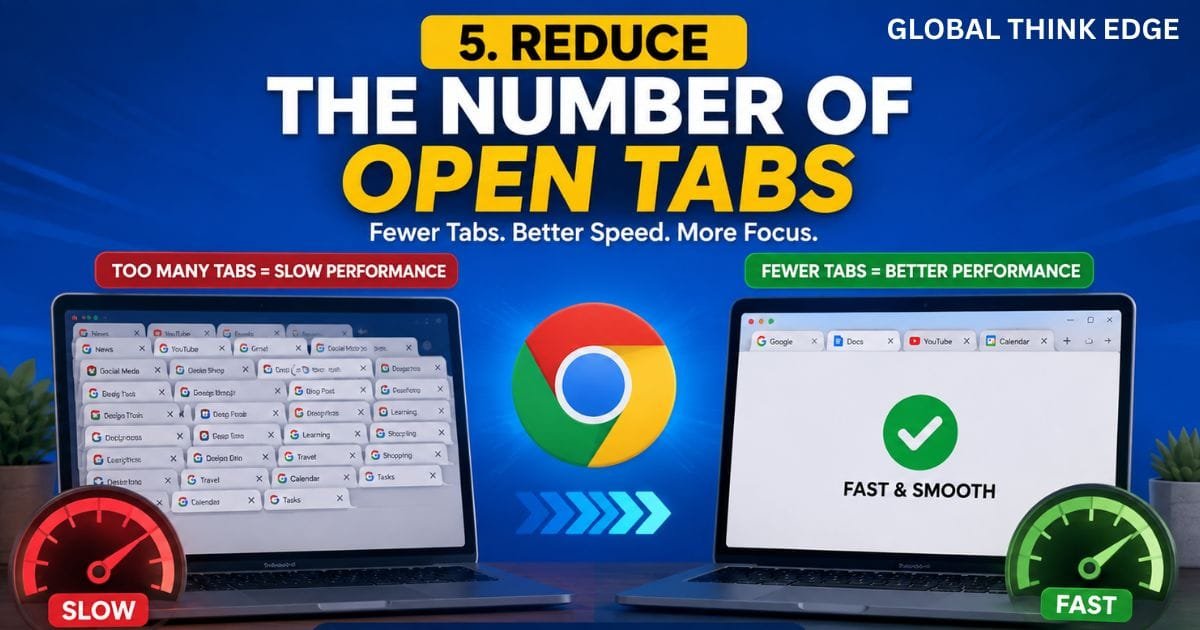
5. Reduce the Number of Open Tabs
Even with Memory Saver enabled, excessive tabs can make browsing harder to manage.
Keep frequently used pages open and close tabs that you no longer need. For research sessions, consider grouping related tabs instead of leaving dozens of unrelated pages open.
Chrome’s tab groups can help organize work without turning your browser window into a long list of unmanaged tabs.
A simple rule works well: if a tab is not needed now and will not be needed soon, close it or save it for later.
6. Stop Unwanted Background Activity
Chrome can continue certain processes after you close the main browser window, depending on your settings and installed applications.
Check:
Settings → System
Review the option that allows Chrome apps or processes to continue running in the background after Chrome is closed.
If you do not need background functionality, disabling it can reduce unnecessary resource usage.
This is particularly useful on systems with limited RAM or when other applications need more available memory.
7. Keep Chrome Updated
Running an outdated browser can cause compatibility, security, and performance problems.
Chrome updates can include improvements to browser components, JavaScript execution, graphics handling, memory management, and stability.
To check for updates:
Chrome menu → Help → About Google Chrome
Chrome normally checks for updates automatically. If an update is available, allow it to install and restart the browser when requested.
Keeping Chrome current also ensures that newer performance improvements are available to your browser.
8. Check Which Tabs Consume the Most Resources
Chrome provides built-in ways to identify demanding pages and processes.
Open Chrome’s Task Manager by using:
Shift + Esc
The Task Manager can show browser components, tabs, extensions, and their resource usage.
Look for pages consuming unusually high amounts of memory or CPU. A single poorly optimized webpage can sometimes affect the responsiveness of the entire browser.
If one tab consistently consumes excessive resources, close it and reopen it. If the problem returns, the website itself may be responsible.
9. Clear Problematic Browsing Data
Chrome’s cache usually helps websites load efficiently, so clearing it should not be treated as a routine performance fix.
However, corrupted or unusually large temporary data can occasionally contribute to website problems.
Open:
Settings → Privacy and security → Delete browsing data
For troubleshooting, cached files are usually the most relevant category to consider.
Avoid deleting passwords or other important browsing information unless you specifically want to remove it.
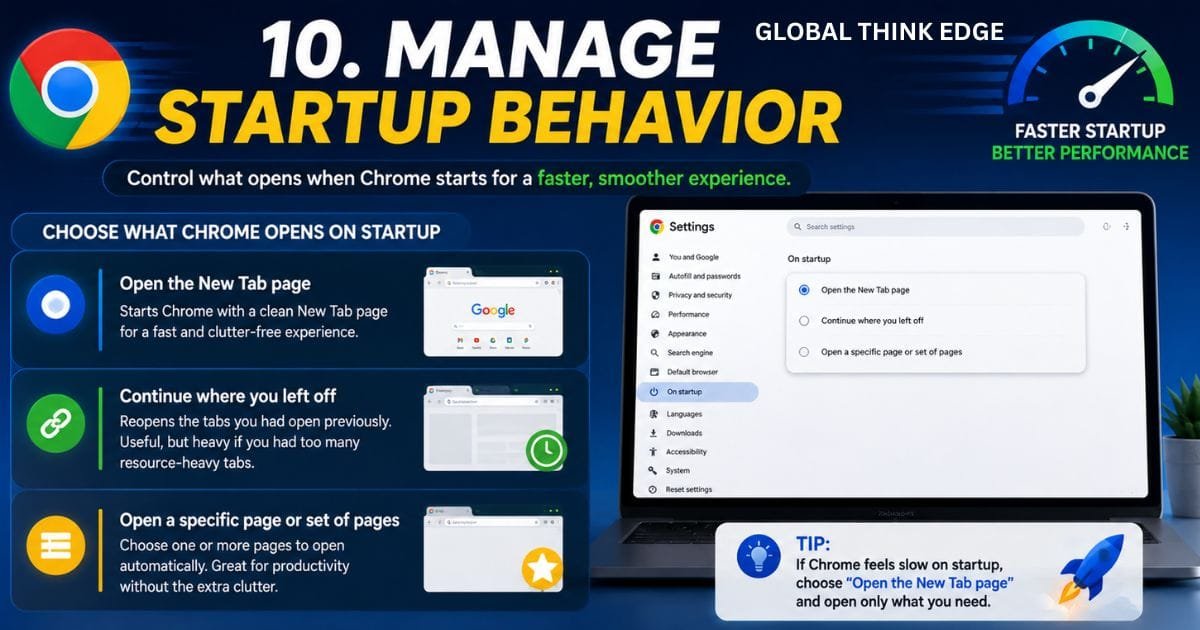
10. Manage Startup Behavior
Chrome can restore previous tabs when you start the browser, depending on your startup configuration.
If Chrome opens a large number of demanding pages every time you launch it, startup performance can suffer.
Check:
Settings → On startup
Choose the behavior that best matches your workflow. Opening a specific lightweight page or the New Tab page can provide a cleaner startup experience than restoring a large collection of resource-heavy websites.
11. Use Chrome’s Performance Controls Instead of Random Flags
Chrome includes experimental features through chrome://flags, but these should not be your first choice for improving everyday performance.
Flags are intended for testing and can change or disappear between Chrome releases. Enabling several experimental options at once can also make troubleshooting difficult.
For reliable performance improvements, prioritize stable settings such as memory saver, extension management, hardware acceleration, background activity controls, and regular updates.
Use experimental settings only when you understand what a particular feature changes and have a clear reason to test it.
12. Check the Device, Not Just Chrome
Sometimes Chrome is not the real cause of poor performance.
A computer with limited RAM, an overloaded storage drive, excessive startup applications, outdated graphics drivers, or many demanding programs running simultaneously can make Chrome feel slow.
Check your operating system’s resource monitor or task manager while Chrome is running.
If CPU, RAM, or disk usage remains unusually high even after closing Chrome, the broader system may need attention.
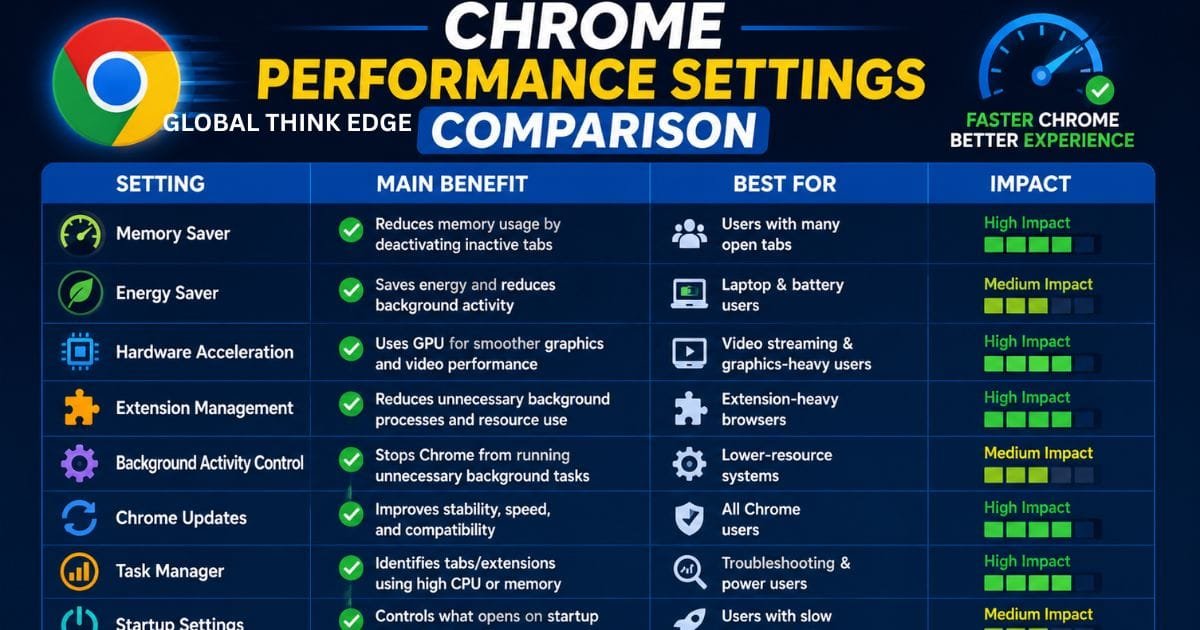
Chrome Performance Settings Comparison
| Setting | Main Benefit | Best For |
| Memory Saver | Reduces inactive-tab memory use | Many open tabs |
| Energy Saver | Reduces energy consumption | Battery-powered devices |
| Hardware acceleration | Uses compatible GPU resources | Video and graphics |
| Extension cleanup | Reduces background workload | Extension-heavy browsers |
| Background activity control | Limits unnecessary processes | Lower-resource systems |
| Chrome updates | Improves stability and compatibility | All users |
| Task Manager | Identifies demanding processes | Troubleshooting |
| Startup settings | Reduces launch workload | Slow browser startup |
How to Optimize Chrome for Best Performance
For most users, the most effective approach is simple: enable Memory Saver, remove unused extensions, reduce unnecessary tabs, review background activity, keep Chrome updated, and investigate resource-heavy pages through Chrome Task Manager.
Do not change several experimental settings at once. Performance improvements are easier to measure when you change one setting and observe the result.
Also remember that browser performance depends on hardware, operating system load, website complexity, network conditions, and the number of active applications.
How Do I Set Chrome to High Performance Mode?
Chrome does not provide a universal Windows-style high performance mode that simply forces every browser process to use maximum system resources.
Instead, performance depends on Chrome’s built-in performance controls and the operating system’s resource-management settings.
For a practical high-performance setup, keep Memory Saver configured according to your workload, remove unnecessary extensions, use hardware acceleration when it works correctly, close demanding tabs, and prevent unnecessary background processes.
On laptops, also consider the operating system’s power mode because battery-saving settings can affect overall application performance.
Why Is Chrome So Laggy?
Chrome can feel laggy because of high memory usage, excessive extensions, demanding websites, background processes, outdated software, graphics problems, or limited system resources.
Start by opening Chrome Task Manager with Shift + Esc. Identify tabs or extensions using unusually high CPU or memory.
Next, close unnecessary tabs, disable extensions you do not need, restart Chrome, and check for browser updates.
If lag continues across multiple applications, the problem may extend beyond Chrome itself.
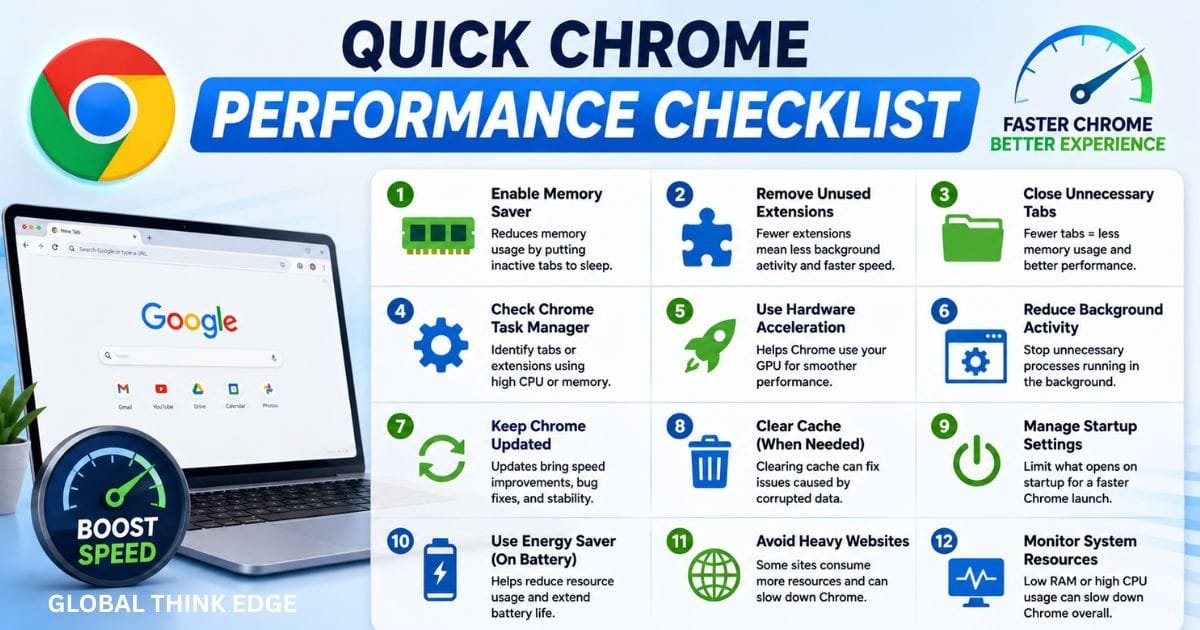
Quick Chrome Performance Checklist
Before making advanced changes, check these basics:
Turn on Memory Saver.
Remove unused extensions.
Close unnecessary tabs.
Check Chrome Task Manager.
Test hardware acceleration if graphics problems occur.
Reduce unwanted background activity.
Keep Chrome updated.
Review startup behavior.
Clear cached data when troubleshooting specific problems.
Avoid unnecessary experimental Chrome flags.
Check overall CPU and RAM usage.
Restart Chrome after major setting changes.
Final Takeaway
The best Chrome settings for performance are not about forcing every feature to run at maximum speed. They are about using system resources efficiently.
For most users, Memory Saver, extension management, hardware acceleration, background-process control, tab management, and regular Chrome updates provide the biggest practical improvements.
If Chrome remains slow after these changes, use Chrome Task Manager to identify the actual resource bottleneck instead of changing random settings. That approach makes performance troubleshooting faster, safer, and easier to repeat.
Frequently Asked Questions About Chrome Performance
What are the best Chrome settings for performance?
The best Chrome settings for performance include enabling Memory Saver, removing unnecessary extensions, reducing open tabs, managing background activity, and keeping Chrome updated.
How can I make Chrome run faster?
To make Chrome faster, close unused tabs, disable unnecessary extensions, check Chrome Task Manager, enable Memory Saver, and review hardware acceleration.
How do I optimize Chrome for best performance?
Optimize Chrome by reducing memory usage, limiting background processes, managing startup behavior, keeping extensions under control, and installing the latest Chrome updates.
Does Memory Saver make Chrome faster?
Memory Saver can improve Chrome responsiveness by reducing memory usage from inactive tabs. It is especially helpful when you regularly keep many tabs open.
Why is Chrome so laggy?
Chrome may lag because of high memory usage, too many tabs, resource-heavy websites, excessive extensions, background processes, outdated software, or limited system resources.
Should I disable Chrome extensions to improve performance?
Yes. Disabling or removing extensions you do not need can reduce background activity and resource usage, which may improve Chrome’s startup and browsing performance.
Does hardware acceleration improve Chrome performance?
Hardware acceleration can improve graphics, video, and rendering performance by using compatible GPU resources. If it causes visual glitches or crashes, testing it off can help identify GPU-related problems.
How do I check what is slowing down Chrome?
Press Shift + Esc to open Chrome Task Manager. It shows tabs, extensions, and browser processes using significant CPU or memory, helping you identify the source of slowdowns.
