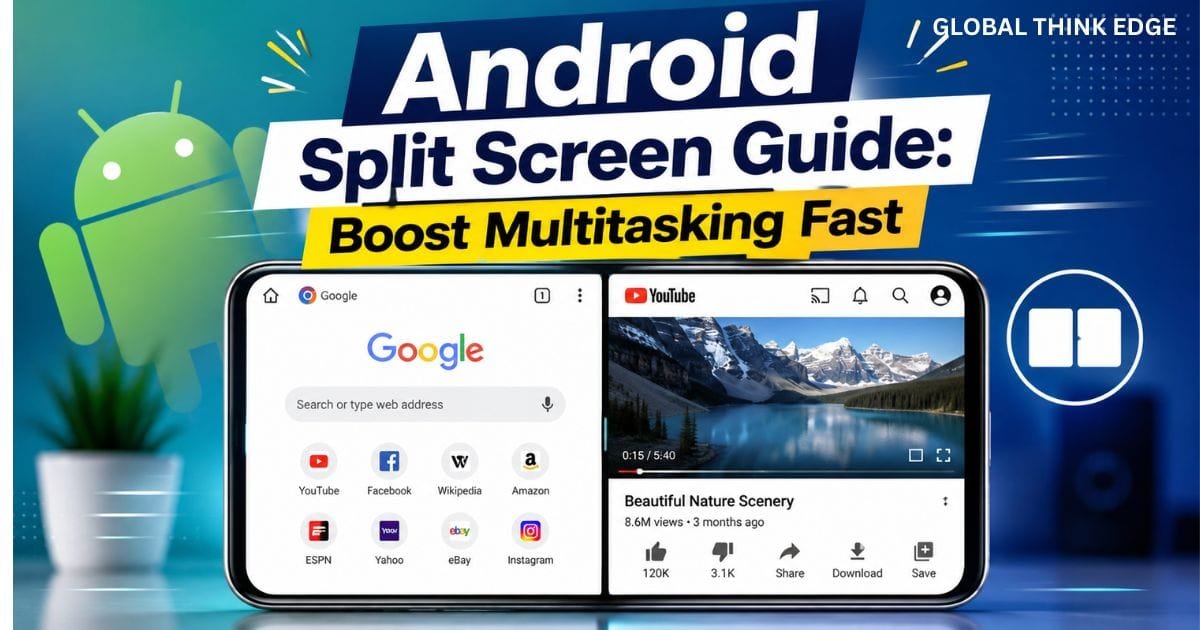
Android Split Screen Guide: Boost Multitasking Fast
What Is Android Split Screen and How Does It Work?
Android Split Screen Guide is a multitasking feature that lets you run two compatible apps on the screen at the same time. Instead of constantly switching between applications, you can view and interact with both simultaneously.
Whether you’re replying to messages while watching a video, comparing documents, taking notes during an online class, or browsing while using a calculator, split screen improves productivity and saves time.
Although Android has supported split-screen multitasking for years, the exact steps vary depending on your Android version and phone manufacturer. Samsung, Google Pixel, OnePlus, Xiaomi, Motorola, OPPO, Vivo, and other brands may place the feature in slightly different locations.
Why Use Android Split Screen?
Split screen offers practical benefits beyond simple convenience.
Multitask without switching apps
Watch videos while chatting
Compare products and prices
Copy information between apps
Take notes while attending online meetings
Read articles while using a translation app
Improve workflow for work and study
Reduce unnecessary app switching
For users who frequently multitask, this feature can significantly improve efficiency.
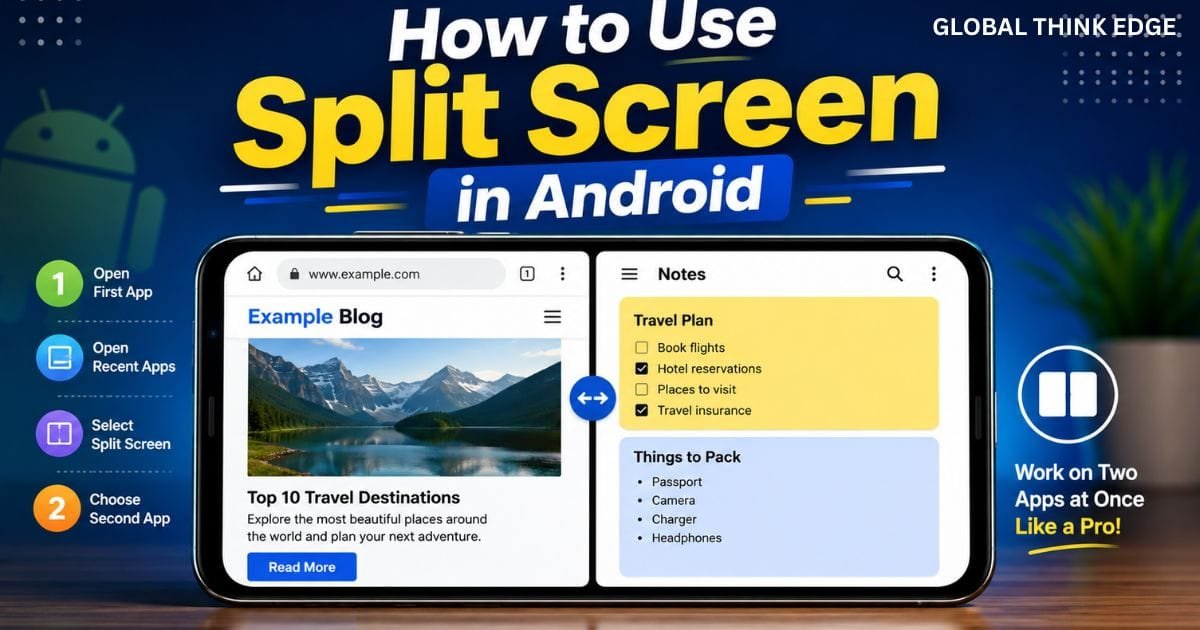
How to Use Split Screen in Android
The exact process depends on your device, but the general steps remain similar.
Method 1: Using the Recent Apps Screen
This is the most common method.
- Open your first app.
- Swipe up or tap the Recent Apps button.
- Tap the app icon at the top of the app preview.
- Select Split Screen or Open in Split Screen View.
- Choose your second app from the Recent Apps list or app drawer.
- Both apps will now appear together.
You can drag the divider between them to resize each window.
Method 2: Using Gesture Navigation
If your phone uses gestures:
Swipe up and hold to open Recent Apps.
Long-press or tap the first app’s icon.
Choose Split Screen.
Select the second application.
This method is available on many Android 12, Android 13, Android 14, and newer devices.
Method 3: Samsung Galaxy Phones
Samsung’s One UI provides additional multitasking tools.
Open Recent Apps, tap the app icon, and choose Open in Split Screen View.
Samsung also allows:
App Pair shortcuts
Edge Panel multitasking
Floating windows
Multi-window mode
These features make Samsung devices some of the most capable Android phones for multitasking.
How to Get Split Screen Mode on Android
Many users cannot find the feature because it depends on the phone model and Android version.
If Split Screen is missing:
Update Android to the latest version.
Enable gesture navigation if required.
Check whether the app supports split screen.
Restart the device.
Verify that your phone supports multi-window mode.
Budget phones with Android Go Edition sometimes remove advanced multitasking features.
How Do I Divide My Screen in Two?
Dividing the screen simply means placing one app on the top (or left in landscape mode) and another on the bottom (or right).
After enabling Split Screen:
Drag the center divider to adjust space.
Tap either app to make it active.
Both apps continue running simultaneously.
Rotate the phone for landscape multitasking.
Landscape mode often provides a better experience for larger displays.
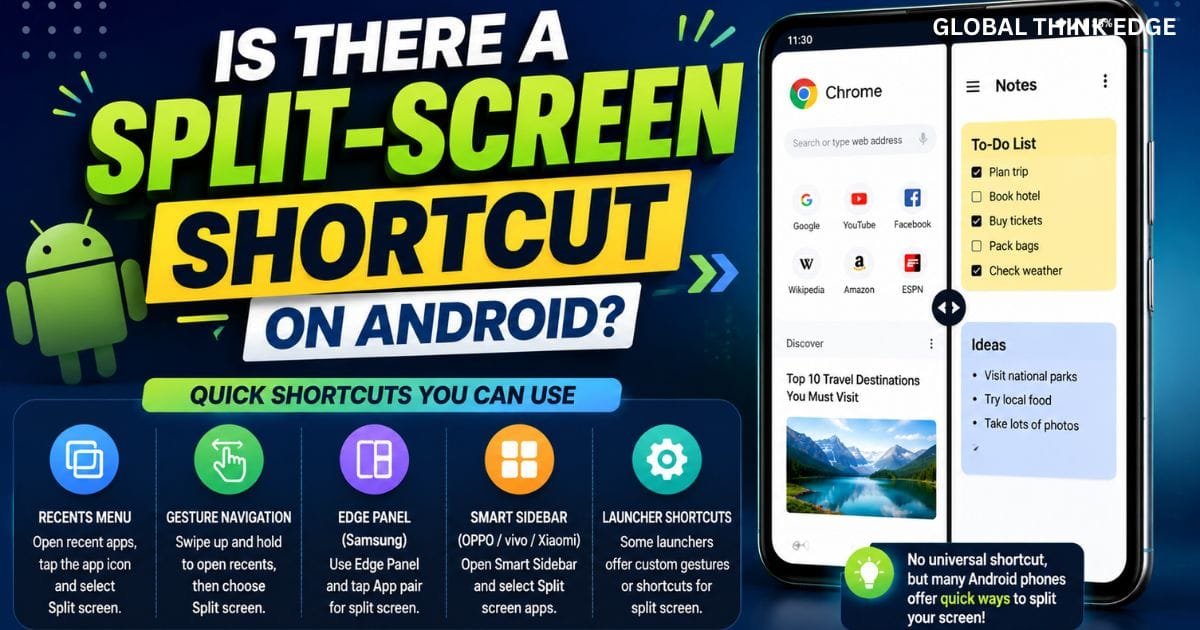
Is There a Split-Screen Shortcut on Android?
There isn’t one universal shortcut because Android manufacturers customize their software.
However, several brands offer quick methods.
| Brand | Available Shortcut |
| Samsung | Edge Panel App Pair |
| Google Pixel | Recent Apps menu |
| OnePlus | Recent Apps option |
| Xiaomi | Split Screen from multitasking menu |
| Motorola | Multitasking shortcut |
| OPPO | Smart Sidebar |
| Vivo | Easy Touch or Smart Sidebar |
Some launchers also provide gesture shortcuts for faster multitasking.
Best Uses for Android Split Screen
Split screen becomes more useful when paired with the right apps.
Some excellent combinations include:
| First App | Second App | Benefit |
| YouTube | Notes | Learn while taking notes |
| Chrome | Calculator | Shopping and calculations |
| Gmail | Google Docs | Write while reading emails |
| Maps | Messages | Share live locations |
| PDF Reader | Notes | Study efficiently |
| Browser | Translator | Read foreign-language content |
| Calendar | To-Do App | Better planning |
Choosing compatible apps provides a smoother experience.
Apps That Usually Support Split Screen
Most modern Android applications work well.
Examples include:
Chrome
Gmail
Google Docs
Google Sheets
YouTube
Google Maps
WhatsApp
Telegram
Microsoft Word
Microsoft Excel
Adobe Acrobat Reader
Samsung Notes
Some streaming apps, banking apps, and games intentionally disable split screen for security or performance reasons.
Apps That May Not Support Split Screen
Not every application allows multitasking.
Common examples include:
Certain mobile games
Banking applications
DRM-protected streaming apps
Camera applications
Some corporate security apps
If the Split Screen option does not appear, the application probably doesn’t support multi-window mode.
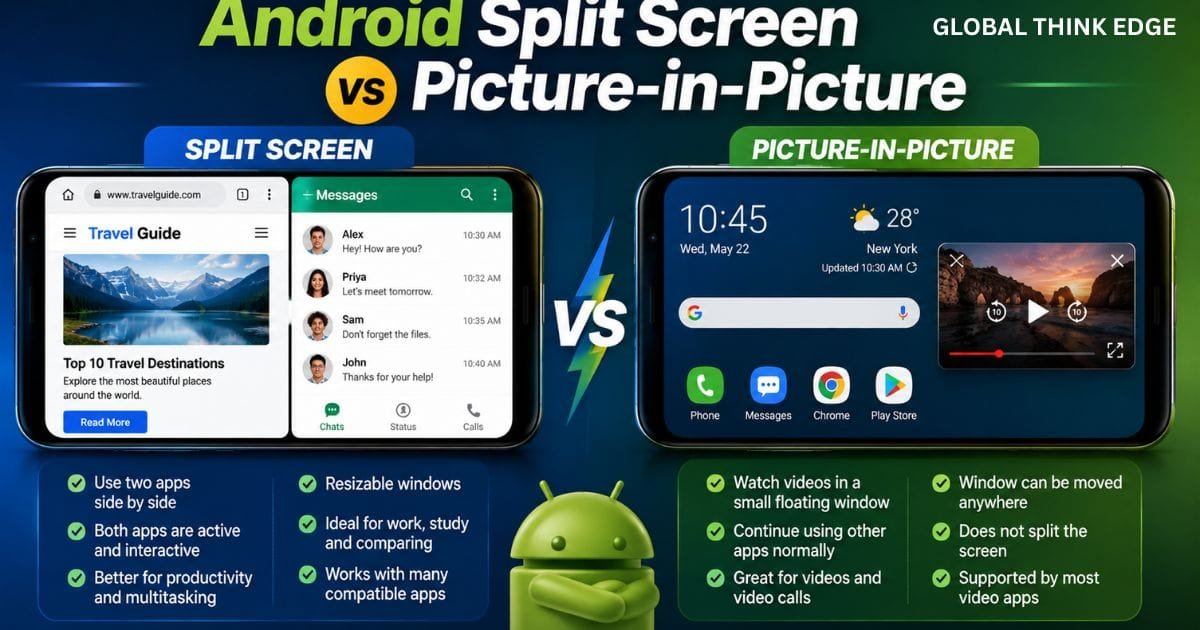
Android Split Screen vs Picture-in-Picture
| Feature | Split Screen | Picture-in-Picture |
| Two active apps | Yes | No |
| Resize windows | Yes | Small floating video only |
| Productivity | Excellent | Limited |
| Video playback | Yes | Yes |
| Interactive apps | Both apps | One app only |
Split screen focuses on multitasking, while picture-in-picture mainly keeps videos visible during other tasks.
Common Problems and Their Solutions
Split Screen Option Missing
Possible causes include the following:
Unsupported Android version
App restriction
Manufacturer limitation
Outdated software
Updating the phone often resolves the issue.
Second App Doesn’t Open
This usually happens because:
The app doesn’t support split screen.
Available RAM is low.
Battery Saver limits multitasking.
Close unnecessary apps and try again.
Apps Close Automatically
Older phones with limited memory may force one app to close.
Solutions include:
Free RAM.
Disable Battery Saver temporarily.
Restart the phone.
Update both apps.
Tips for Better Split-Screen Multitasking
To get the best experience:
Use landscape mode on larger screens.
Pair frequently used apps.
Close unnecessary background apps.
Keep Android updated.
Use phones with at least 6 GB RAM for smoother performance.
Avoid opening two resource-heavy games simultaneously.
Resize windows according to your task.
These small adjustments improve multitasking considerably.
Privacy and Battery Considerations
Running two apps at once increases CPU, GPU, and memory usage.
Keep these points in mind:
Battery drains faster.
RAM usage increases.
Phones may become warmer.
Background synchronization continues in both apps.
For longer battery life, avoid keeping split screen active when it’s unnecessary.
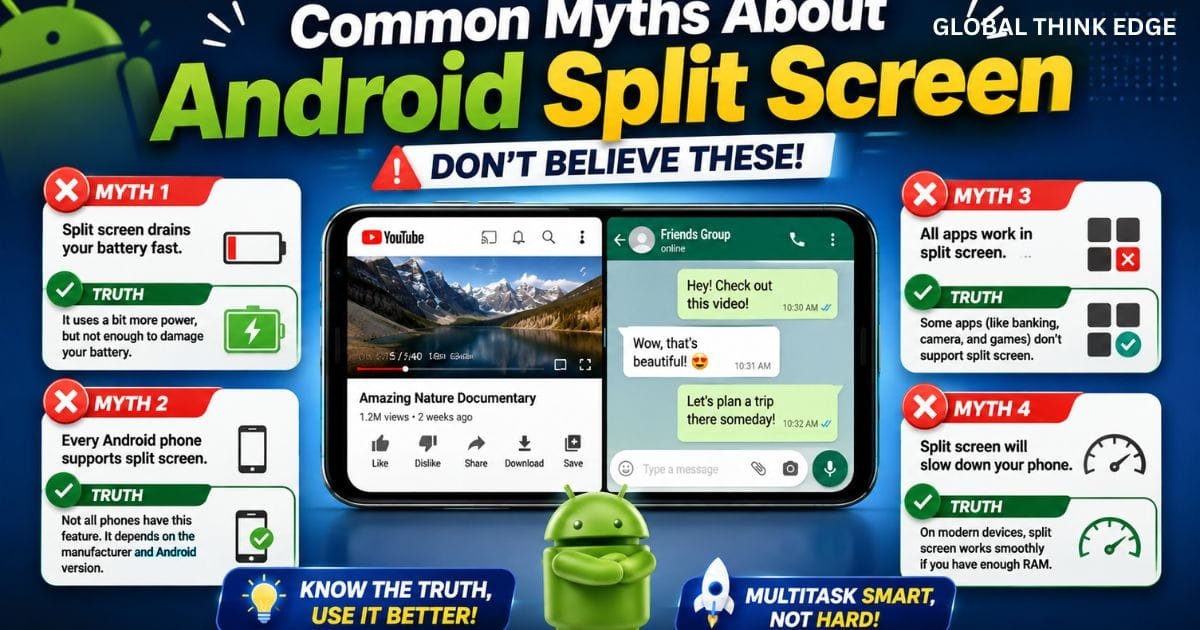
Common Myths About Android Split Screen
Myth: Every Android phone supports split screen.
Reality: Some entry-level devices or Android Go phones do not.
Myth: Split screen damages battery health.
Reality: It consumes more power temporarily but doesn’t directly damage battery health.
Myth: Every app supports split screen.
Reality: Developers can disable multi-window support.
Myth: Split screen slows every phone.
Reality: Modern devices handle it efficiently if sufficient RAM is available.
Expert Tips for Advanced Users
Power users can maximize multitasking by:
Using App Pairs on Samsung devices.
Combining split screen with picture-in-picture.
Creating work-focused home screens.
Using stylus-enabled devices for note-taking.
Keeping frequently used apps updated.
Using foldable phones for a larger multitasking workspace.
These techniques provide a desktop-like experience on Android.
Conclusion
Android Split Screen is one of the most practical multitasking features available on modern smartphones. It allows you to work, study, communicate, and browse more efficiently without constantly switching between apps.
Once you learn where the feature is located on your device, using two apps side by side becomes second nature. Whether you own a Samsung Galaxy, Google Pixel, OnePlus, Xiaomi, Motorola, or another Android phone, mastering split screen can noticeably improve your daily productivity.
Frequently Asked Questions
How do I use split screen in Android?
Open the first app, access the Recent Apps screen, tap the app icon, choose Split Screen, and then select your second app.
How to get split-screen mode on Android?
Use the Recent Apps menu, select the first app, tap Split Screen, and choose another compatible app. Some manufacturers also provide shortcuts through side panels or gestures.
How do I divide my screen in two?
Enable split screen from the multitasking menu and select a second app. Adjust the divider to change the size of each window.
Is there a split screen shortcut on Android?
Some manufacturers like Samsung, OPPO, and Vivo offer shortcuts through Edge Panels or Smart Sidebar, while others use the recent apps screen.
Why can’t I use split screen with every app?
Some apps disable multi-window support for security, compatibility, or performance reasons.
Does split screen consume more battery?
Yes. Running two active apps simultaneously increases CPU and RAM usage, leading to higher battery consumption compared to using one app at a time.
