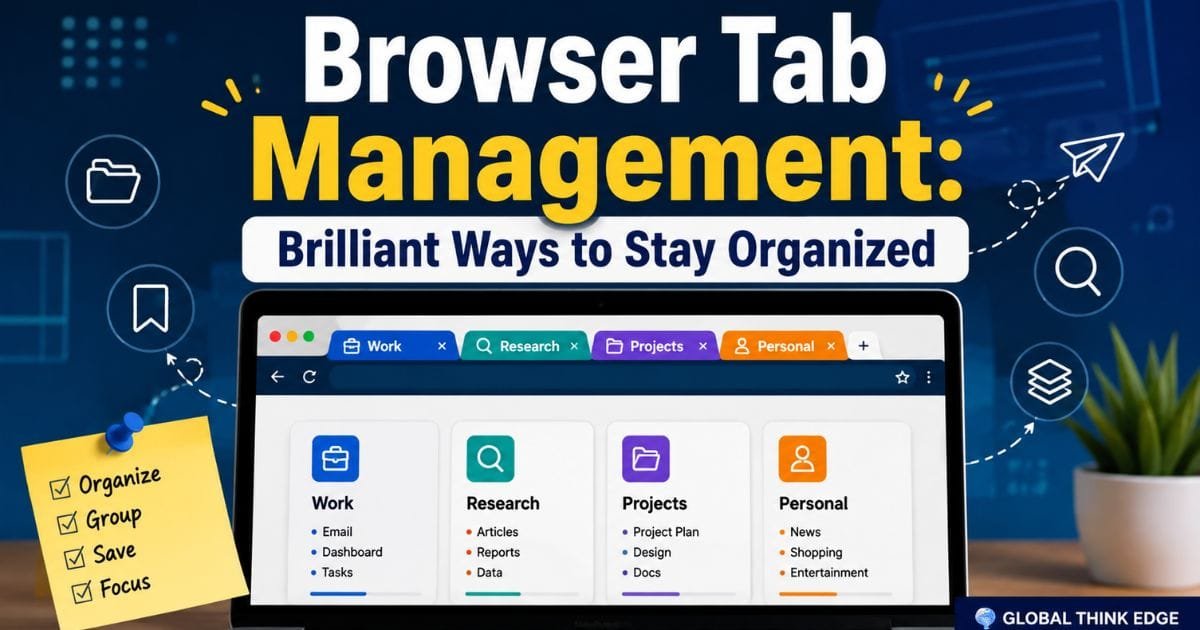
Browser Tab Management: Brilliant Ways to Stay Organized
Why Browser Tab Management Matters
Browser tab management is the practice of organizing, grouping, closing, saving, and switching between open browser tabs so you can work faster without losing important pages. A good system reduces clutter, improves focus, makes information easier to find, and can also reduce unnecessary browser resource usage.
Opening a few tabs is rarely a problem. The trouble begins when a research session turns into dozens of tabs, several windows, duplicate pages, and forgotten websites. At that point, finding the right tab becomes harder than finding the information you originally needed.
Effective browser tab management does not mean closing everything. It means giving each tab a purpose and using the browser’s built-in tools to keep active work separate from information you may need later.
The Main Problems Caused by Too Many Tabs
Large numbers of open tabs create several practical problems:
Important pages become difficult to locate.
Duplicate tabs waste screen space.
Constant tab switching interrupts concentration.
Research becomes harder to organize.
Browsers may consume more memory and battery resources.
Old tabs can remain open long after they are useful.
Multiple windows can make it difficult to remember where information is stored.
The solution is not simply to open fewer tabs. A better approach combines organization, regular cleanup, and intentional tab-saving habits.
How to Organize Browser Tabs Efficiently
The easiest way to improve browser tab management is to organize tabs according to what you are doing rather than treating every open page equally.
Group Tabs by Task
Use tab groups when several pages belong to the same project. For example, a content writer might create groups for research, publishing, analytics, and client work.
A useful structure could look like this:
| Tab Group | Typical Tabs |
| Research | Articles, studies, reference pages |
| Writing | CMS, document editor, notes |
| Marketing | Social platforms, email, campaign tools |
| Analytics | Search Console, analytics dashboard |
| Personal | Shopping, news, entertainment |
This approach makes related pages easier to find and prevents unrelated tasks from competing for attention.
Use Separate Windows for Different Workflows
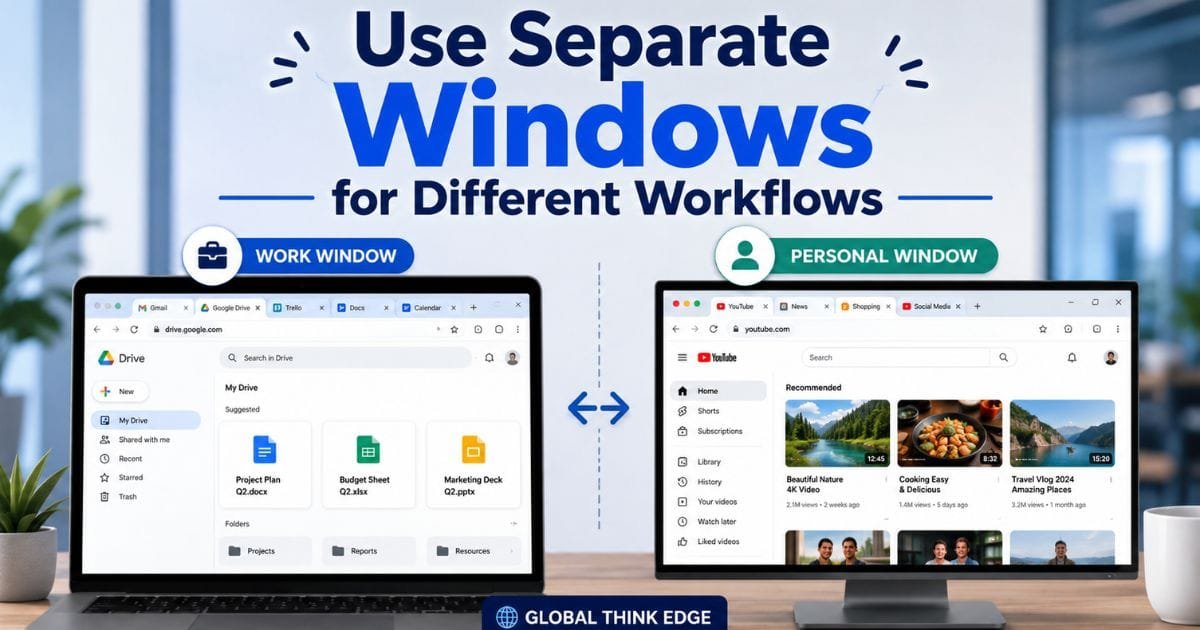
Tab groups are useful inside a workflow, while separate browser windows can create a larger boundary between unrelated activities.
For example, keep your work tabs in one window and personal browsing in another. During research, you can also maintain a dedicated research window rather than mixing reference material with everyday browsing.
This is especially helpful when your browser session contains many pages.
Pin Only High-Value Tabs
Pinned tabs are useful for websites you access repeatedly, such as email, calendars, project management tools, or frequently used dashboards.
However, pinning too many tabs defeats the purpose. A pinned tab should represent a persistent resource, not a page you might need for ten minutes.
A simple rule works well: if you would be annoyed to lose the tab when closing a window, consider whether it actually deserves to be pinned or saved instead.
How to Reduce Tab Clutter
Tab clutter usually develops gradually. A simple cleanup routine can stop it from becoming overwhelming.
Close Tabs That Have Served Their Purpose
When you finish reading an article, submitting a form, or completing a task, close the tab if you no longer need it.
Do not keep pages open merely because you might theoretically need them later. If the information matters, save it using bookmarks, reading lists, notes, or another knowledge-management system.
This creates a useful distinction:
Active information stays open. Future information gets saved. Finished information gets closed.
Close Duplicate Tabs
Duplicate tabs are common during research. You may open the same article from several search results, revisit a website through different links, or accidentally open the same page multiple times.
Before opening another copy, check your existing tabs. Closing duplicates immediately keeps the session easier to navigate.
Use the browser’s tab search.
Modern browsers often provide tab search or a similar feature that lets you find an open page by title or keyword.
This is particularly useful when dozens of tabs are open. Instead of scanning tiny tab labels from left to right, search for a distinctive word from the page title.
Tab search is often faster than manually hunting through a crowded tab bar.
When You Should Save a Tab Instead of Keeping It Open
Not every useful page needs to remain open.
If you expect to use a page later but do not need it during your current task, save it. Depending on your browser and workflow, you can use bookmarks, reading lists, saved collections, or a notes application.
Use Bookmarks for Long-Term Resources
Bookmarks work best for pages you expect to revisit repeatedly.
Examples include:
Documentation
Frequently used tools
Reference websites
Research sources
Important company pages
Tutorials you regularly consult
Organize bookmarks into meaningful folders rather than creating one giant collection.
Use Reading Lists for Temporary Research
A reading list is more suitable for articles or pages you want to read later.
This prevents your active workspace from becoming a storage area for unfinished reading.
The principle is simple: your tab bar should represent what you are doing now, not everything you might do someday.
Browser Tab Management for Better Productivity
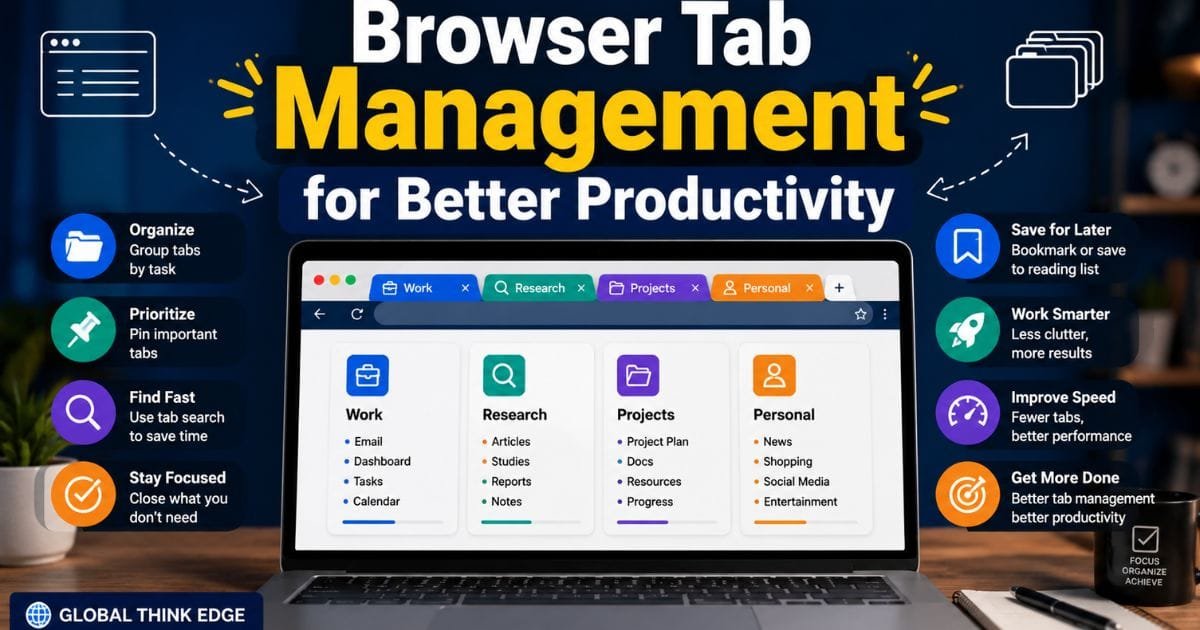
Good tab organization can improve productivity because it reduces the mental effort required to locate information.
Follow the One-Task Tab Rule
When working on a specific task, keep only the tabs required for that task visible or grouped together.
For example, if you are writing an article, you may need a document editor, a research source, an image resource, and an SEO tool. You probably do not need your shopping tabs, social media feeds, or unrelated news pages open at the same time.
This creates a cleaner working environment and reduces unnecessary context switching.
Use a Temporary Research Group
Research often requires many sources. Instead of leaving those pages open indefinitely, create a temporary research group.
Once the article, report, or project is complete, review the group:
- Keep genuinely useful sources.
- Save important references.
- Close outdated or duplicate pages.
- Remove the temporary group when finished.
This turns tab management into part of the workflow rather than a separate chore.
Browser Tab Management and Memory Usage
Open tabs can affect browser resource consumption, although the impact varies depending on the browser, extensions, and websites involved.
Modern browsers use techniques such as sleeping or suspending inactive tabs to reduce resource usage. A tab containing a simple document may have a very different impact from a tab running video, web applications, live dashboards, or complex scripts.
For that reason, tab count alone does not tell you how much memory your browser is using.
Check Resource Usage When Performance Drops
If your browser becomes slow, check its built-in task or performance manager when available. Look for tabs, extensions, or websites consuming unusually high amounts of memory or CPU.
Closing resource-heavy pages can sometimes improve responsiveness more effectively than randomly closing many lightweight tabs.

Best Browser Tab Management Habits
A reliable system does not need to be complicated. These habits provide a practical starting point:
Keep active tasks in organized groups.
Close completed tabs immediately.
Pin only frequently used resources.
Save future reading instead of leaving it open.
Remove duplicate tabs.
Use tab search when the tab bar becomes crowded.
Separate work and personal browsing into different windows.
Review inactive tabs regularly.
Avoid opening a new tab when an existing tab already contains the required page.
Save important information before closing a research session.
The goal is not to maintain a perfectly empty tab bar. The goal is to make every open tab understandable and useful.
Which Browser Features Help With Tab Organization?
Different browsers provide different combinations of tab groups, pinned tabs, sleeping tabs, vertical tabs, tab search, and session restoration.
| Feature | Best Use | Main Benefit |
| Tab Groups | Related projects | Keeps tasks organized |
| Pinned Tabs | Frequently used sites | Keeps important pages accessible |
| Tab Search | Large tab collections | Finds pages quickly |
| Vertical Tabs | Wide tab collections | Makes titles easier to scan |
| Sleeping Tabs | Inactive pages | Can reduce resource usage |
| Bookmarks | Long-term resources | Keeps useful pages outside the active workspace |
| Reading Lists | Later reading | Prevents research clutter |
You do not need every feature. Choose the ones that match how you browse.
A Simple Daily Tab Cleanup Routine
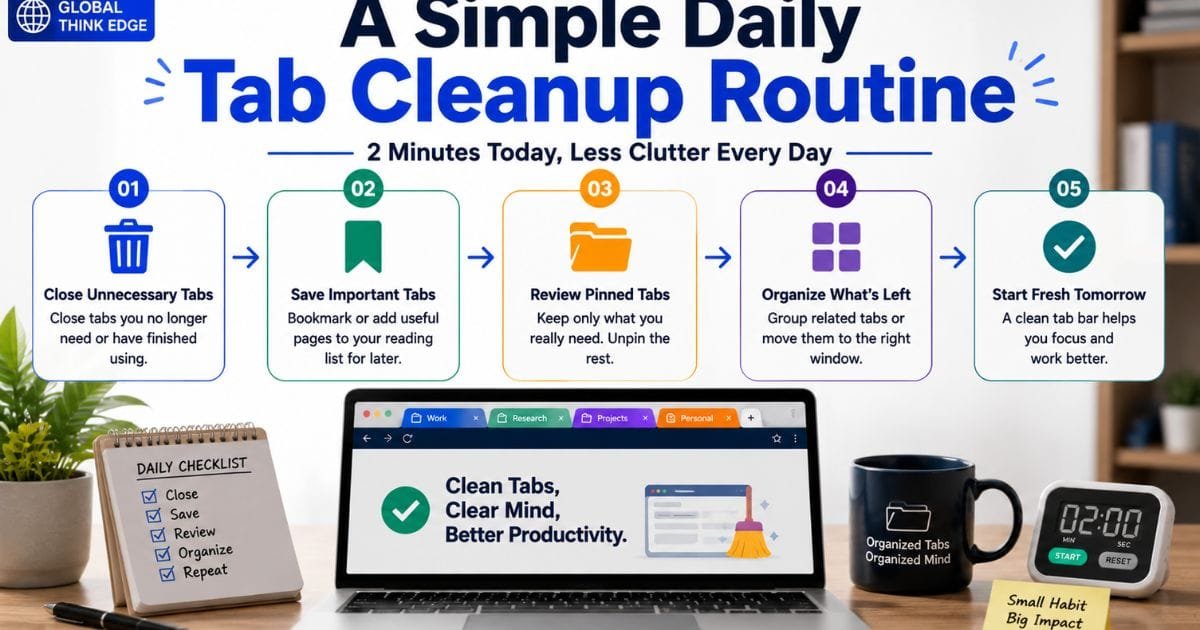
A two-minute cleanup at the end of a work session can prevent tab overload.
Start by closing pages that no longer have a purpose. Next, save useful references that you may need later. Then review pinned tabs and remove anything that has become unnecessary.
Finally, check whether your remaining tabs belong to a specific project. If they do, group them together or move them into a dedicated window.
Doing this consistently is much easier than trying to organize 50 or 100 tabs after weeks of accumulation.
Frequently Asked Questions
How many browser tabs should I keep open?
There is no universal ideal number. Keep enough tabs to support your current task, but save pages you do not actively need. The quality and resource demands of the tabs matter more than the number alone.
Is it better to use tab groups or bookmarks?
Use tab groups for active work and bookmarks for resources you expect to revisit. Tab groups organize your current workflow, while bookmarks provide longer-term storage.
Do too many tabs slow down a browser?
They can, particularly when tabs contain demanding web applications, video, live content, or background processes. Modern browsers may reduce the impact by putting inactive tabs to sleep, but heavy pages can still consume significant resources.
Should I close tabs every day?
A daily cleanup is useful, but you do not need to close every tab. Keep active project tabs and save anything that belongs to future work. This preserves useful context without allowing clutter to grow indefinitely.
Final Takeaway
Browser tab management works best when you treat tabs as temporary workspace rather than permanent storage. Group active tasks, close finished pages, save future resources, and use features such as tab search, pinned tabs, and sleeping tabs when they fit your workflow.
The best system is the one you can maintain consistently. With a few simple habits, even a busy browser session can remain organized, searchable, and easier to work with.
