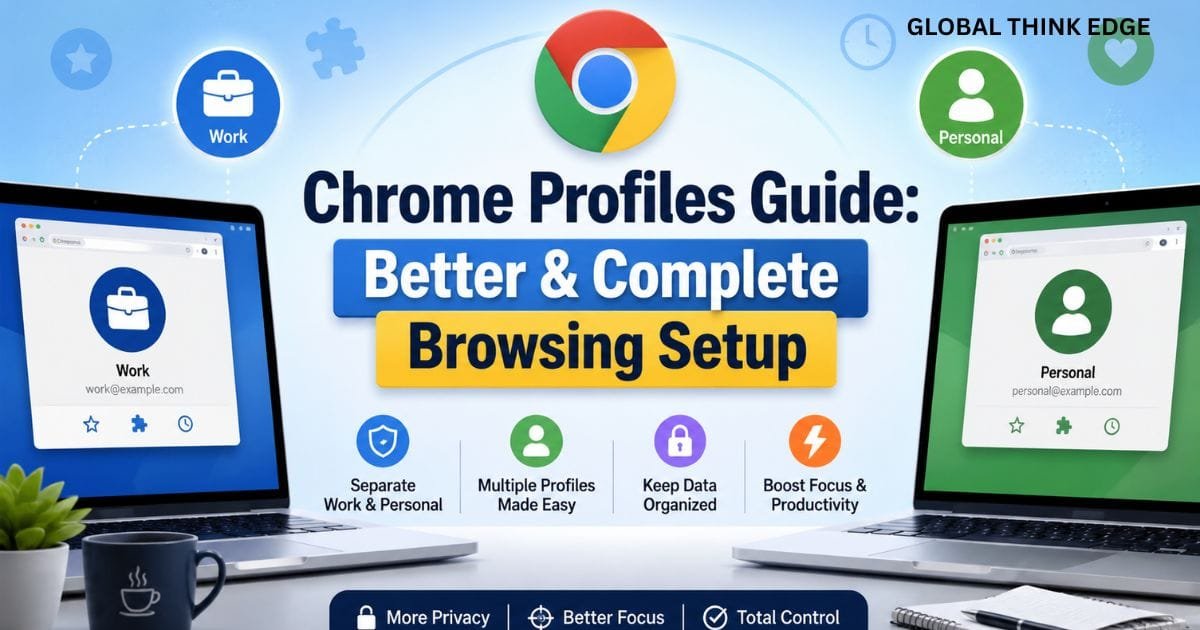
Chrome Profiles Guide: Better & Complete Browsing Setup
What Are Chrome Profiles and How Do They Work?
A Chrome Profiles Guide creates a separate browsing environment inside Google Chrome. Each profile can have its own bookmarks, browsing history, saved passwords, extensions, settings, themes, and other browser data.
This makes profiles useful when you want to keep work and personal browsing apart without installing another browser. They are also helpful when several people use the same computer.
For example, you could create a work profile for business accounts and a personal profile for everyday browsing. Switching between them keeps their browser information organized instead of mixing everything into one Chrome session. Google specifically recommends profiles for separating work and personal accounts or sharing a computer with other people.
A Chrome profile is different from simply signing into another Google account. The profile separates the browser environment itself, while account switching mainly changes which Google account you use within a service.
Why Should You Use Multiple Chrome Profiles?
The main advantage is separation. Instead of managing everything from one crowded browser environment, you can create dedicated spaces for different activities.
Keep Work and Personal Browsing Separate
A work profile can contain your company bookmarks, business extensions, work-related history, and professional Google account.
Your personal profile can remain focused on shopping, entertainment, personal email, social networks, and everyday browsing.
This separation also reduces the chance of accidentally using the wrong Google account when working with Gmail, Drive, Docs, or other services.
Organize Different Google Accounts
People who manage several businesses, websites, projects, or clients may find profiles easier than repeatedly signing out and signing back in.
Each profile can remain associated with its own account and browser data. If Chrome Sync is enabled, supported information can also be saved to the associated Google Account and made available on other signed-in devices.
Share a Computer More Easily
Chrome profiles can help multiple trusted users maintain separate browsing environments on the same computer.
However, profiles are not a security boundary. Google warns that someone using your device may be able to switch to other Chrome profiles and see information stored there.
For stronger separation between people, use separate operating-system accounts instead of relying only on Chrome profiles.
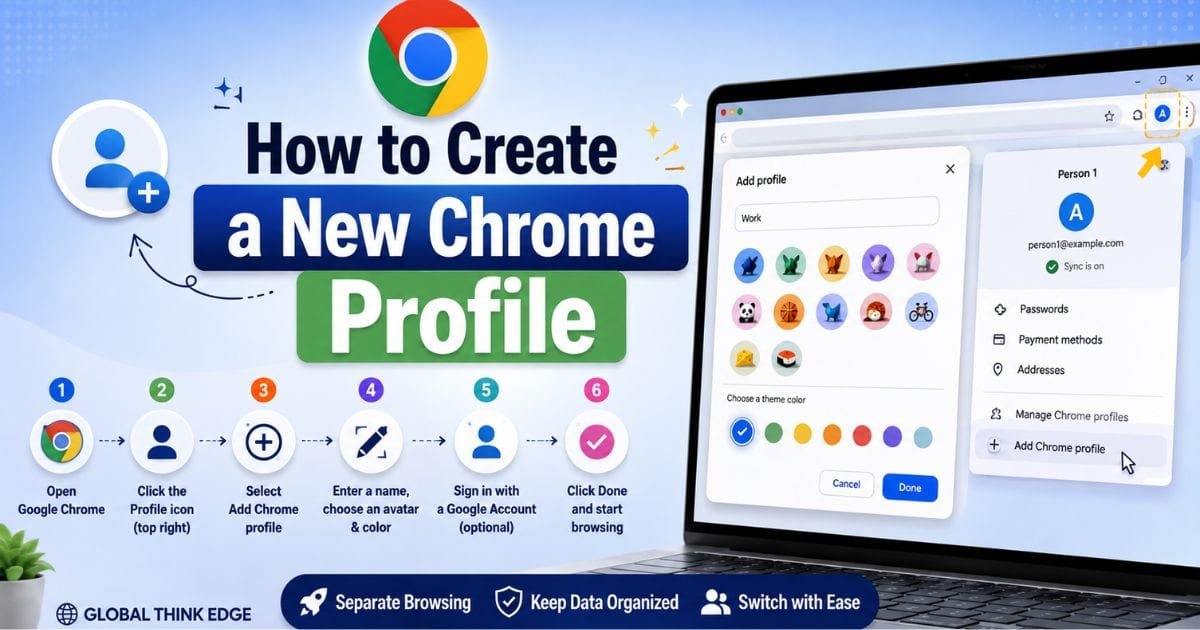
How to Create a New Chrome Profile
Creating a profile on desktop takes only a few steps.
- Open Google Chrome.
- Select the Profile icon in the top-right corner.
- Choose Add Chrome profile.
- Select a name, profile picture, and color scheme.
- If desired, sign in with a Google Account.
- Complete the setup and begin browsing.
If you sign in to Chrome with a Google Account, supported bookmarks, passwords, and other settings can sync with that account across compatible devices.
Choose descriptive names such as Work, Personal, School, or Client A. A different color for each profile also makes it easier to identify the active browser environment.
How to Switch Between Chrome Profiles
Switching profiles on a computer is straightforward.
Click the Profile icon in Chrome’s top-right corner, then select the profile you want to use. Chrome opens that profile’s browsing environment.
You do not need to repeatedly sign out of one Google Account to use another profile. Each profile can maintain its own browser session.
This is particularly useful when you regularly move between work and personal tasks.
Can Two Chrome Profiles Be Open at the Same Time?
Yes. On desktop, you can have multiple Chrome profiles open simultaneously.
Each profile can run in its own Chrome window. For example, you could keep your work profile open on one monitor while your personal profile remains open on another.
This is one of the biggest differences between Chrome profiles and simple Google account switching.
The profiles can maintain separate tabs, extensions, bookmarks, history, and other browser settings. This makes simultaneous workflows much easier to manage.
Can You Switch Profiles Without Opening a New Window?
Not in the sense of turning the current window into another profile while keeping everything in exactly the same session.
Chrome profiles are designed as separate browser environments, so selecting another profile generally opens or brings forward a window associated with that profile.
If your goal is simply to use two Google accounts within the same browser environment, Google’s account-switching features may be more appropriate. However, account switching does not provide the same level of browser-data separation as separate Chrome profiles.
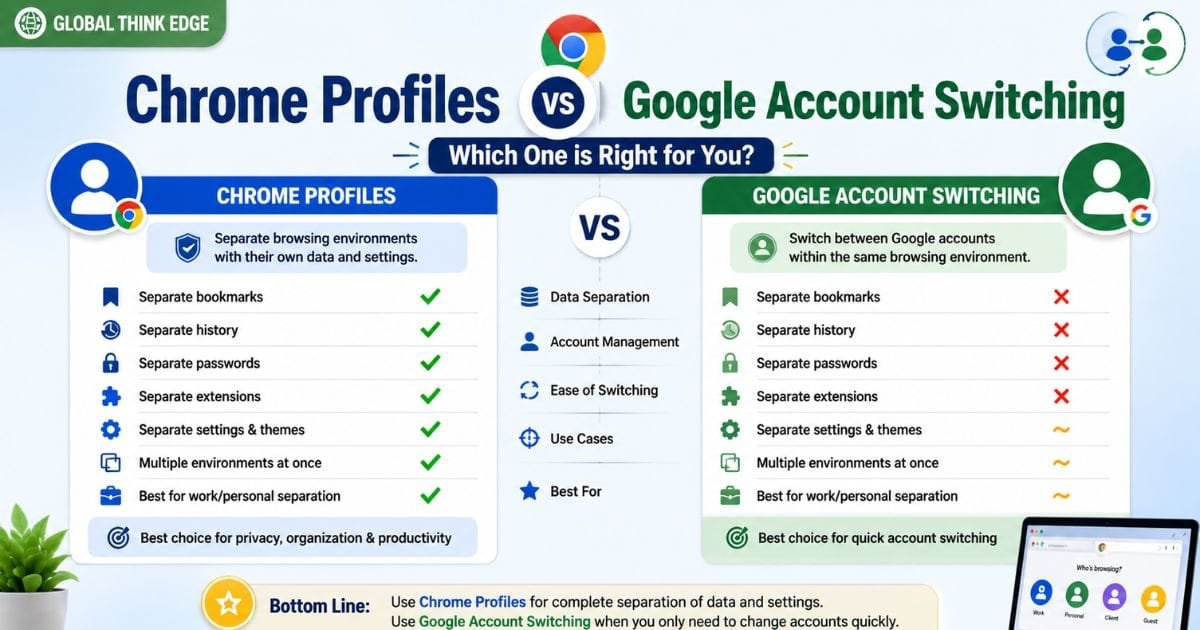
Chrome Profiles vs Google Account Switching
These two features are easy to confuse, but they solve different problems.
| Feature | Chrome Profiles | Google Account Switching |
| Separate bookmarks | Yes | No |
| Separate browser history | Yes | No |
| Separate extensions | Yes | No |
| Separate browser settings | Yes | No |
| Separate Google accounts | Yes | Yes |
| Multiple environments at once | Yes, on desktop | Depends on the service |
| Best for work/personal separation | Yes | Limited |
| Best for quickly changing accounts | Good | Yes |
If you need genuinely separate browser environments, profiles are the better choice. If you only need to move between Google accounts inside a service, account switching may be enough.
Chrome Profile Settings You Can Customize
Chrome lets you personalize individual profiles so you can recognize them quickly.
You can change the profile’s
Name
Picture
Color them
Associated Google Account
Browser settings
Extensions
Bookmarks
Other profile-specific preferences
To edit a profile, open the Profile menu, go to Manage Chrome profiles, select the relevant profile, and choose its edit option. Google states that profile name, picture, and color changes are saved automatically.
A simple naming system can make multiple profiles much easier to manage.
For example:
Blue: Personal
Green: Work
Red: Client Projects
Purple: Testing
The exact colors do not matter. Consistency does.
Chrome Profiles and Privacy
Chrome profiles improve organization, but they should not be treated as private vaults.
Someone with access to your unlocked computer may be able to switch between profiles. Google notes that another person who opens a Chrome profile can potentially see information such as websites you have visited.
For shared computers, protect the operating-system account with a strong password or other supported authentication method.
Also remember that signing into Chrome can enable synchronization of supported browser data with your Google Account. Review Chrome’s sync settings if you want greater control over what information is stored with the account.
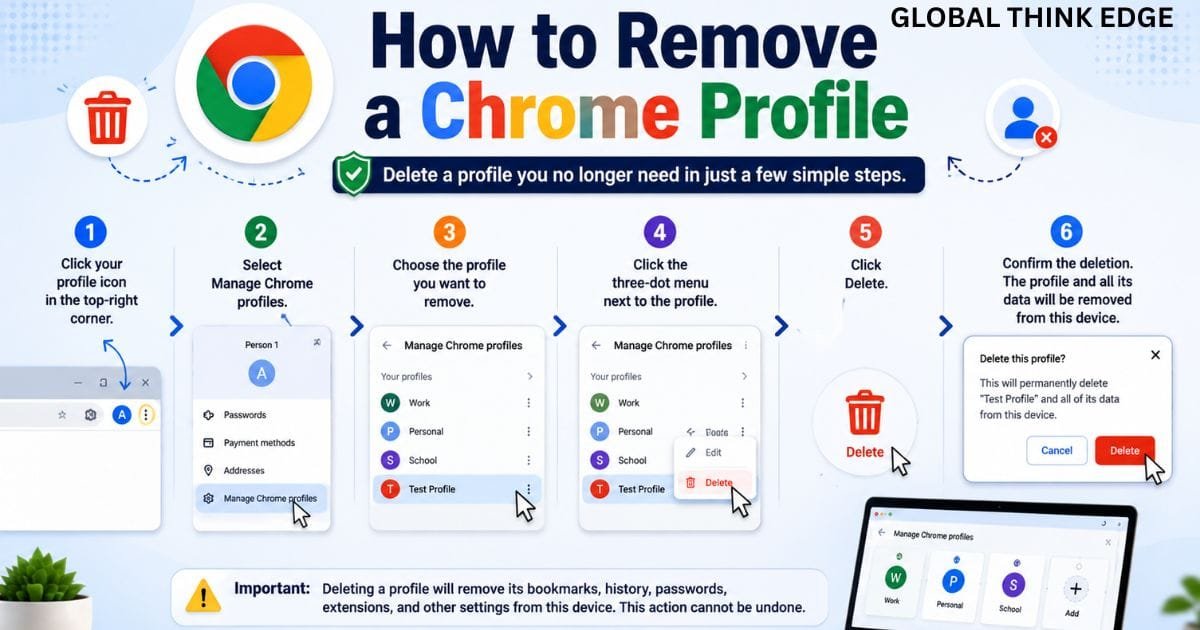
How to Remove a Chrome Profile
You can delete a profile that you no longer need.
Open Chrome’s profile menu, select “Manage Chrome profiles,” choose the profile, open its menu, and select “Delete.”
Be careful before confirming. Google states that removing a Chrome profile erases that profile’s bookmarks, history, passwords, and other settings from the computer.
If important information exists only locally, back it up before deleting the profile.
Chrome Profiles on Android and iPhone
Chrome’s profile behavior differs between desktop and mobile devices.
On Android, Google currently states that Chrome supports only one Chrome profile on the device. If another person needs to use Chrome, Android’s device-user functionality may be used where supported.
On iPhone and iPad, Chrome provides account-based separation for work and personal browsing, allowing users to switch between accounts and keep related browsing information associated with the selected account.
Therefore, desktop Chrome provides the most complete multiple-profile experience.
Best Ways to Manage Multiple Chrome Profiles
Use a simple system rather than creating profiles for every small task.
1. Create profiles around major workflows.
Work, personal browsing, school, and testing are reasonable categories.
2. Give every profile a clear name.
Avoid generic names that make it difficult to identify the correct environment.
3. Use different colors.
Visual differences help prevent accidental account switching.
4. Keep extensions relevant.
Installing unnecessary extensions in every profile can make management harder.
5. Review synchronization settings.
Know which browser information is being associated with each Google Account.
6. Protect your computer account.
Chrome profiles are organizational tools, not substitutes for device-level security.
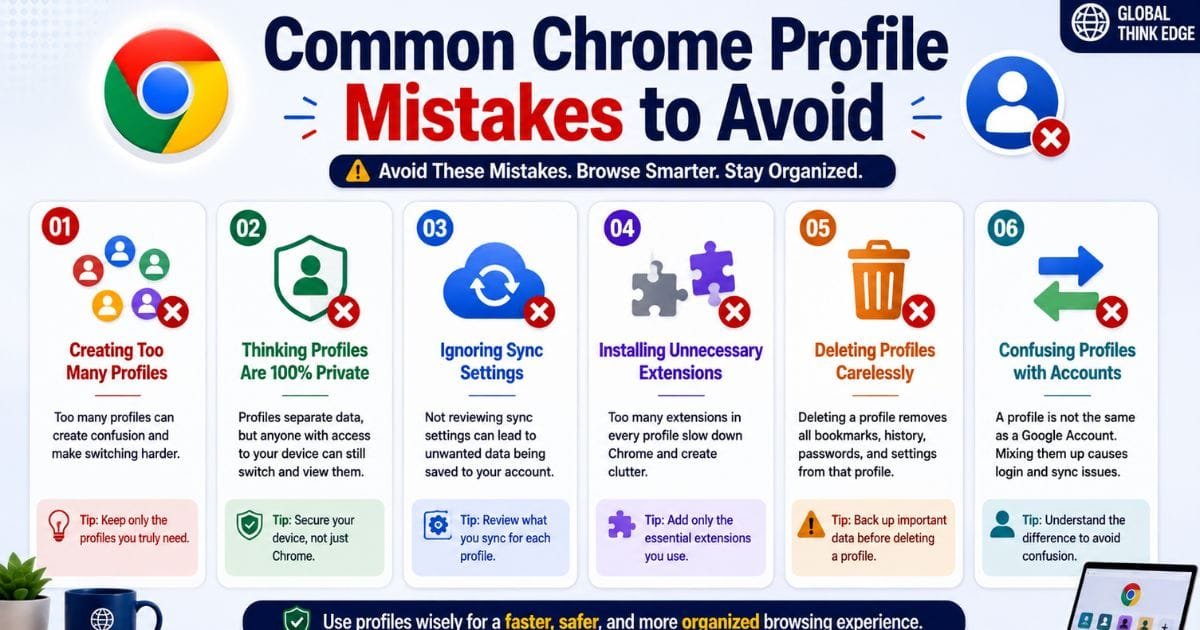
Common Chrome Profile Mistakes to Avoid
One common mistake is assuming that a Chrome profile completely protects information from another person who can access the computer.
Another is creating too many profiles. Excessive profiles can make account management more confusing instead of simplifying it.
Users also sometimes confuse a Chrome profile with a Google Account. They are connected concepts, but a profile controls the broader browser environment.
Finally, do not delete a profile casually. Local browser information associated with that profile can be removed from the computer when the profile is deleted.
Frequently Asked Questions
How do I use profiles in Google Chrome?
On a computer, open Chrome, select the Profile icon, choose Add Chrome profile, and create a separate environment. You can later switch profiles from the same profile menu.
What are the different Chrome profiles?
Chrome does not require specific profile types such as “work” or “personal.” You can create profiles for whatever purpose you need, including work, personal browsing, school, testing, or separate projects.
Can I have two Chrome profiles open at once?
Yes. Desktop Chrome allows multiple profiles to operate in separate windows simultaneously. This lets you work with different browsing environments without repeatedly signing out of accounts.
Is a Chrome profile the same as a Google Account?
No. A Chrome profile is a browser environment. A Google Account is an online account used across Google services. A Chrome profile can be connected to a Google Account, but the two are not identical.
Are Chrome profiles secure?
They provide separation and organization, but they are not designed as strong privacy barriers between people using the same unlocked device. Anyone with sufficient access to the computer may be able to switch profiles.
Final Takeaway
Chrome profiles are one of the simplest ways to separate different browsing environments on a computer. They can keep work and personal bookmarks, history, passwords, extensions, and settings organized while allowing multiple profiles to remain active.
For professionals managing several accounts, shared computers, or separate workflows, profiles can reduce clutter and prevent many everyday account mix-ups.
The key is to use them as an organization and workflow feature, not as a replacement for device security. With clear profile names, distinct colors, sensible extensions, and properly reviewed sync settings, Chrome profiles can make everyday browsing much easier to manage.
